¶ Employee Shift Allocation
¶ Overview
The Employee Shift Allocation module is used to assign shifts to employees based on the selected Department, Designation, and Month. It supports both individual and bulk shift allocation. Once shifts are allocated and saved, they are automatically reflected in the Attendance Management module.
¶ How to Navigate to Employee Shift Allocation
Follow these steps to reach the Employee Shift Allocation screen:
- Navigate to Shift Allocation.
- Click Management.
- The Shift Allocation screen will be displayed.
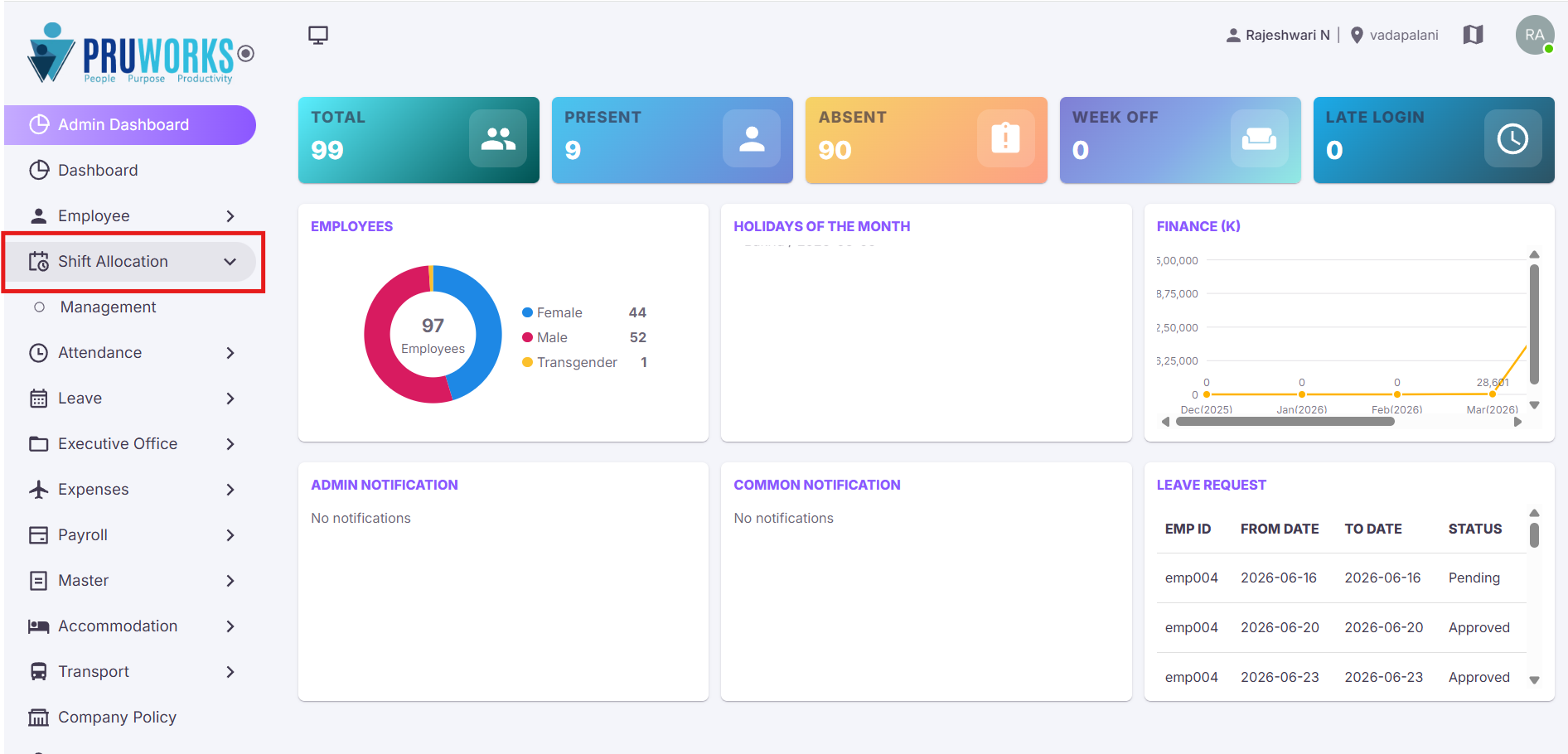
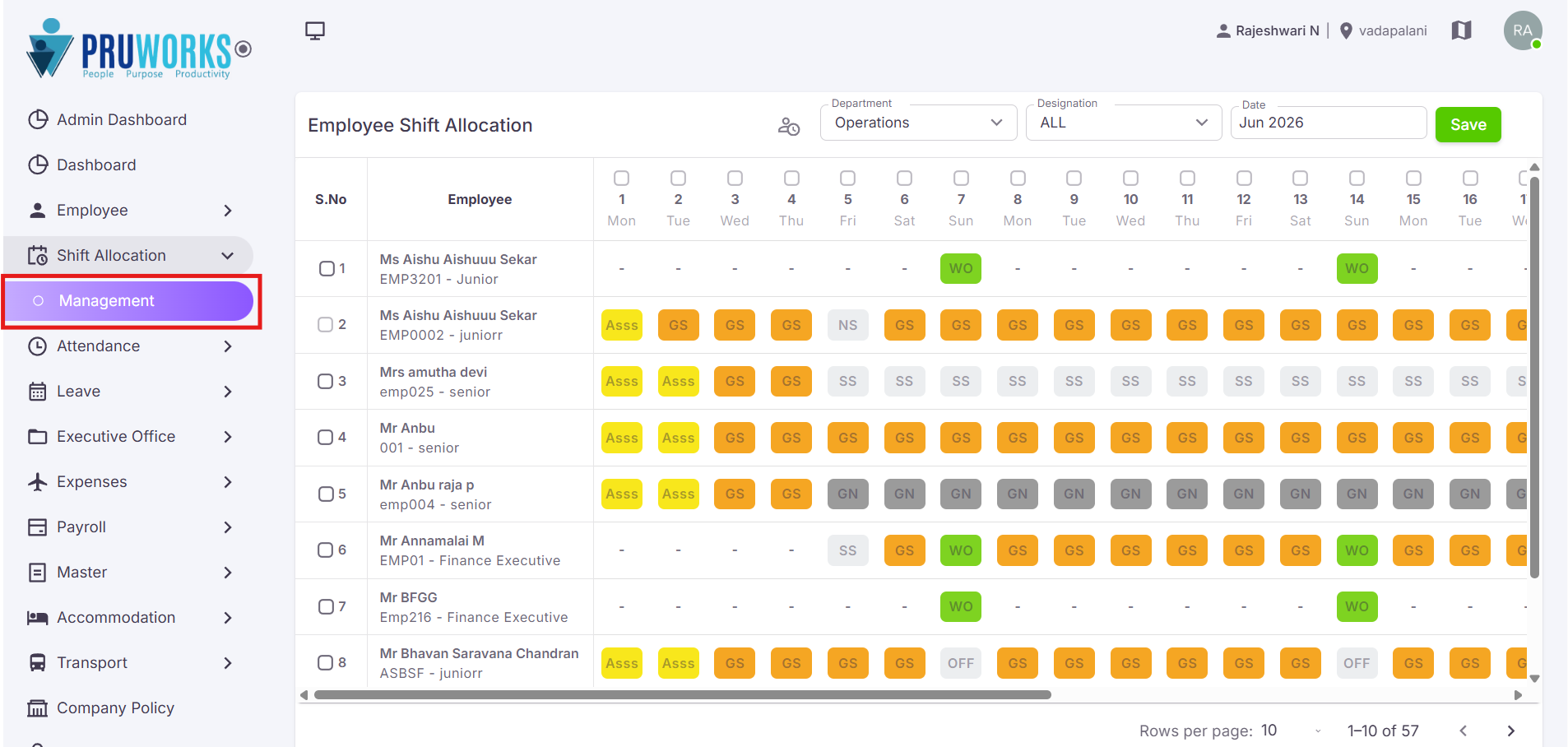
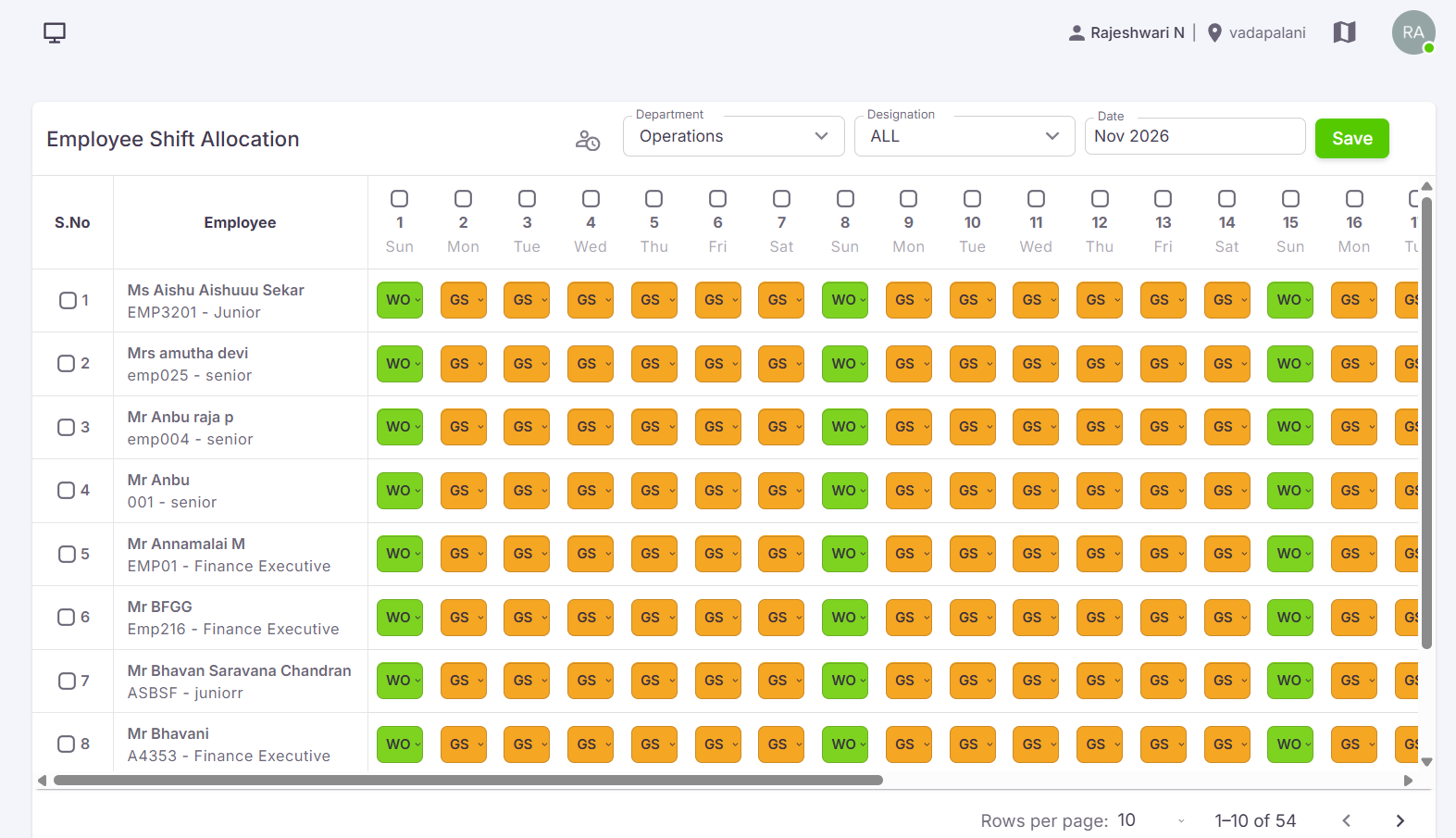
Only users with Employee Shift Allocation permission can access this module.
¶ What You Can Do Here
¶ Shift Allocation
The Shift Allocation screen is used to assign shifts to employees for specific dates. Use the steps below to filter the employee list and allocate shifts for the selected month.
¶ Open Employee Shift Allocation
Navigate to the Employee Shift Allocation module to begin assigning shifts to employees.
¶ Filter Employees
Use the following filters to search for employees:
| Filter | Description |
|---|---|
| Department* | Select the required department. |
| Designation* | Select the required designation. |
| Month* | Choose the month for which shift allocation needs to be performed. |
After selecting the required filters, the corresponding employee list will be displayed.
¶ Allocate Shifts
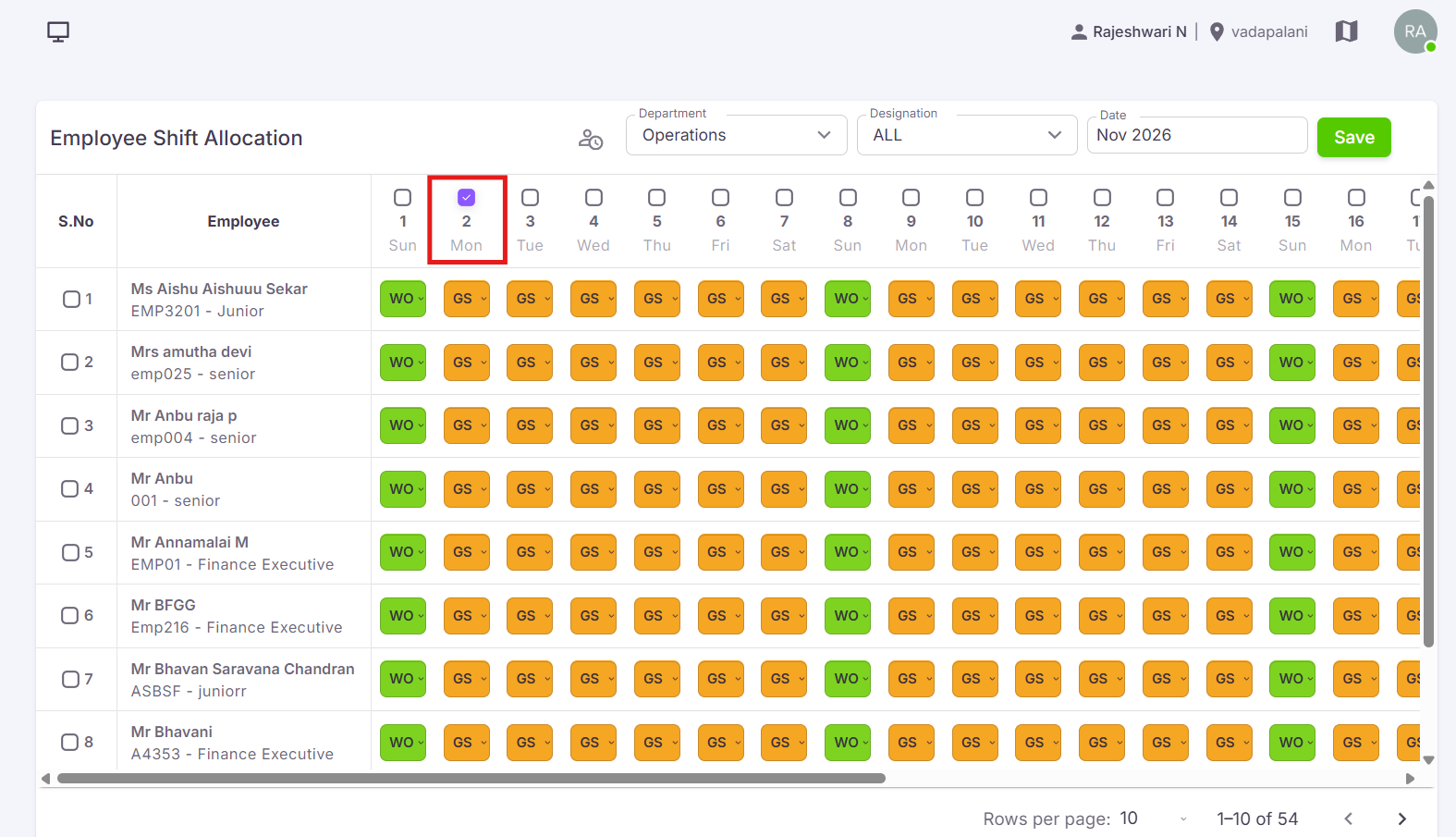
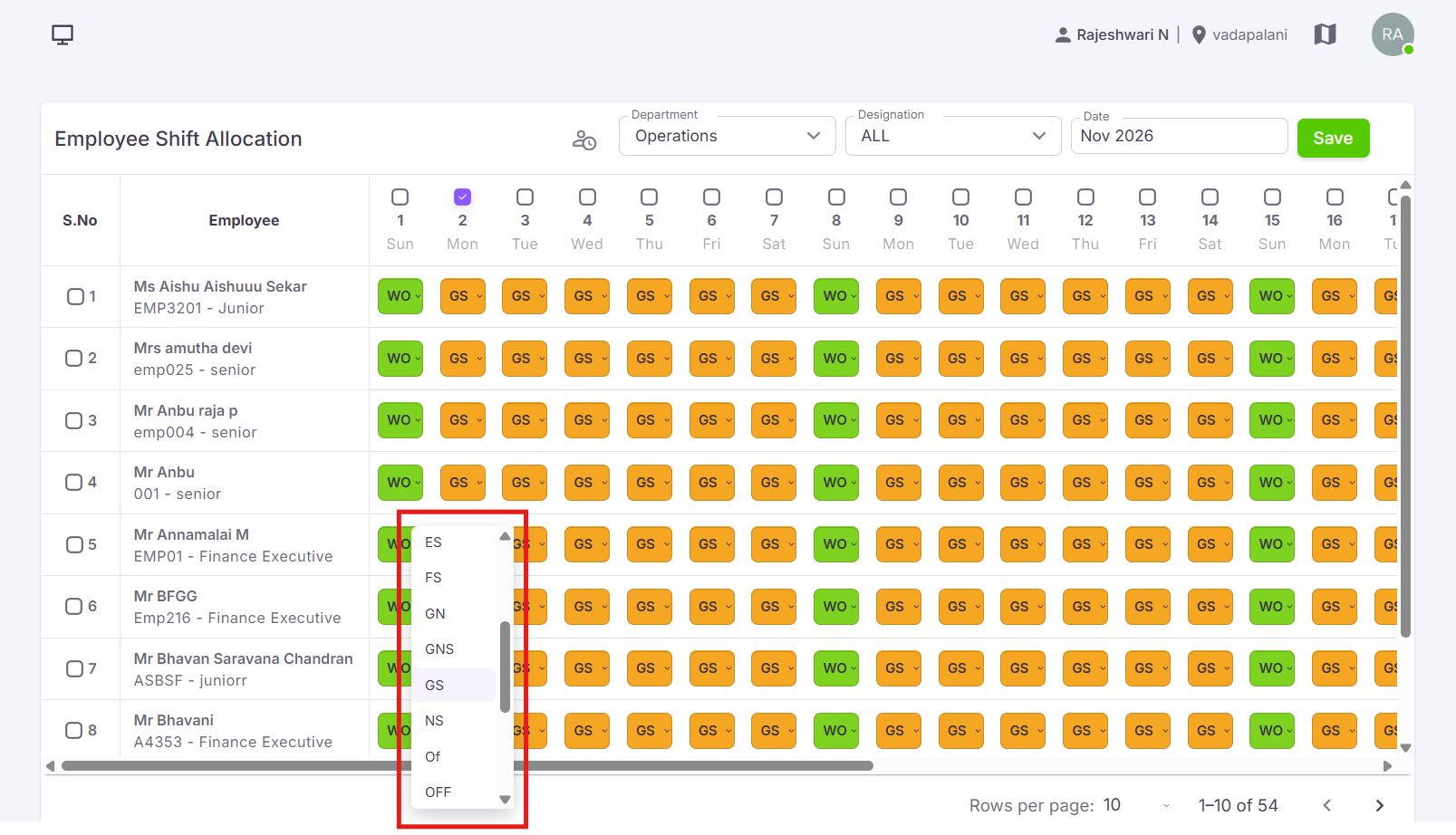
Locate the required employee from the displayed list. The selected month's calendar will be displayed. Select the required date and choose the appropriate shift for that day.
¶ How it works:
- Find the employee row in the list.
- Click on the desired date cell within the calendar.
- Click the dropdown and Choose the appropriate shift from the options shown.
- Repeat for all required dates within the selected month.
¶ Save Shift Allocation
After assigning shifts to the employee, review the allocation details and click Save to store the shift schedule.
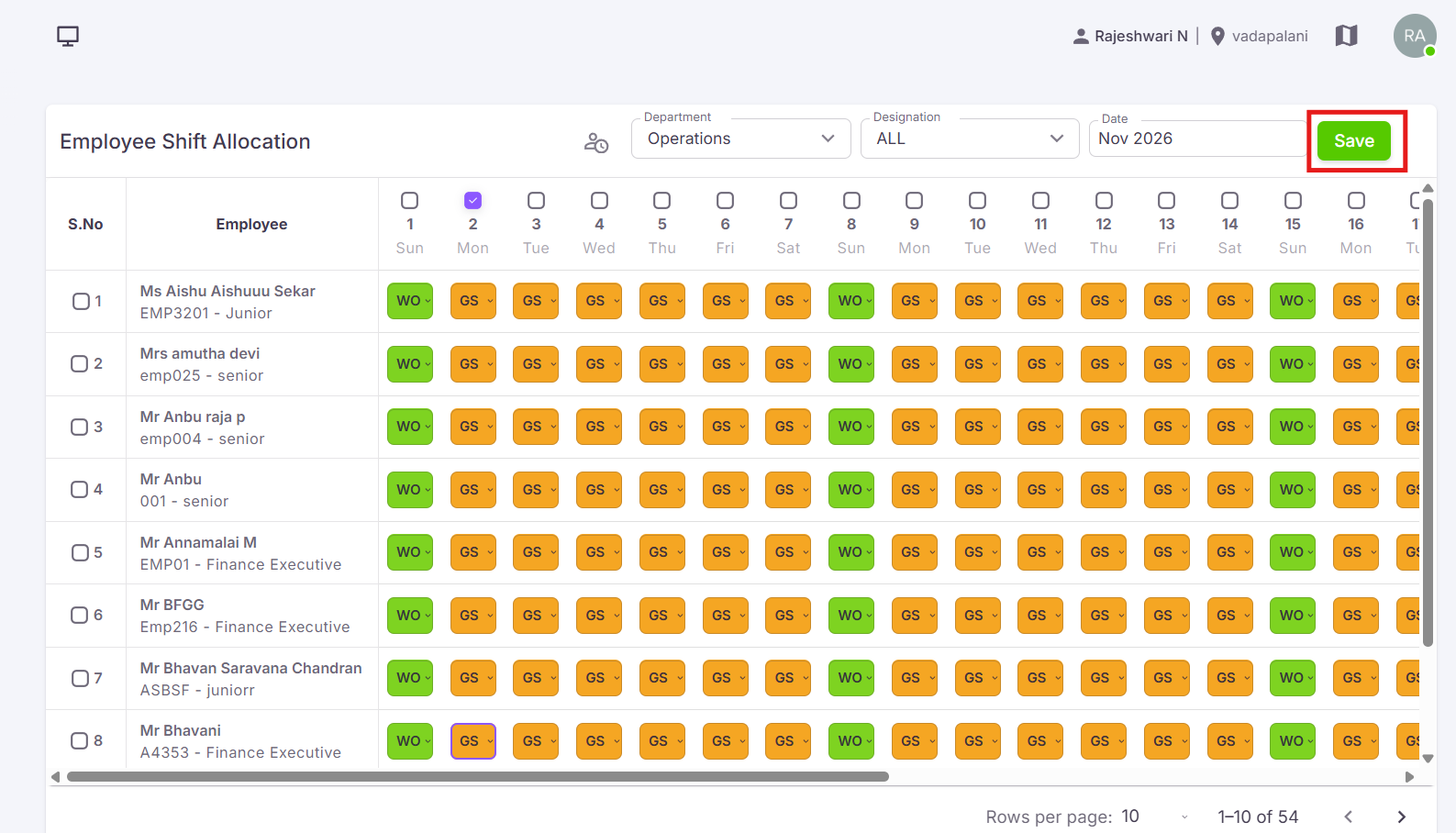
✓ The allocated shifts will be recorded and applied to the selected employee for the specified dates.
¶ Bulk Shift Allocation
The Bulk Shift Allocation option is used to assign shifts to multiple employees at the same time. The Employee Shift Allocation screen provides checkboxes for bulk shift assignment.
¶ How to use Bulk Allocation:
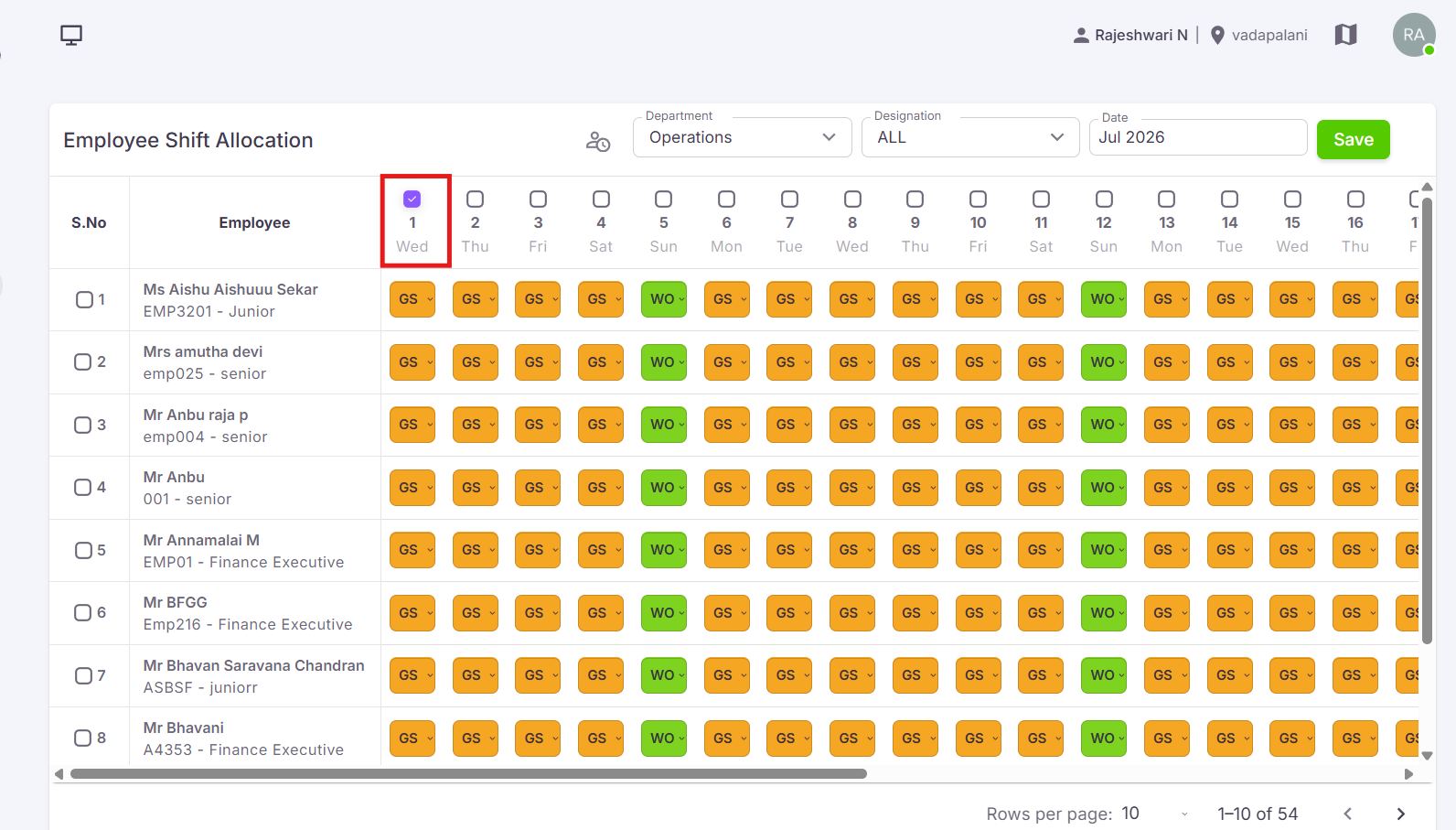
- Select the checkbox displayed at the top of the required date column.
- Click the dropdown and Choose the required shift.
- The selected shift will be assigned to all employees for that date.
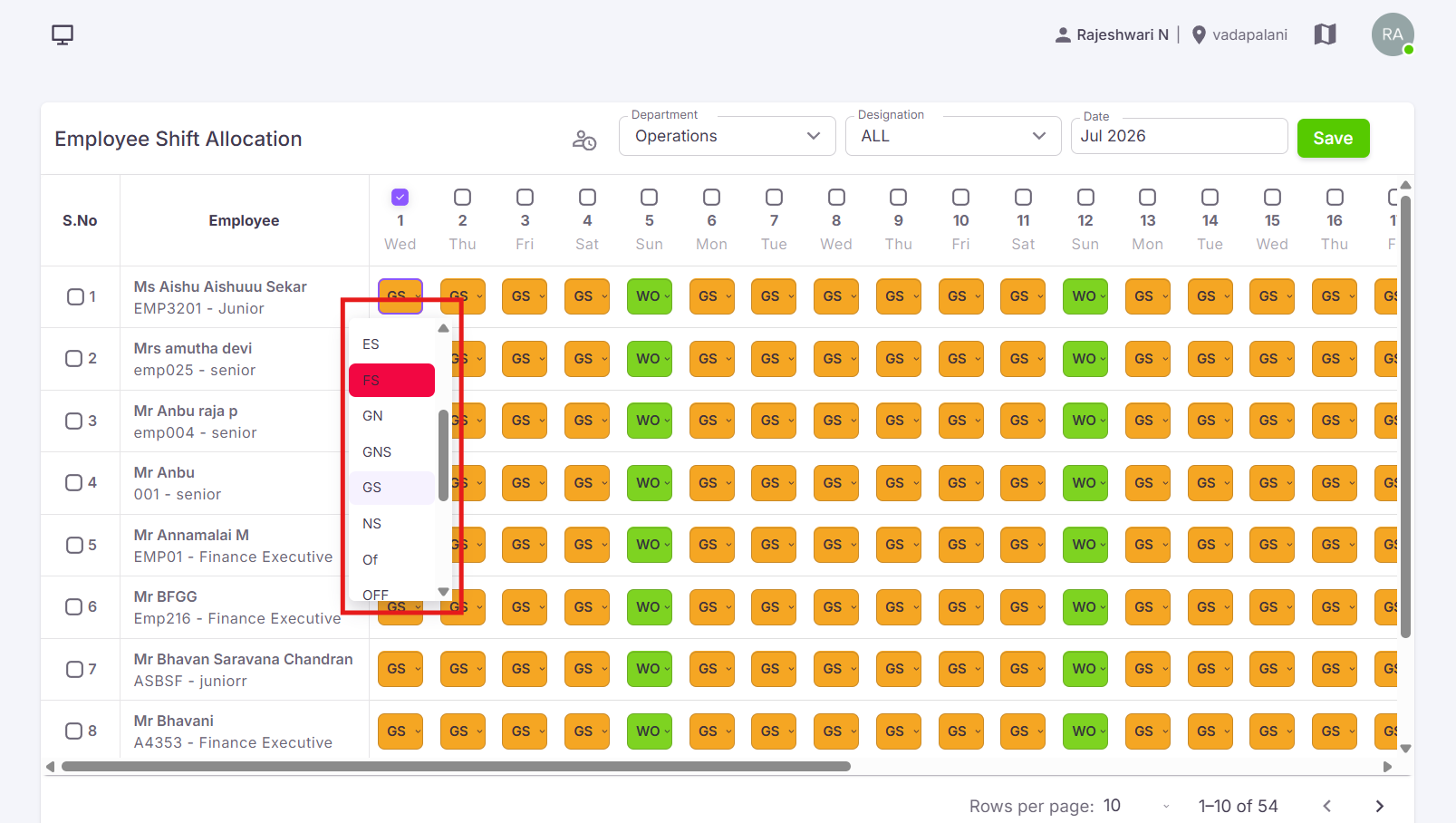
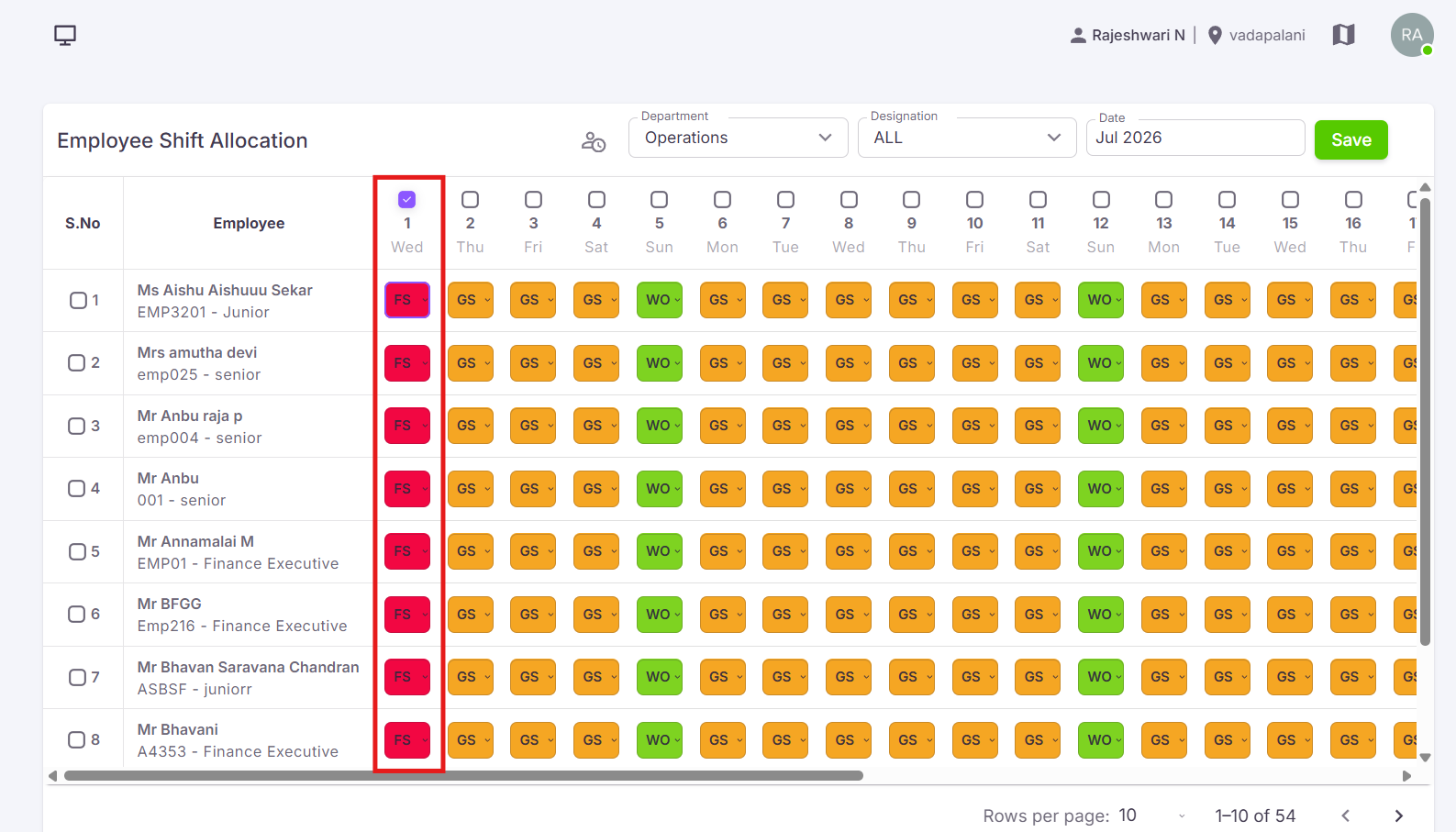
💡 This feature helps reduce manual effort and enables quick shift allocation across the team.
¶ Shift Legend
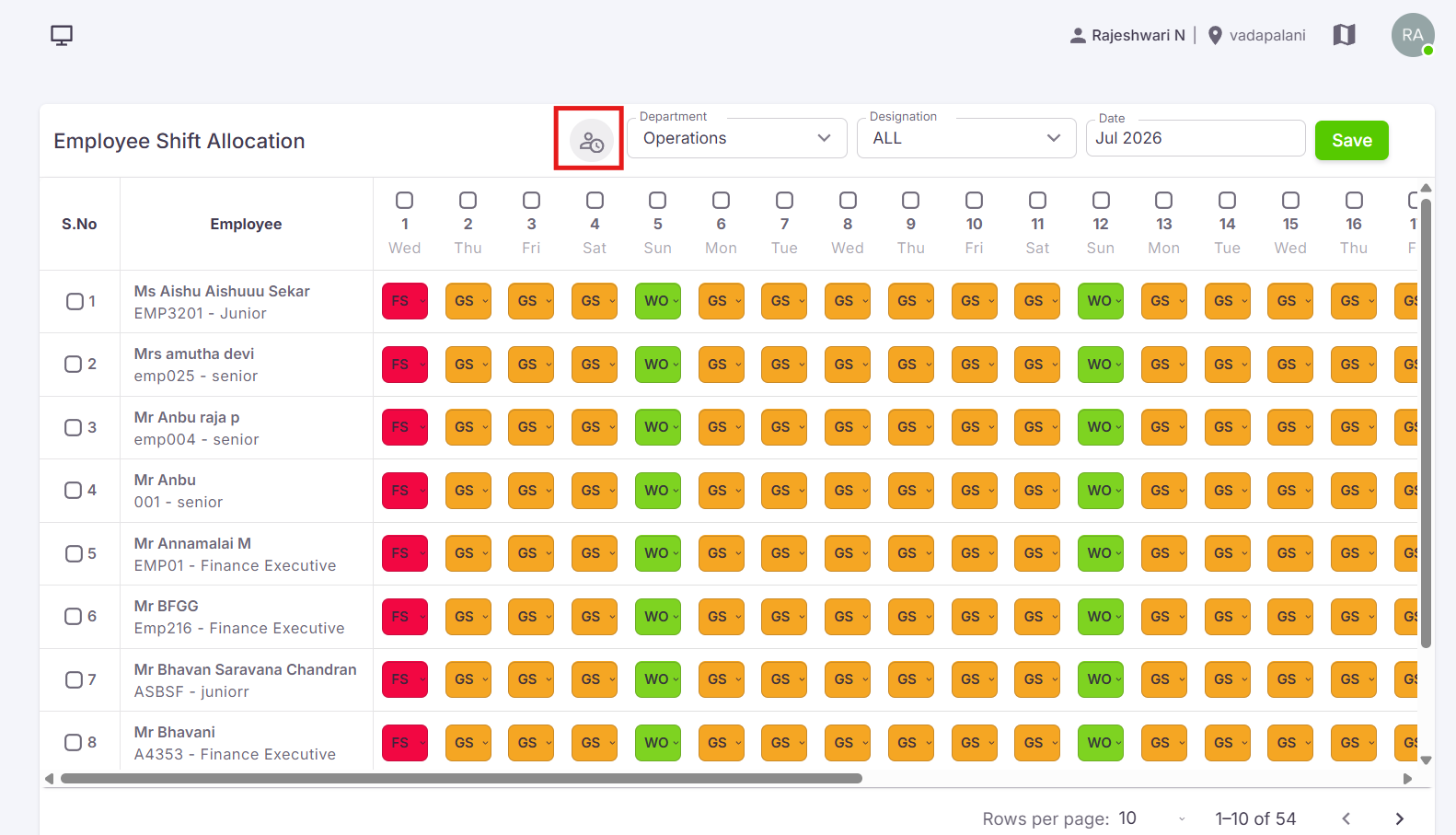
The Shift Legend option is used to view available shifts along with their timings and colour codes. Click the Shift Legend icon to view shift details.
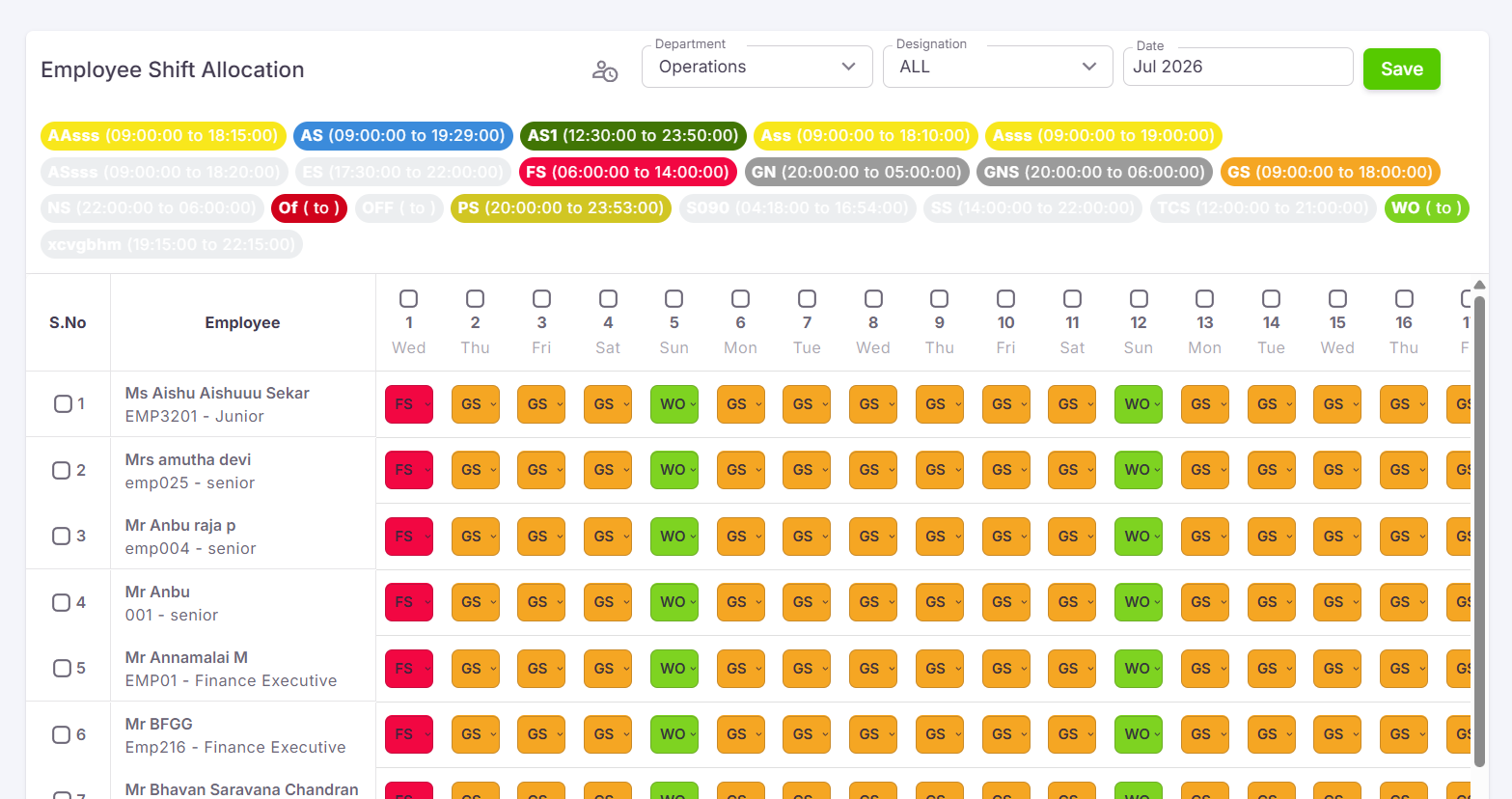
| Shift Colour | Shift Name | Start Time | End Time |
|---|---|---|---|
| General | General Shift | 09:00 AM | 06:00 PM |
| Morning | Morning Shift | 06:00 AM | 02:00 PM |
| Evening | Evening Shift | 02:00 PM | 10:00 PM |
| Night | Night Shift | 10:00 PM | 06:00 AM |
Note: Shift names, timings, and colours shown above are examples. Actual values depend on the shifts configured in your system.
¶ Date Restrictions
Shift allocation can only be performed for:
¶ Integration with Attendance Management
The Employee Shift Allocation module is integrated with Attendance Management. Once shift allocation is saved:
- The assigned shifts will automatically be reflected in the Attendance Management module.
- The allocated shift for a specific date will be displayed by default in the employee's attendance record.
- Attendance processing will use the allocated shift information for that date.
¶ Access Permission
This module can only be accessed by users who have been granted Employee Shift Allocation permissions.
¶ Benefits
The Employee Shift Allocation module helps organizations:
¶ Video Tutorial
Watch this step-by-step video guide to learn how to create a visit in the system.
¶ ⚠ Important Notes
- Shift allocation can only be performed for current and future dates.
- Past dates cannot be modified.
- Bulk shift allocation can be used to assign shifts to multiple employees simultaneously.
- Allocated shifts are automatically reflected in the Attendance Management module.
¶ ✓ Shift Allocation Complete
After clicking Save, the shift schedule is stored and immediately reflected for the selected employees in both Employee Shift Allocation and Attendance Management.