¶ Notification Management
¶ Overview
The Notification module is used to create and manage notifications for employees within the organization. Notifications can be sent to all employees, specific departments, or individual employees.
¶ How to Navigate to Notifications.
To create a notification, follow these steps:
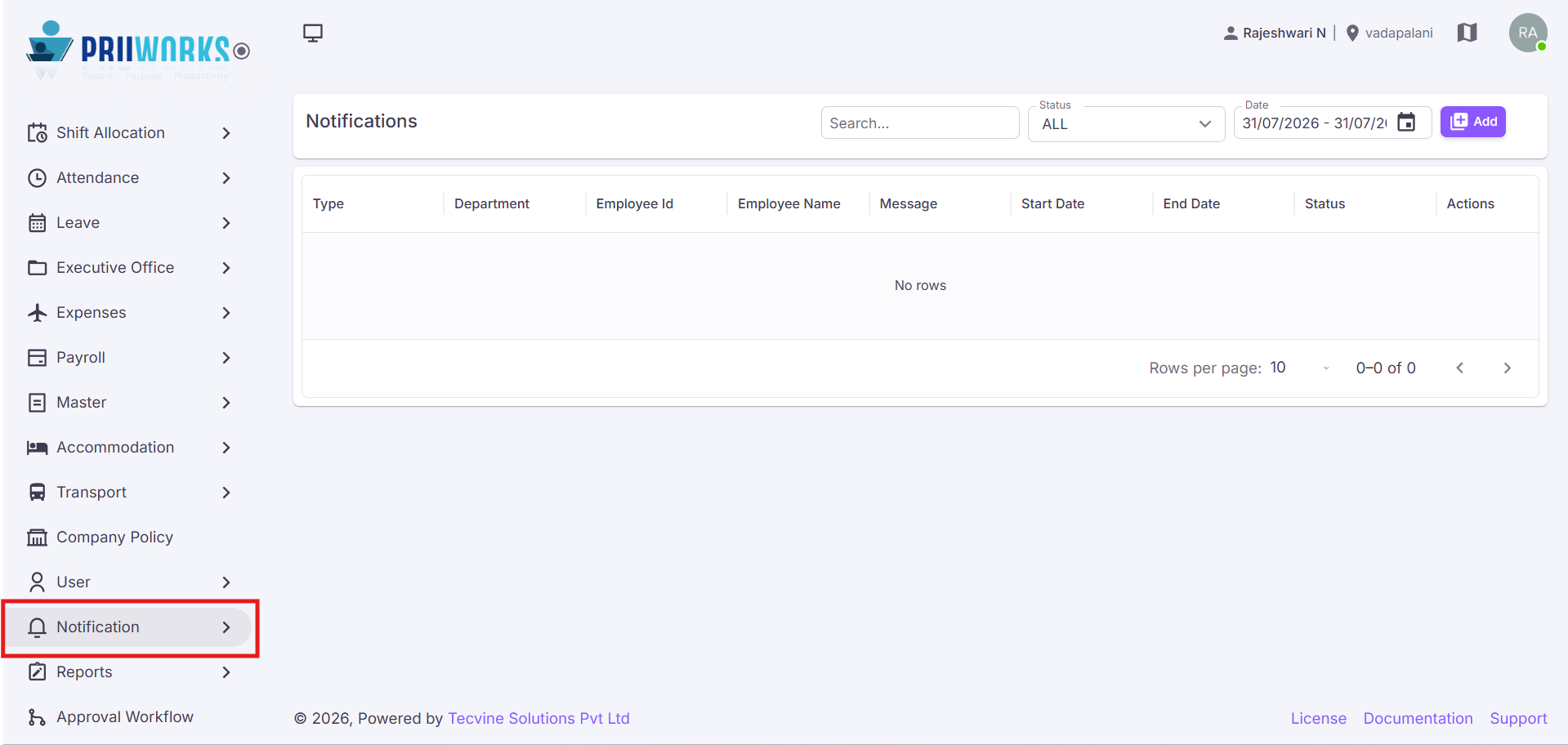
- Navigate to Notification in the side menu.
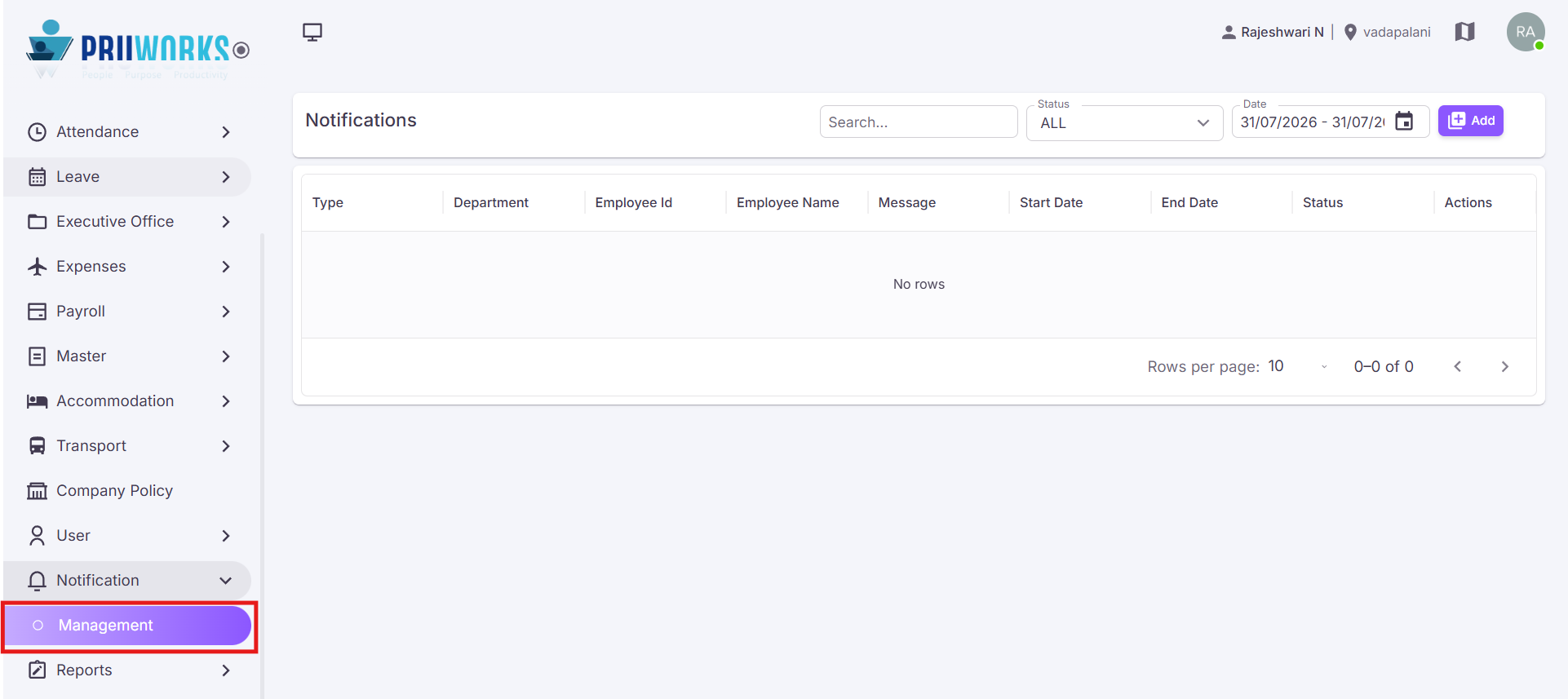
- Click Management sub menu.
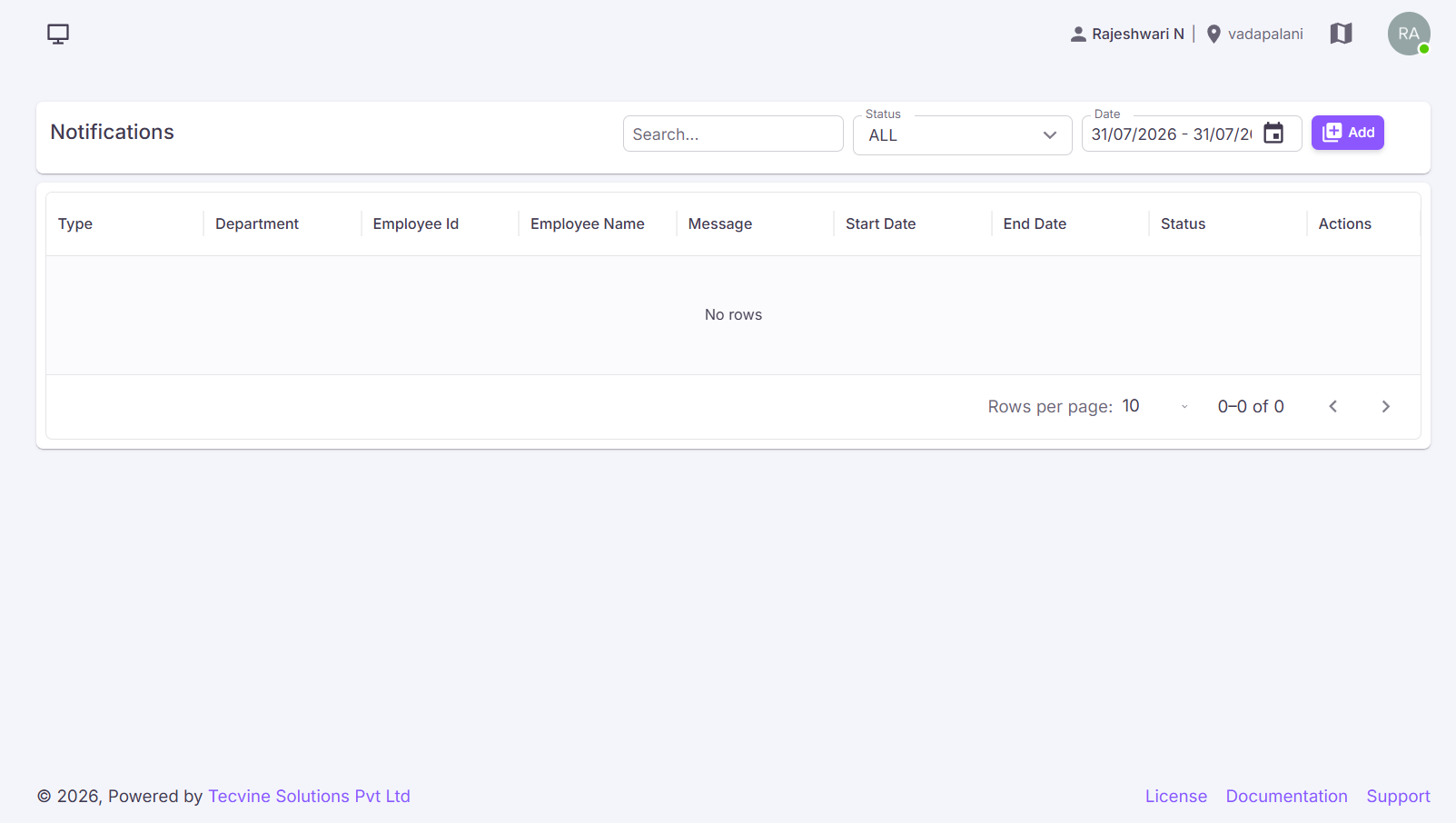
- The Notifications screen will be displayed.
¶ Add Notification
¶ Open the Add Notification Form
In the Notifications module, click the Add button.
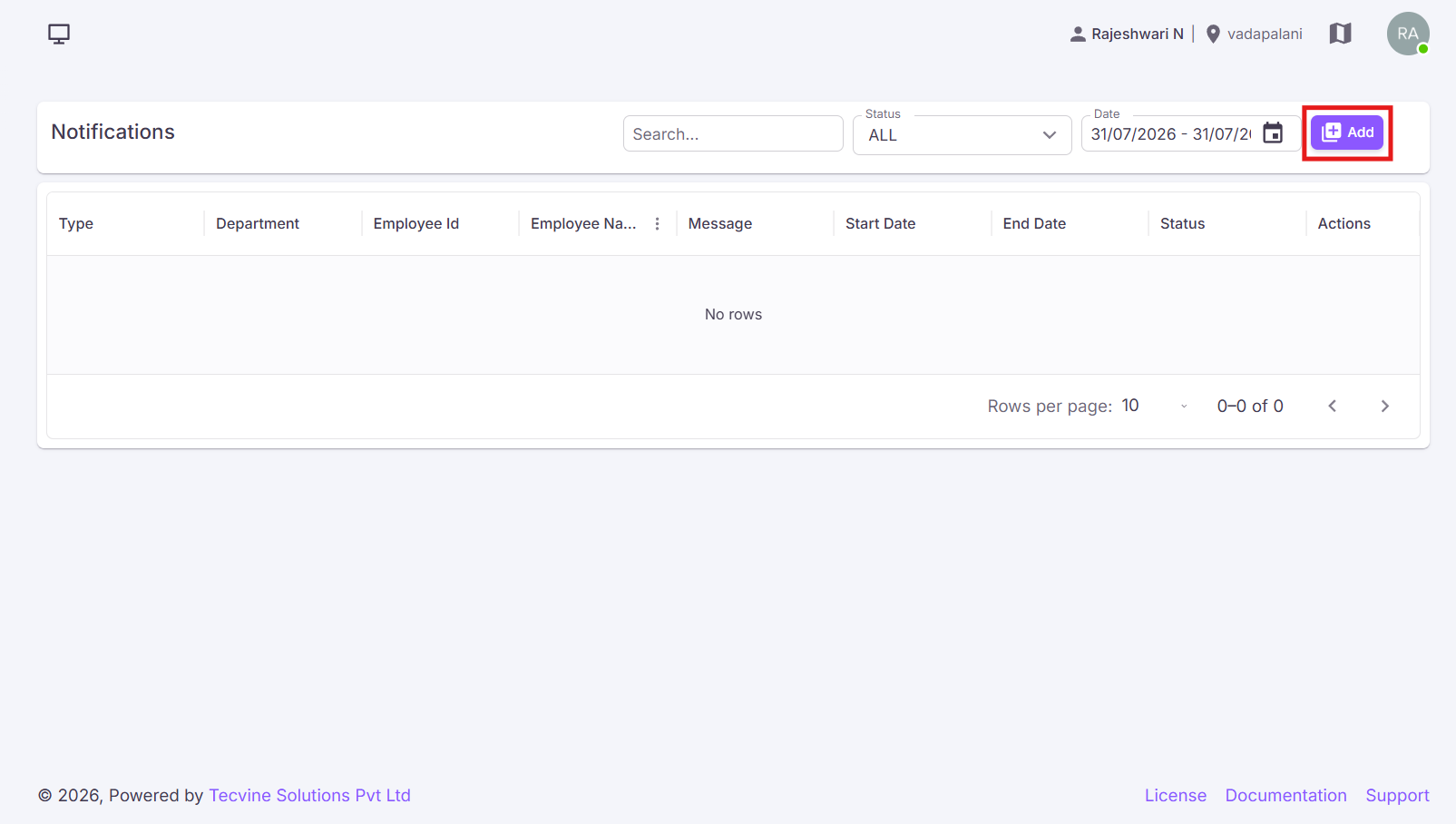
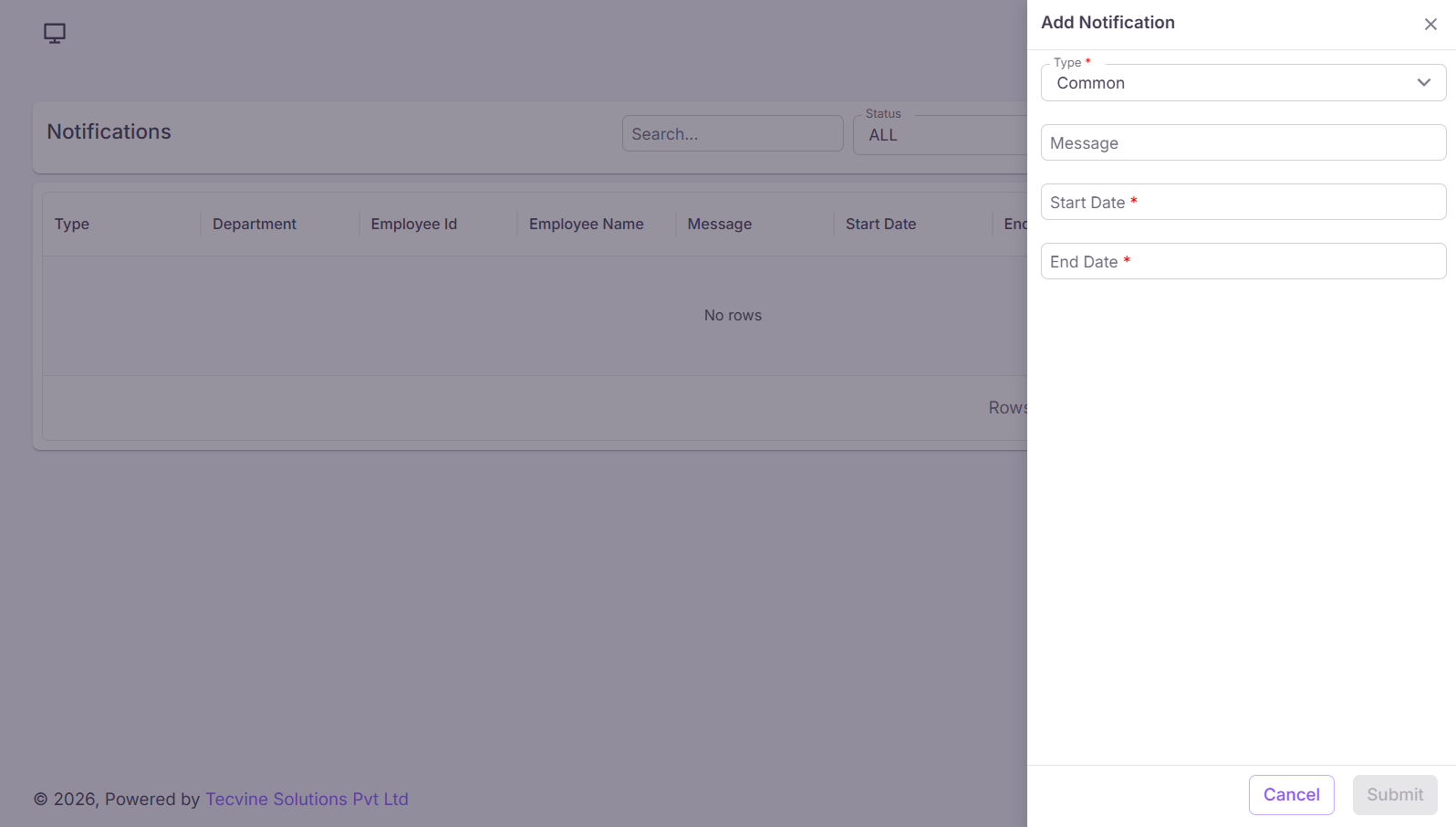
After clicking the Add button, the Add Notification screen will be displayed.
¶ Enter Notification Details
Fill in the following fields:
¶ Fields:
- Type* – Select the notification type (Common, Department, Personal).
- Department* – Select the department (Managing, Testing, Development, etc.).
- Employee* – Select the employee.
- Message – Enter the notification message.
- Start Date* – Select the notification start date.
- End Date* – Select the notification end date.
Note: Fields marked with an asterisk (*) are mandatory and must be completed before submitting the form.
¶ Submit the Form
After entering the required details, click the Submit button to save the notification. If you do not want to save the notification, click the Cancel button.
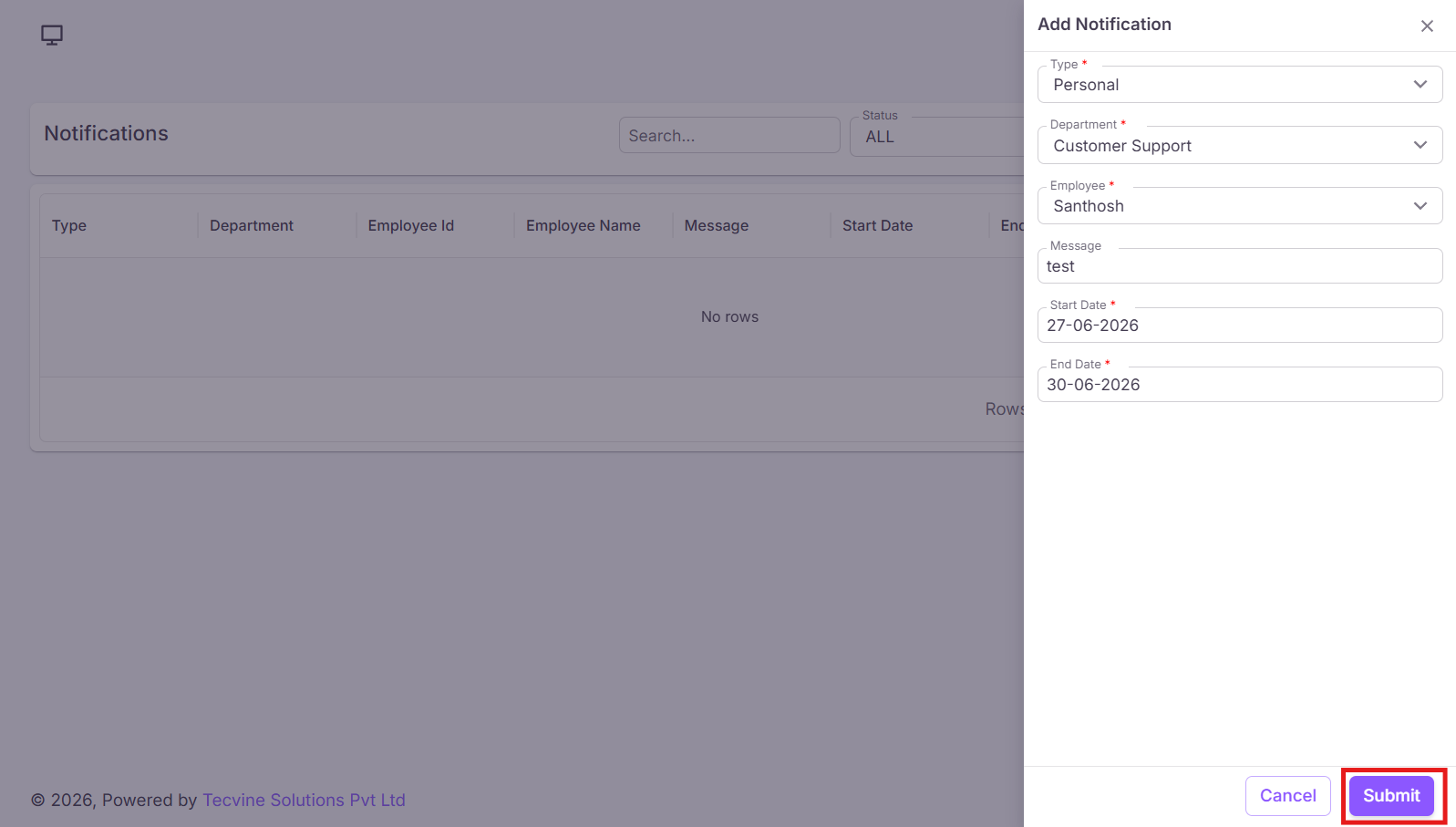
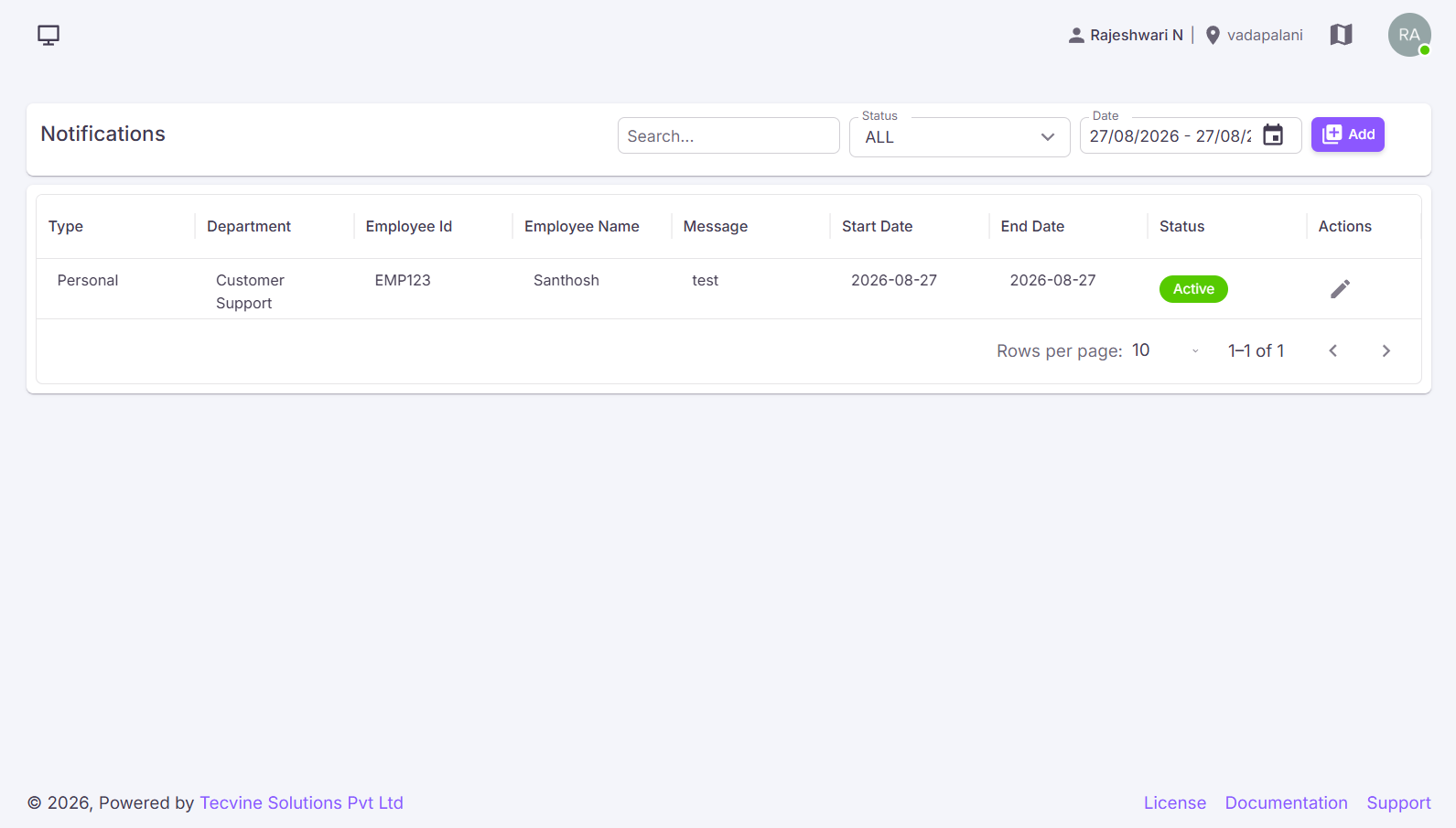
Success: Upon successful submission, the notification will be displayed in the Notifications List.
¶ Edit Notification
In the Notifications List, click the Edit icon under the Actions column.
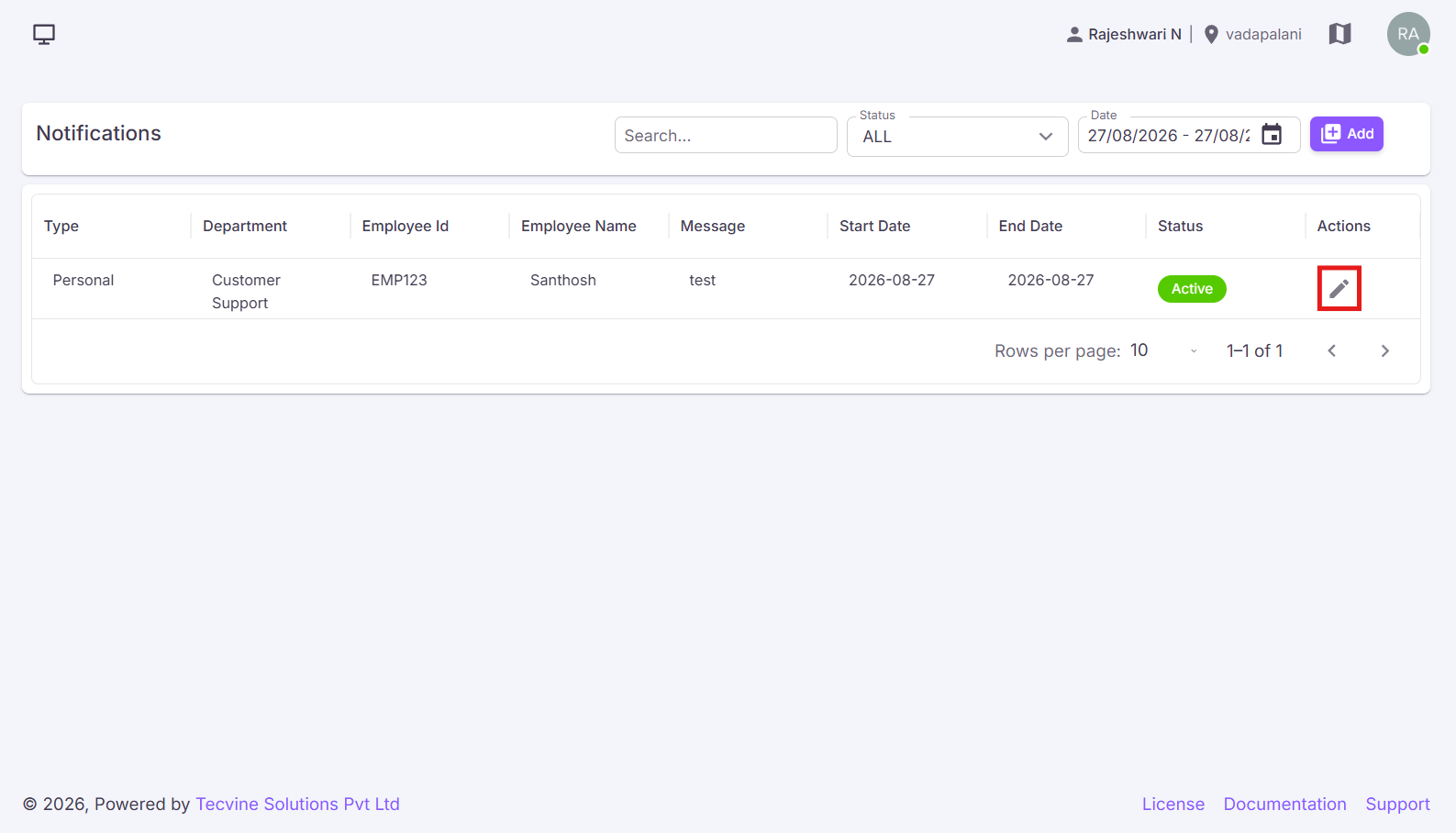
After clicking the Edit icon, the Edit Notification screen will be displayed with the previously entered details.
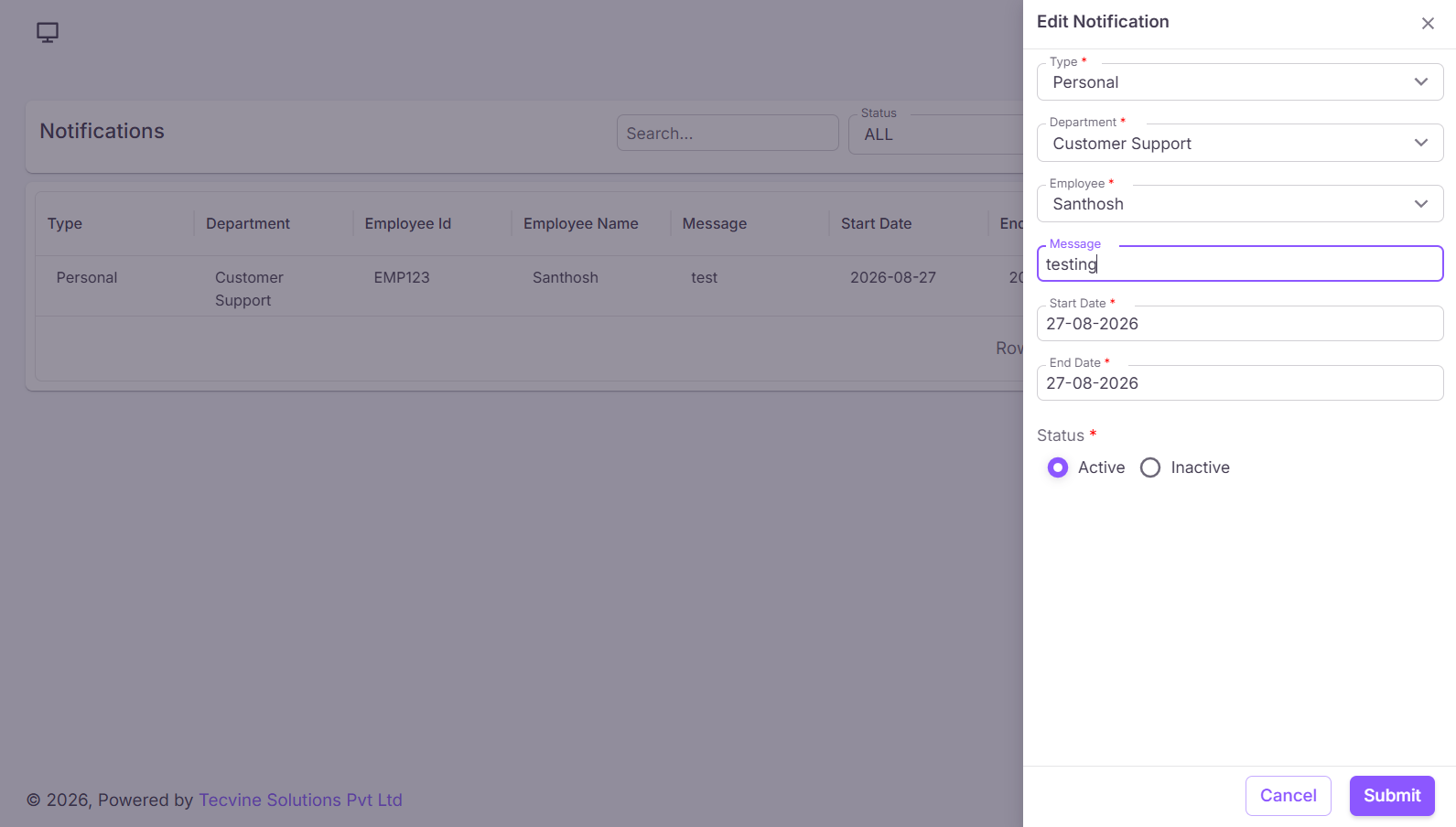
Modify the required information and click the Submit button to save the changes. If you do not want to update the notification, click the Cancel button.
¶ Status Behaviour
¶ If the Notification Status is set to Active
The status will be displayed as Active in the Notifications List, and the notification will be displayed on the Admin Dashboard and Employee Dashboard during the specified date range.
¶ If the Notification Status is set to Inactive
The status will be displayed as Inactive in the Notifications List, and the notification will not be displayed on the Admin Dashboard or Employee Dashboard.
Note: The notification status will change based on the actions performed.
¶ Filters
- Search – Filter notifications by Name or Message.
- Status – Filter notifications based on status (All / Active / Inactive).
- Date – Filter notifications based on the selected date.
Note: Notifications added in the Notification Management screen will be reflected on the Admin Dashboard and Employee Dashboard based on the selected notification type. Common and Department notifications will be displayed on both dashboards, while Personal notifications will be visible only on the respective Employee Dashboard.
¶ Video Tutorial
Watch this step-by-step video guide to learn how to create a visit in the system.