¶ Leave Request
¶ Overview
The Leave Request option, part of the Leave & OD Request module, is used to submit employee leave requests for approval. Employees can create, edit, and cancel leave requests, and track their approval status.
¶ How to Navigate to Leave Request
To create a Leave Request, follow these steps:
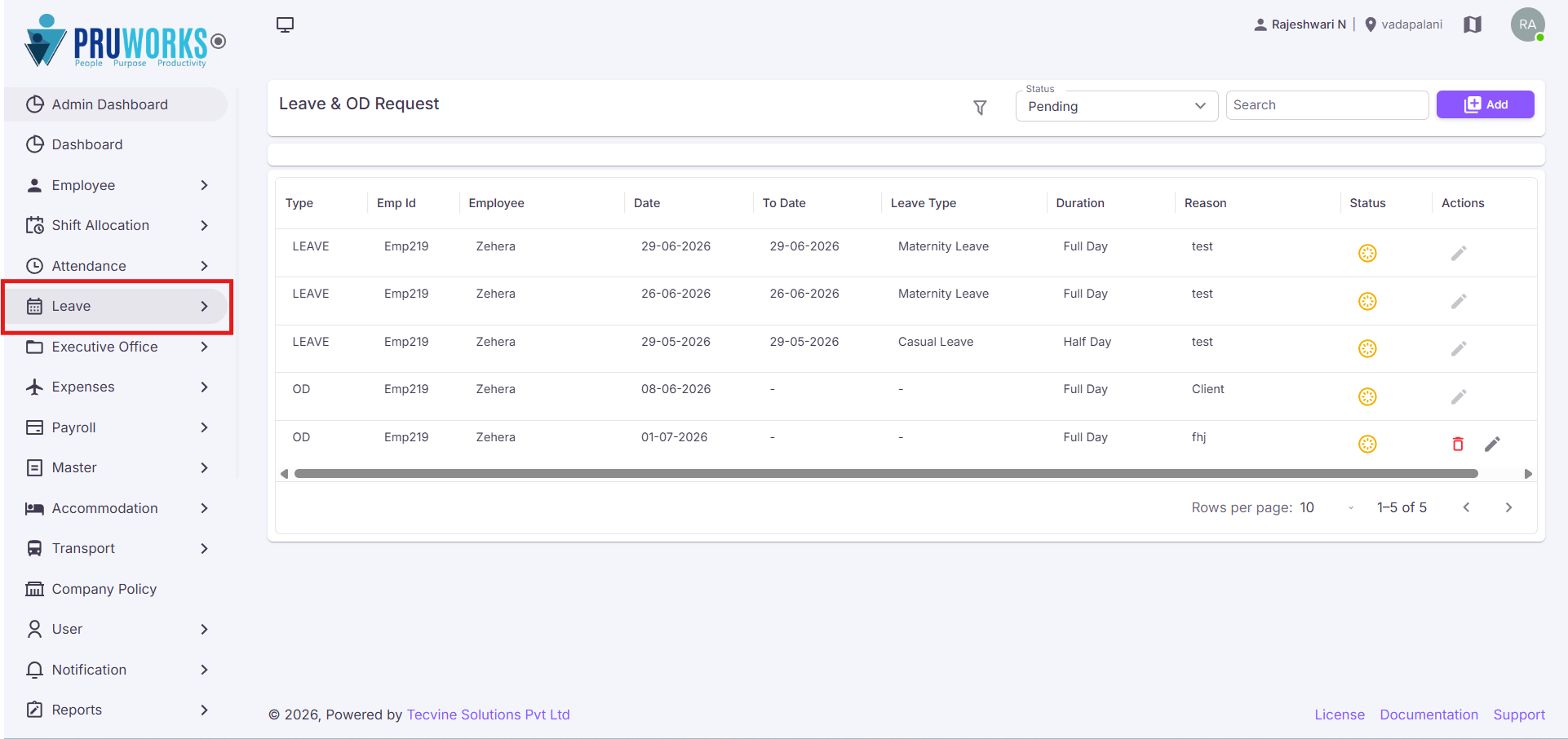
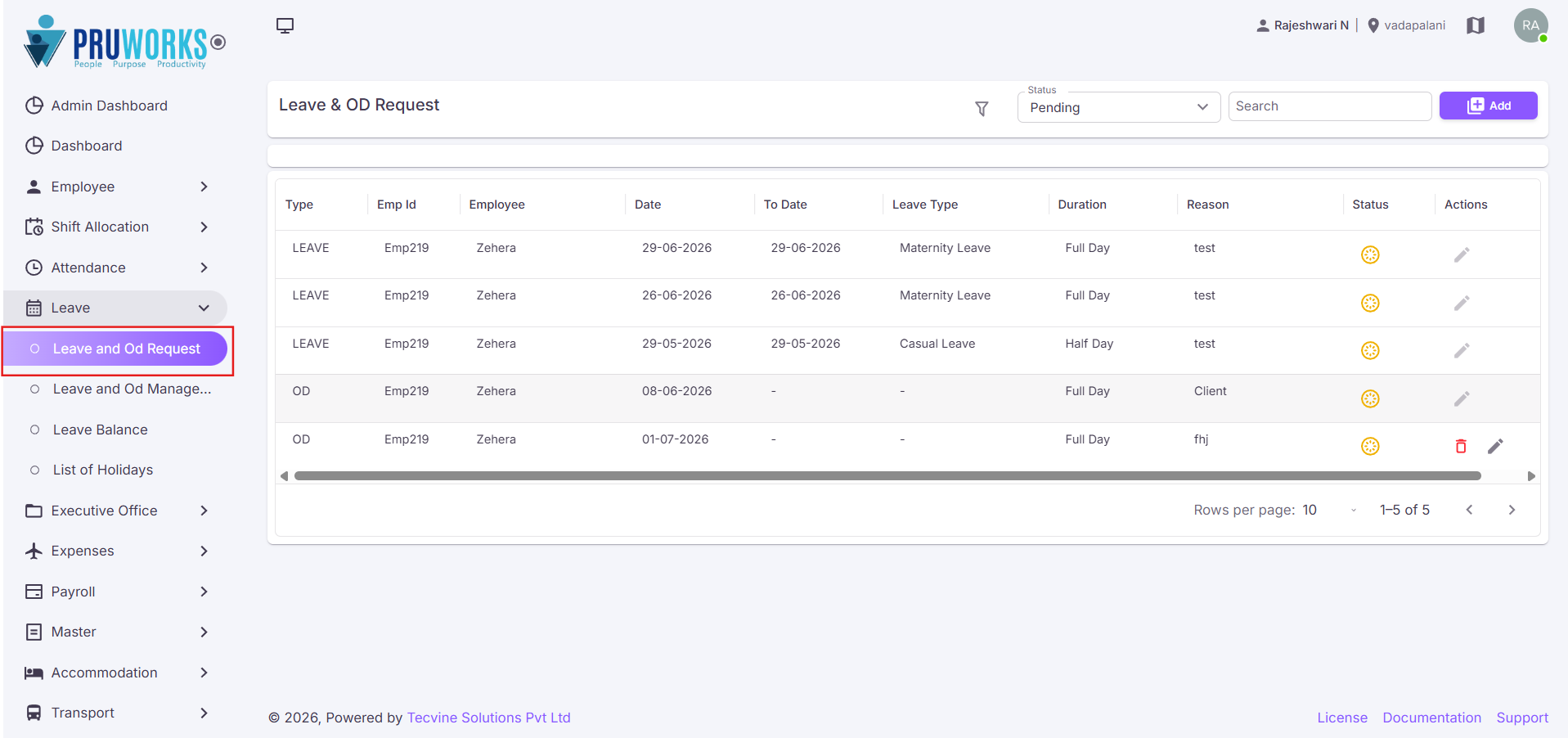
- From the left-side menu, click Leave.
- Click Leave and OD Request.
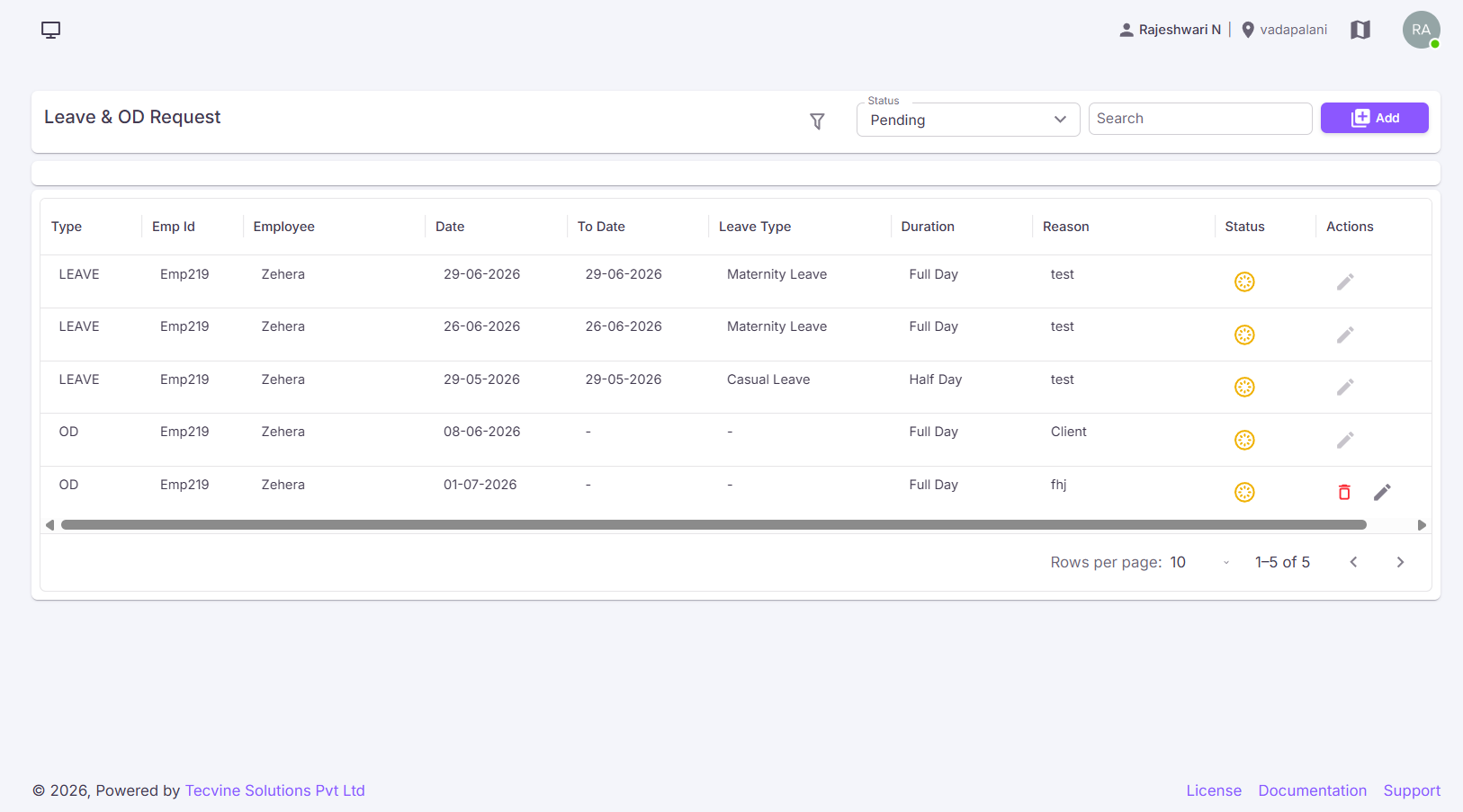
- The Leave and OD Request screen will open.
¶ Create Leave Request
¶ Open the Add Request Screen
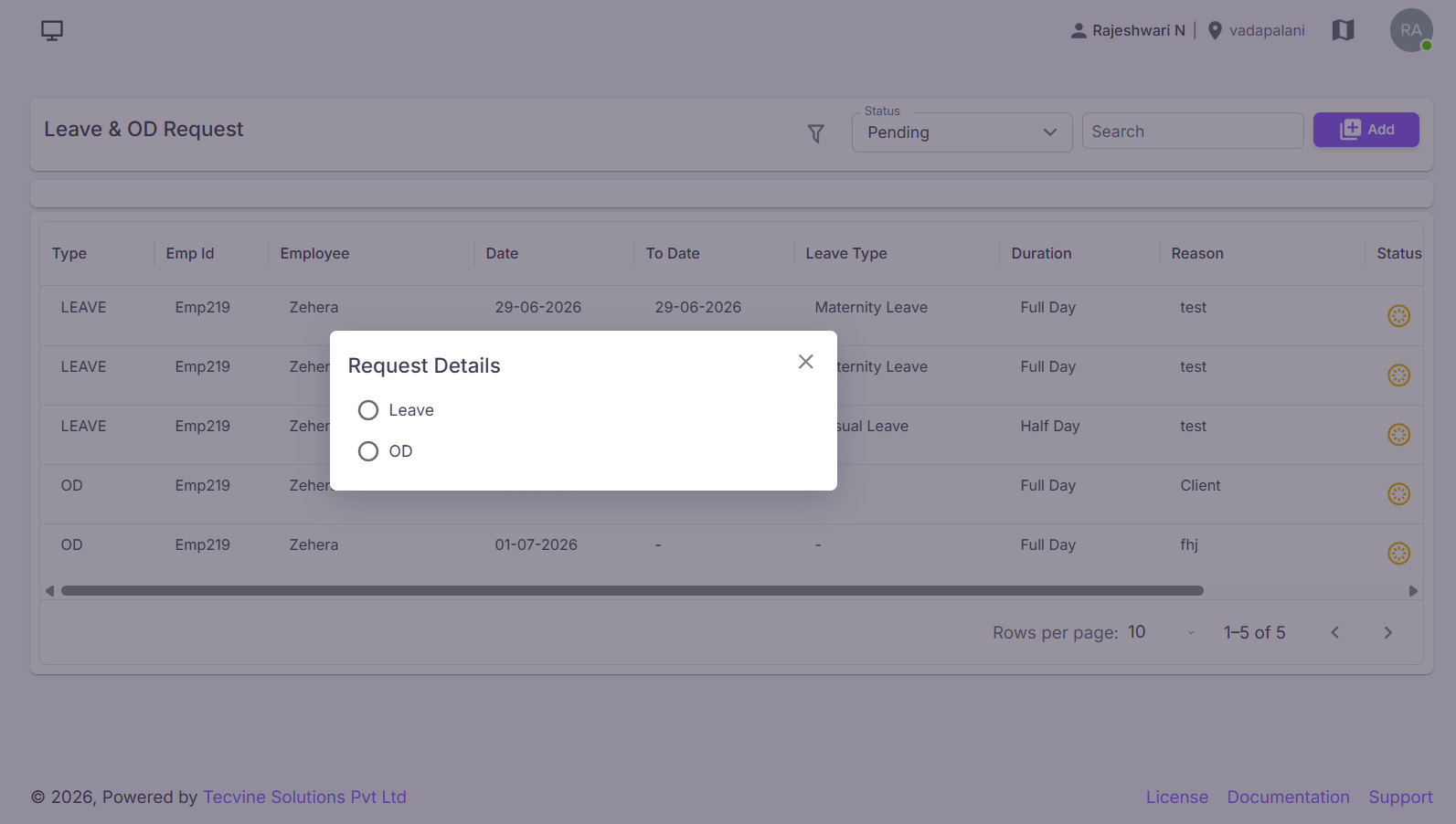
Click the Add button.
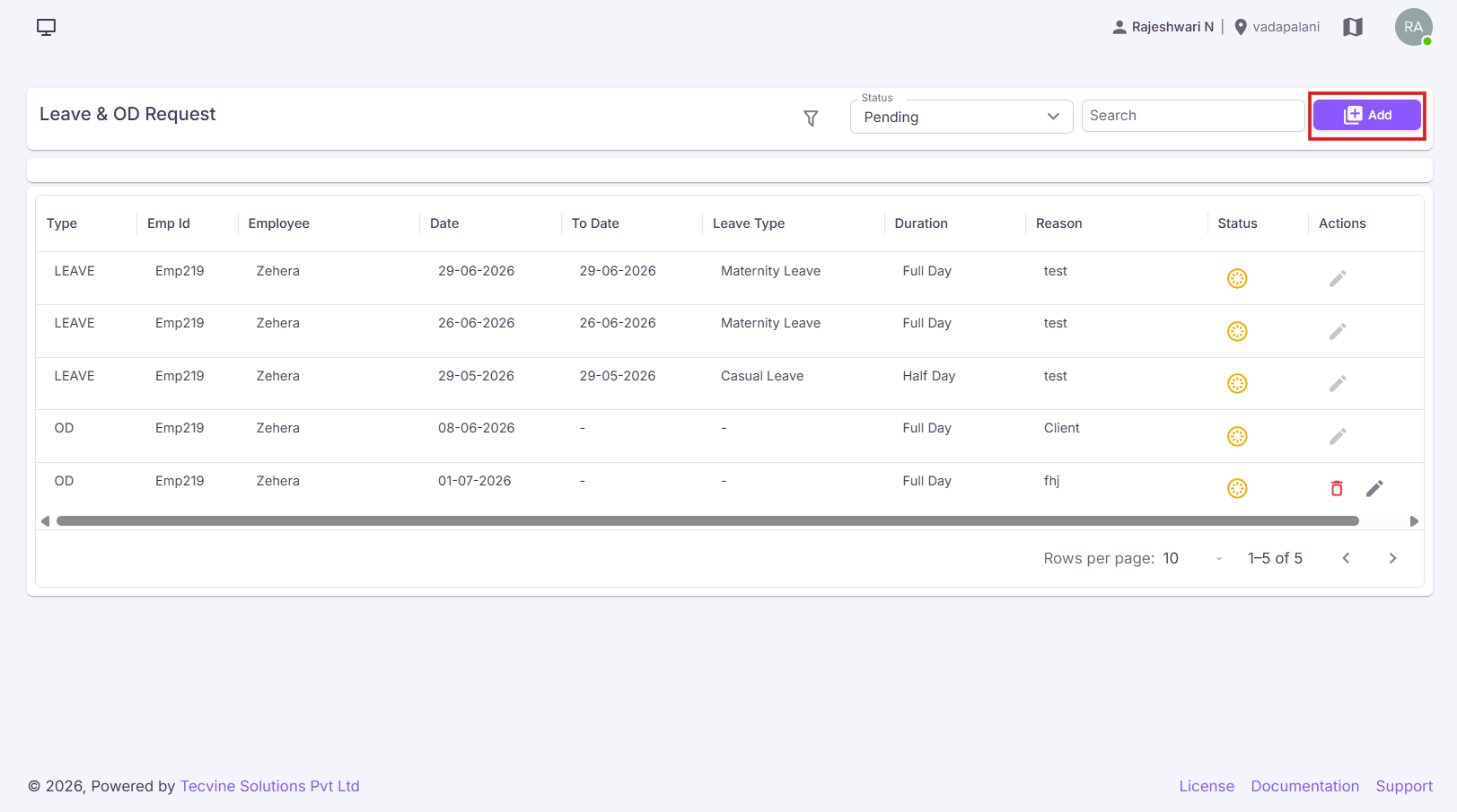
The Request Details popup will be displayed.
¶ Select the Leave Option
Select the Leave option.
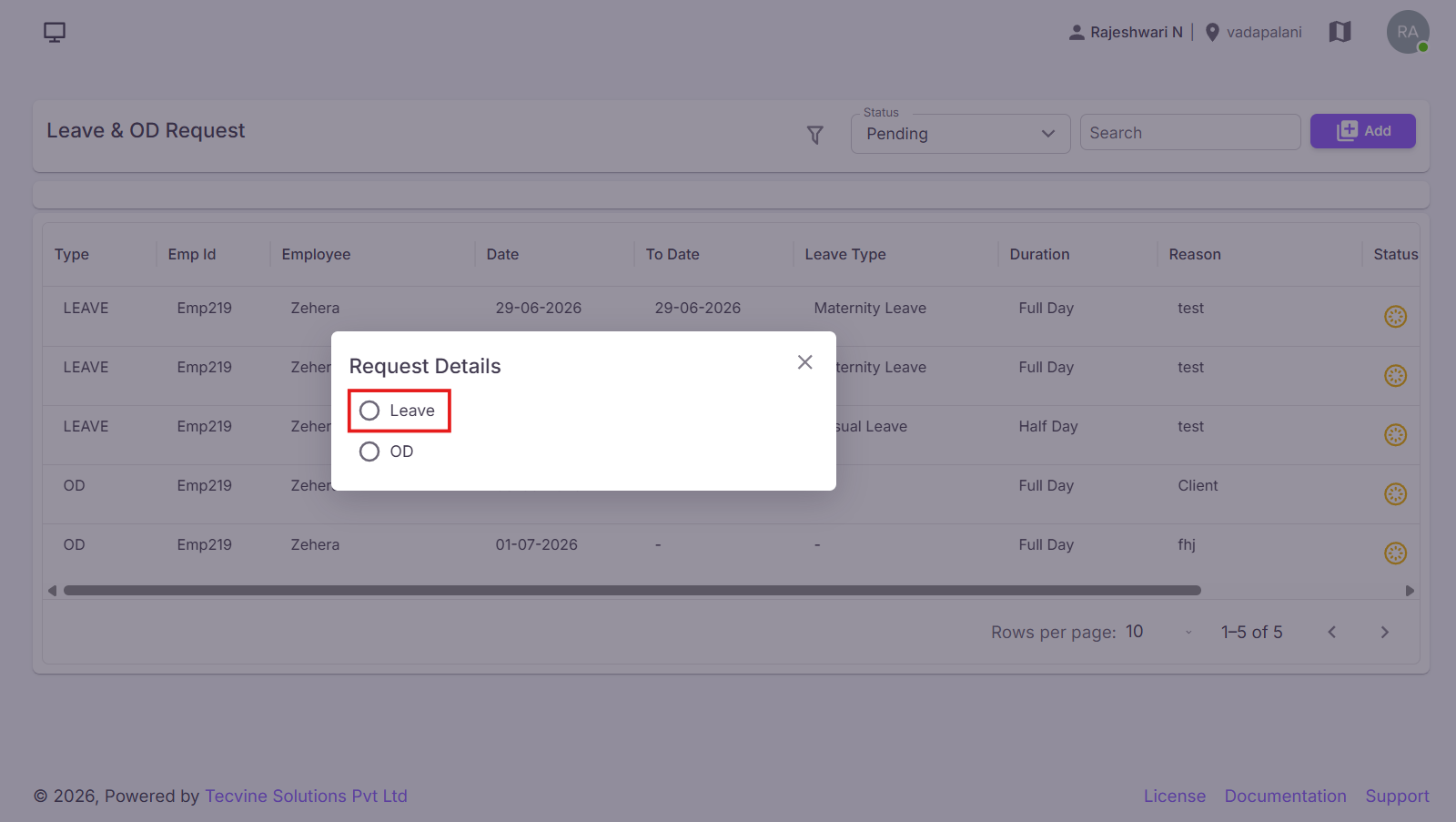
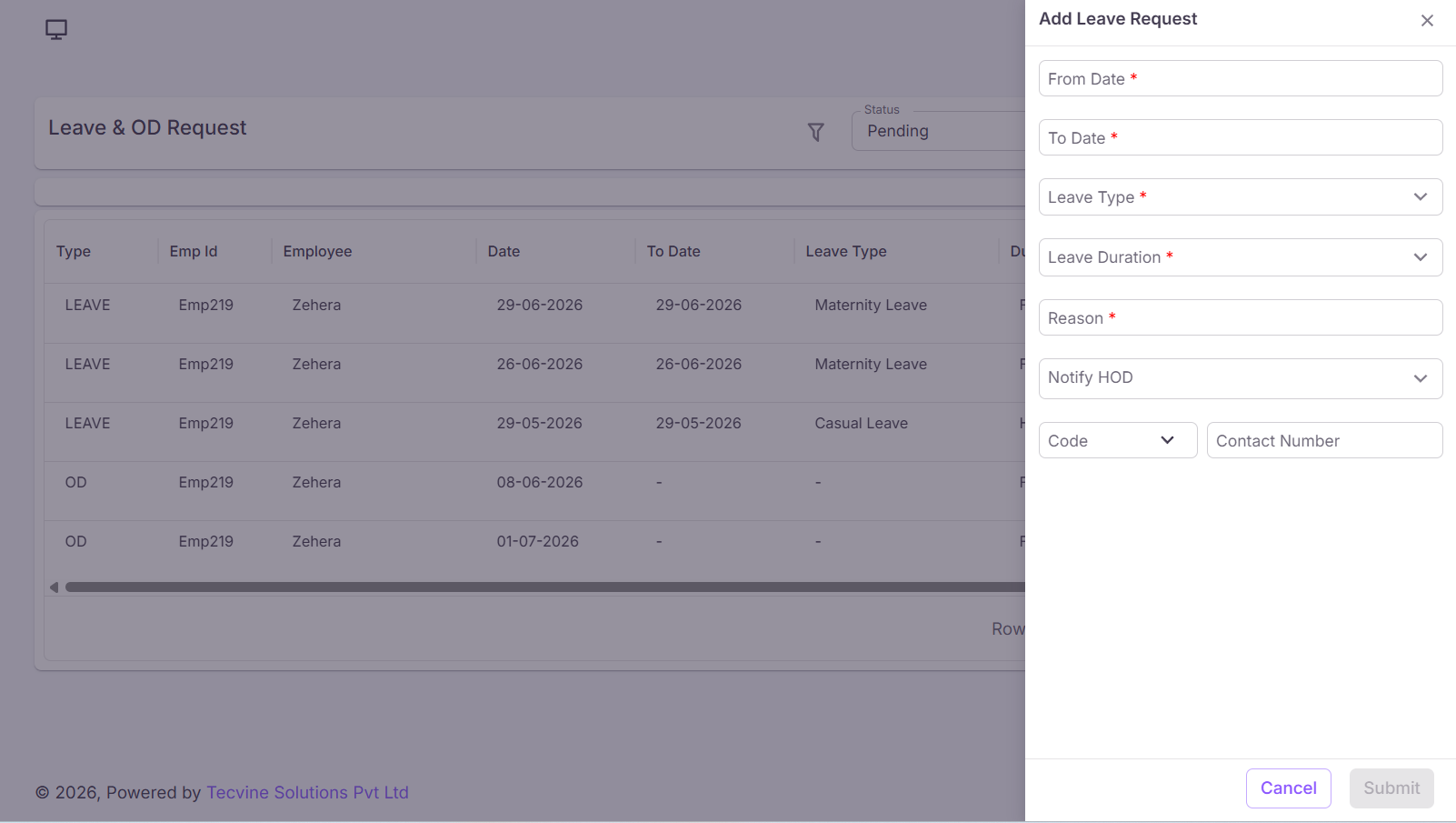
The Add Leave Request form will be displayed.
¶ Enter Leave Details
Fill in the following fields:
¶ Fields:
- From Date* – Select the leave start date.
- To Date* – Select the leave end date.
- Leave Type* – Select the type of leave.
- Leave Duration* – Select the duration of the leave (e.g., Full Day, Half Day).
- Reason* – Enter the reason for the leave request.
- Notify HOD – Select this option to notify the Head of Department.
- Phone Code – Select the country phone code.
- Contact Number – Enter a contact number for reference.
Note: Fields marked with an asterisk (*) are mandatory and must be completed before submitting the form.
¶ Submit the Request
After entering all required details, click the Submit button. If you do not want to continue, click the Cancel button.
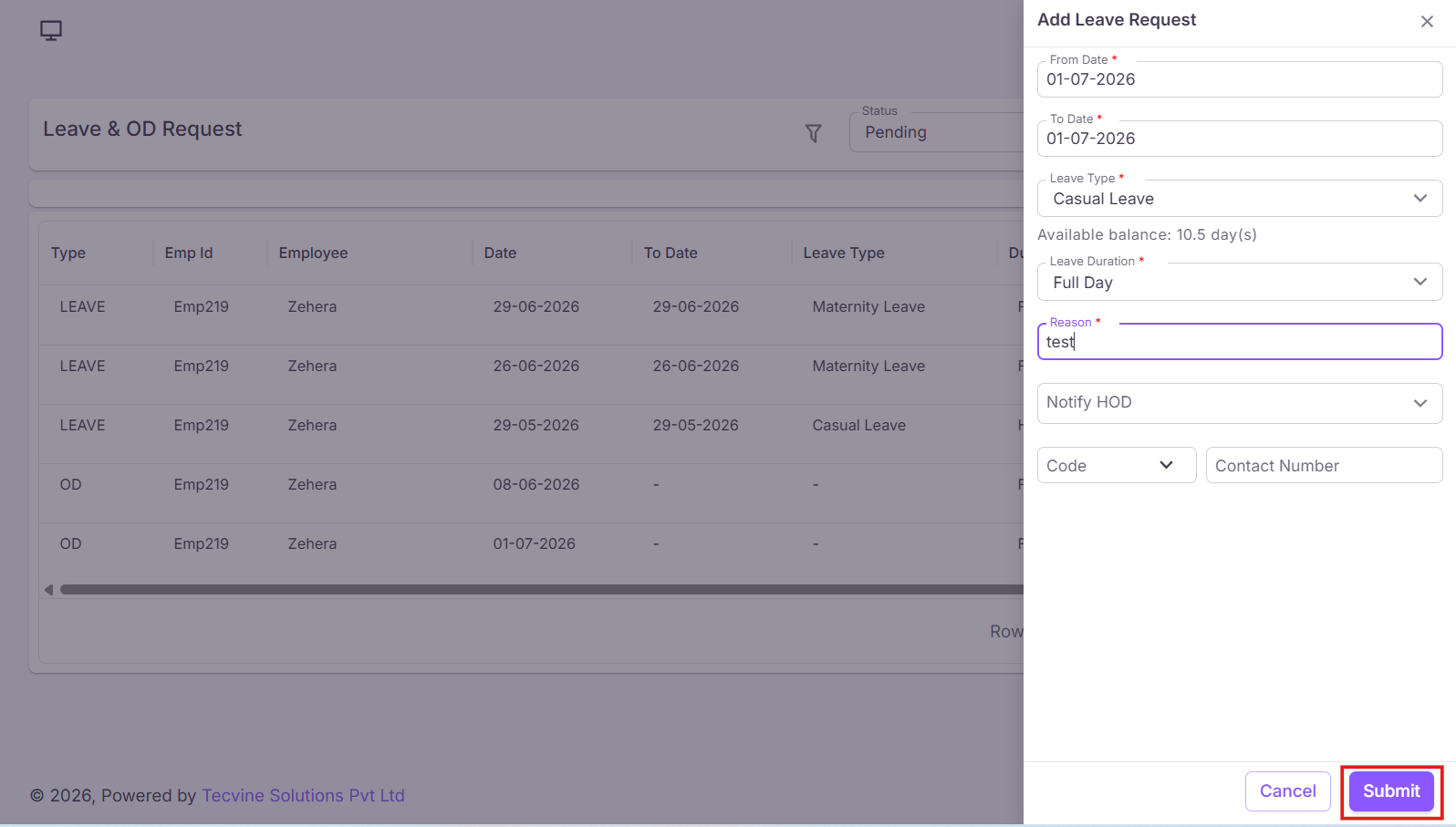
Success: The leave request will be submitted successfully.
¶ Edit Leave Request
Click the Edit icon under the Actions column.
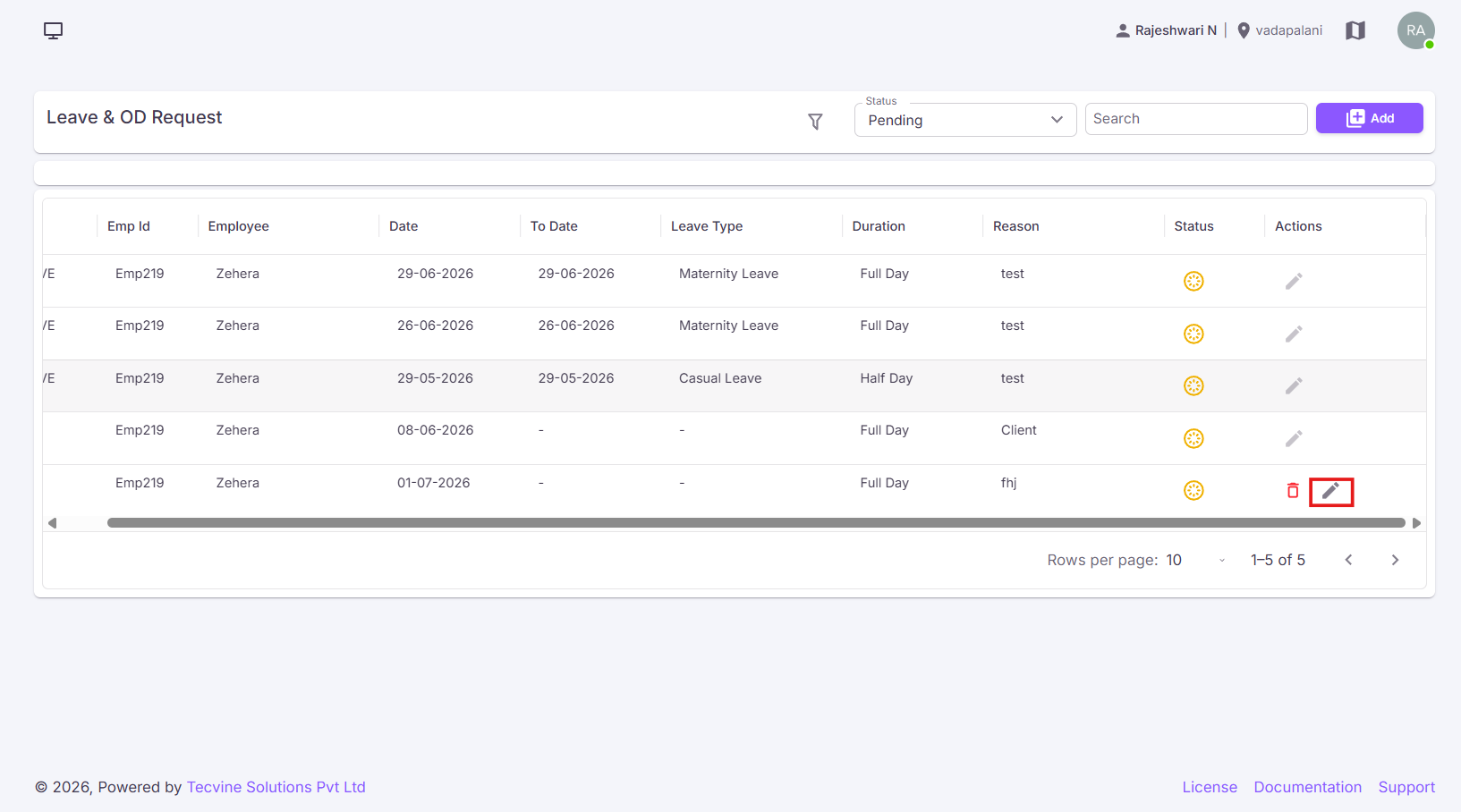
The Edit Leave Request form will be displayed with the previously entered details.
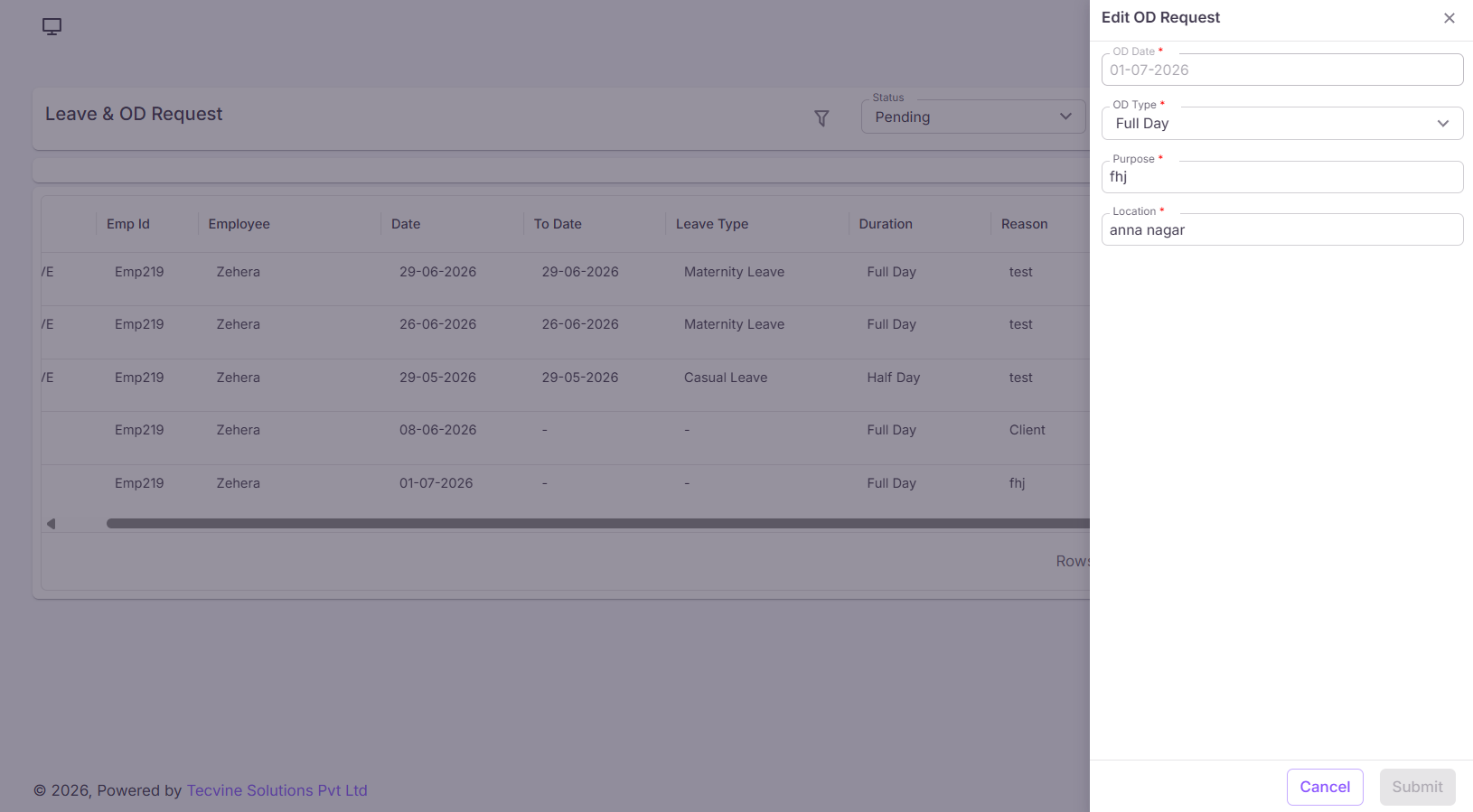
Modify the required information and click the Submit button to save the changes. If you do not want to save the changes, click the Cancel button.
Note: After editing and resubmitting the request, the status will remain Pending until approved.
¶ Cancel Leave Request
Click the Cancel icon.
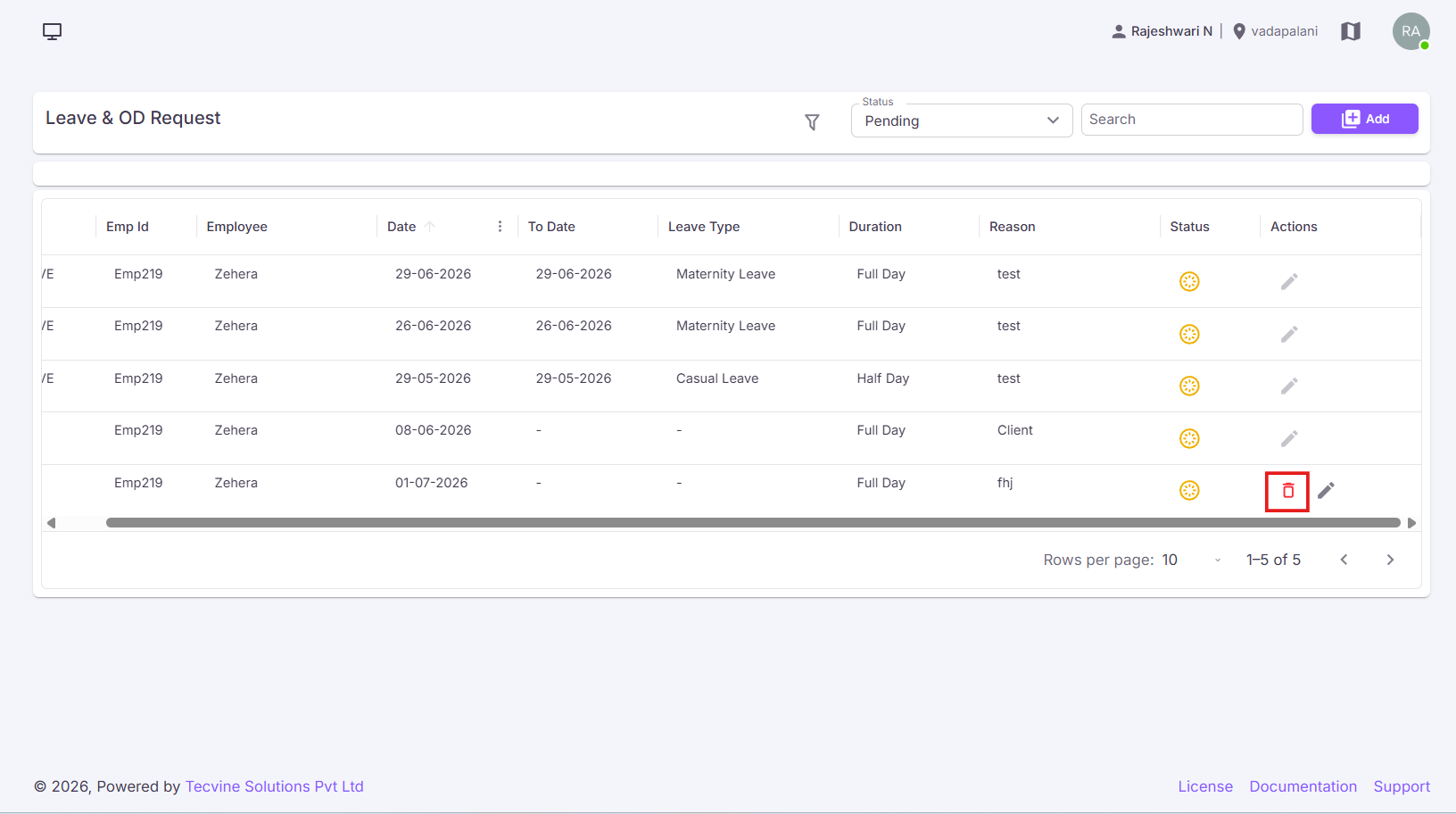
A popup screen will be displayed.
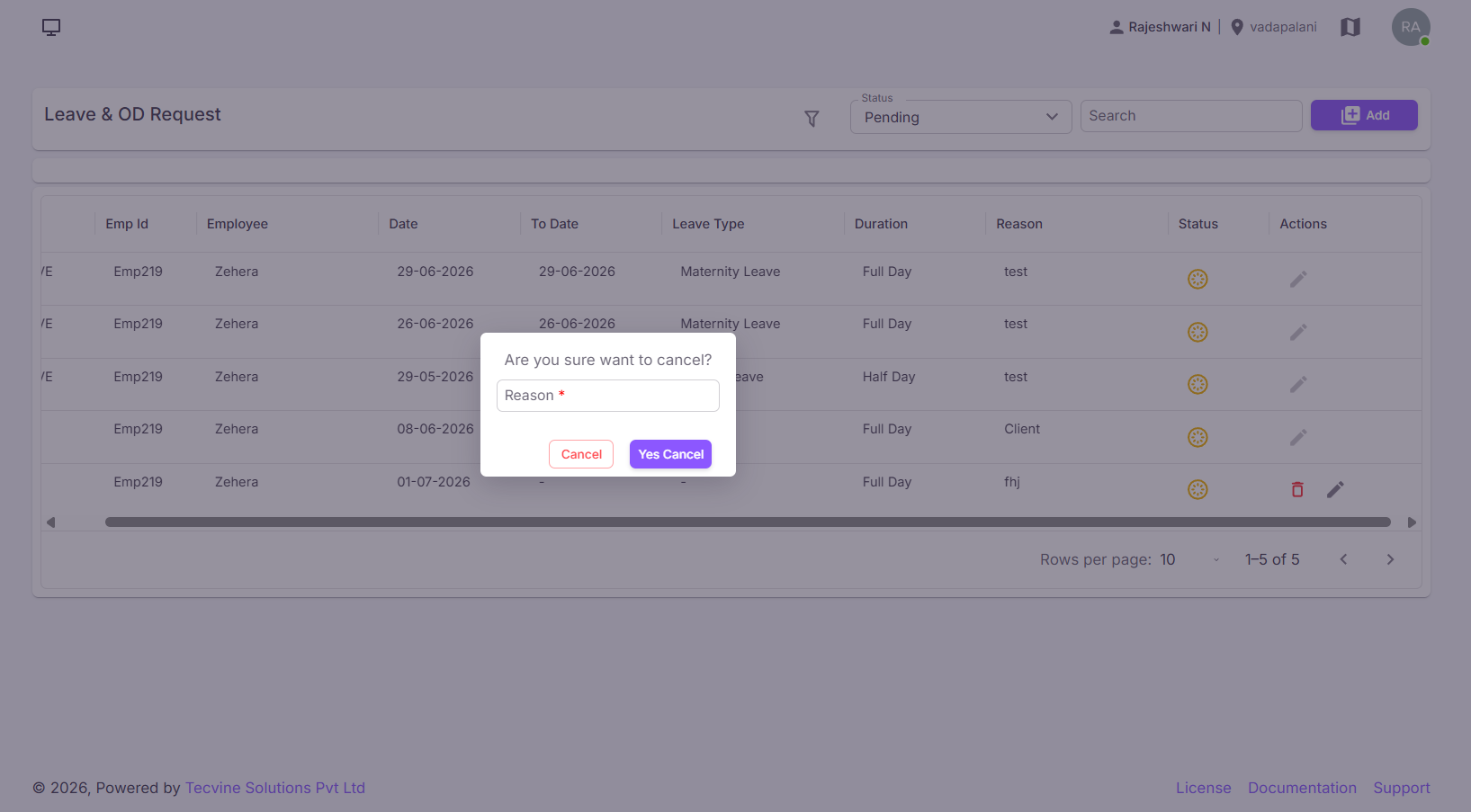
- Reason* – Enter the reason for cancellation.
After entering the reason, click the Yes, Cancel button to cancel the request. If you do not want to continue, click the Cancel button.
Success: The request will be cancelled successfully.
¶ Filters
- Search – Search records using employee name, employee ID, or related details.
- Status – Filter records based on status (Pending, Approved, Rejected, etc.).
- Leave Duration – Filter records based on the leave duration (Full Day, Half Day, etc.).
- Date – Filter records based on the selected date or date range.
¶ Video Tutorial
Watch this step-by-step video guide to learn how to create a visit in the system.
Important Notes:
- Fields marked with an asterisk (*) are mandatory.
- Leave requests remain in Pending status until approved.
- Approved leave requests are updated to Approved status.
- Rejected or cancelled leave requests are updated to Rejected status.