¶ Employee Management
¶ Overview
The Employee Management module is used to create, manage, approve, and maintain employee records within the organization. This module allows HR/Admin users to add employee details, update employee information, manage employee-related services, and maintain employee documents in a centralized system.
¶ How to Navigate to Employee Management
- Navigate to Employee Management.
- Click Manage Employee.
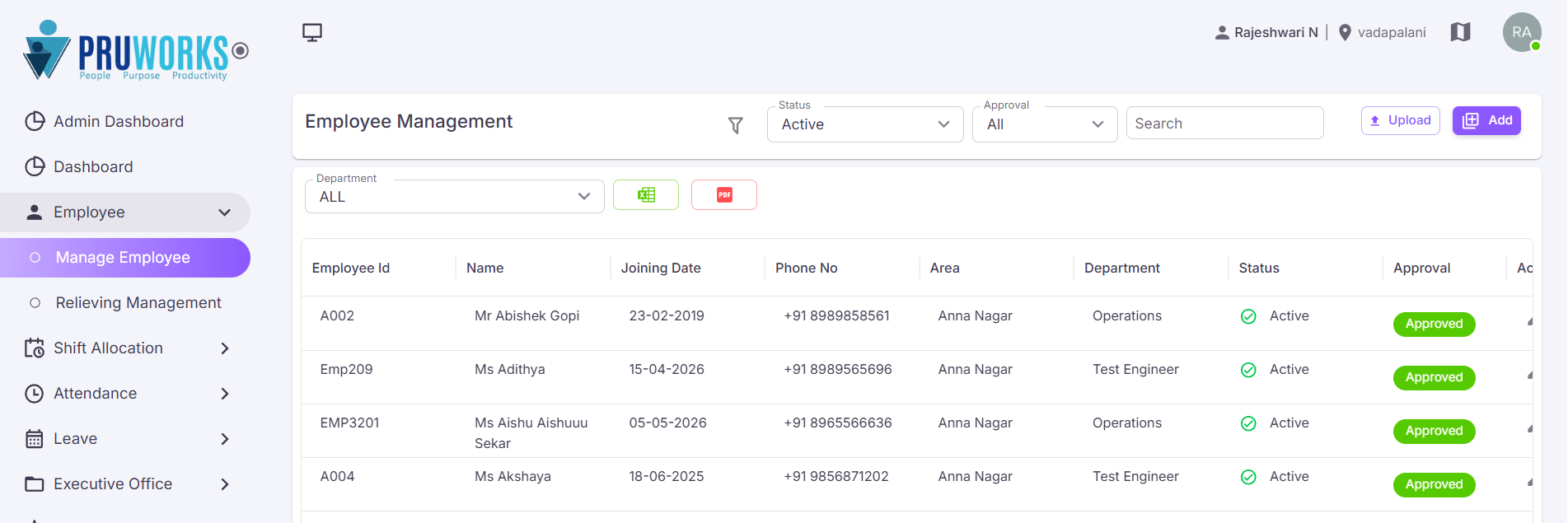
- The Employee Management screen will be displayed.
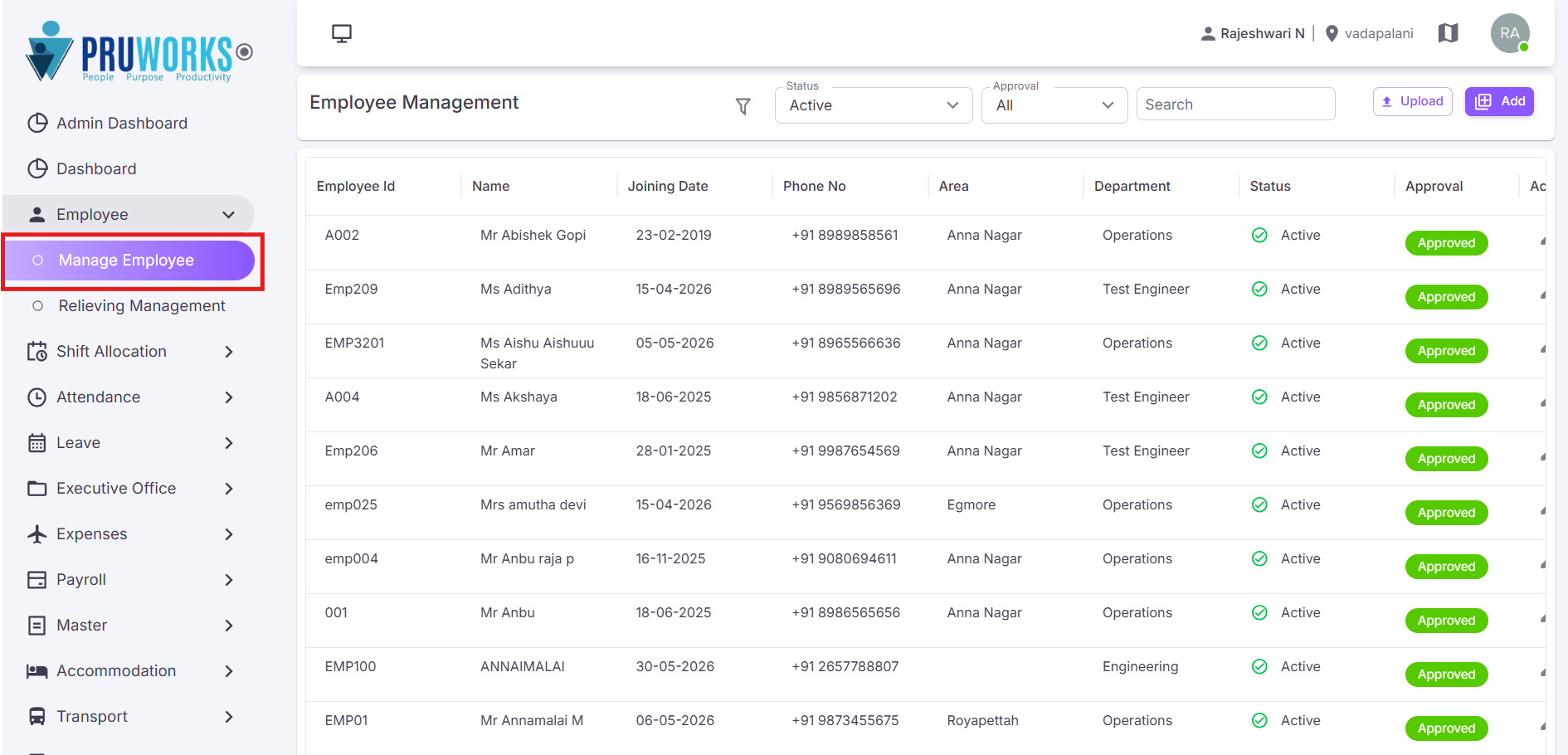
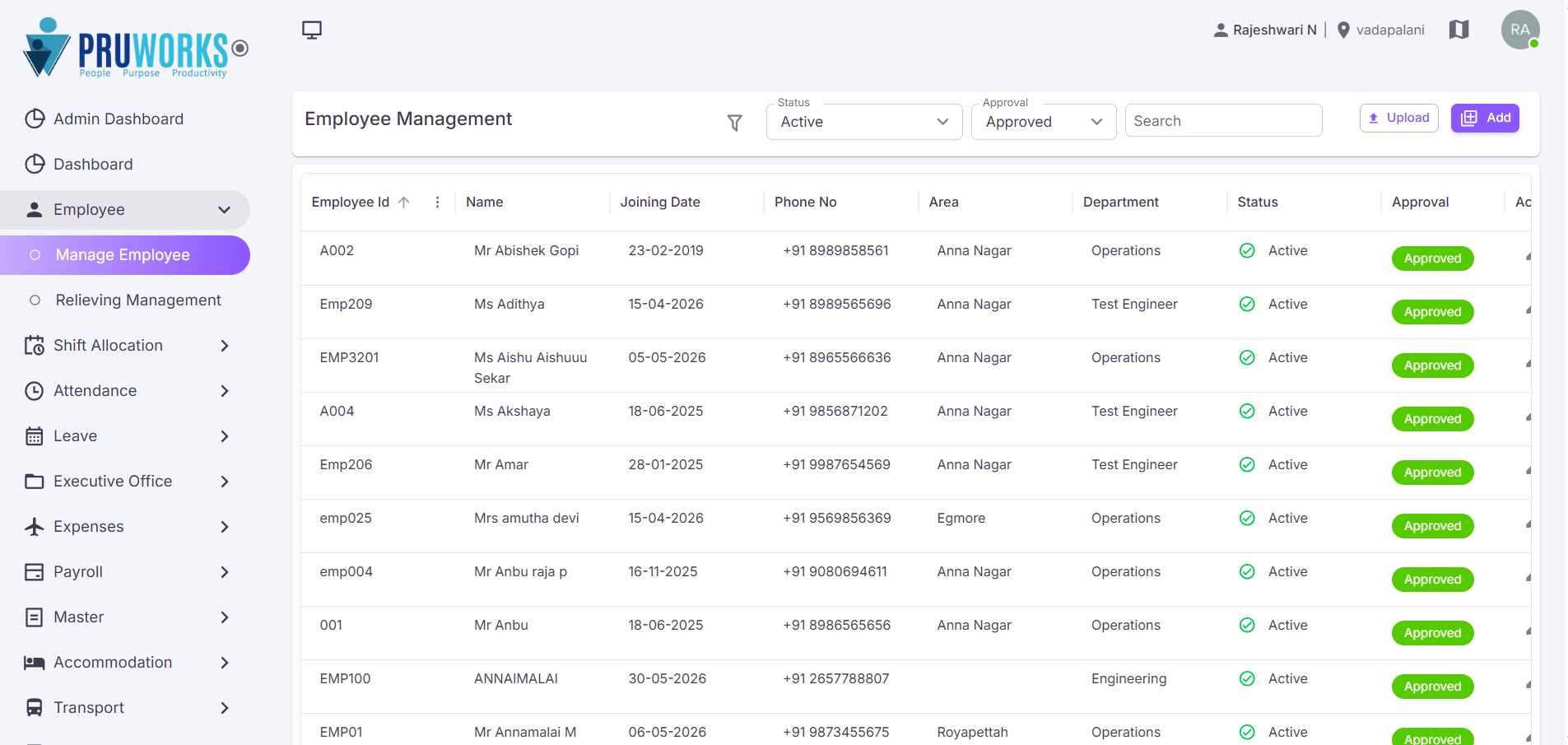
Before adding a new employee, use the available search and filter options to verify whether the employee record already exists.
¶ Add Employee
The Add Employee option is used to create a new employee record in the HRMS.
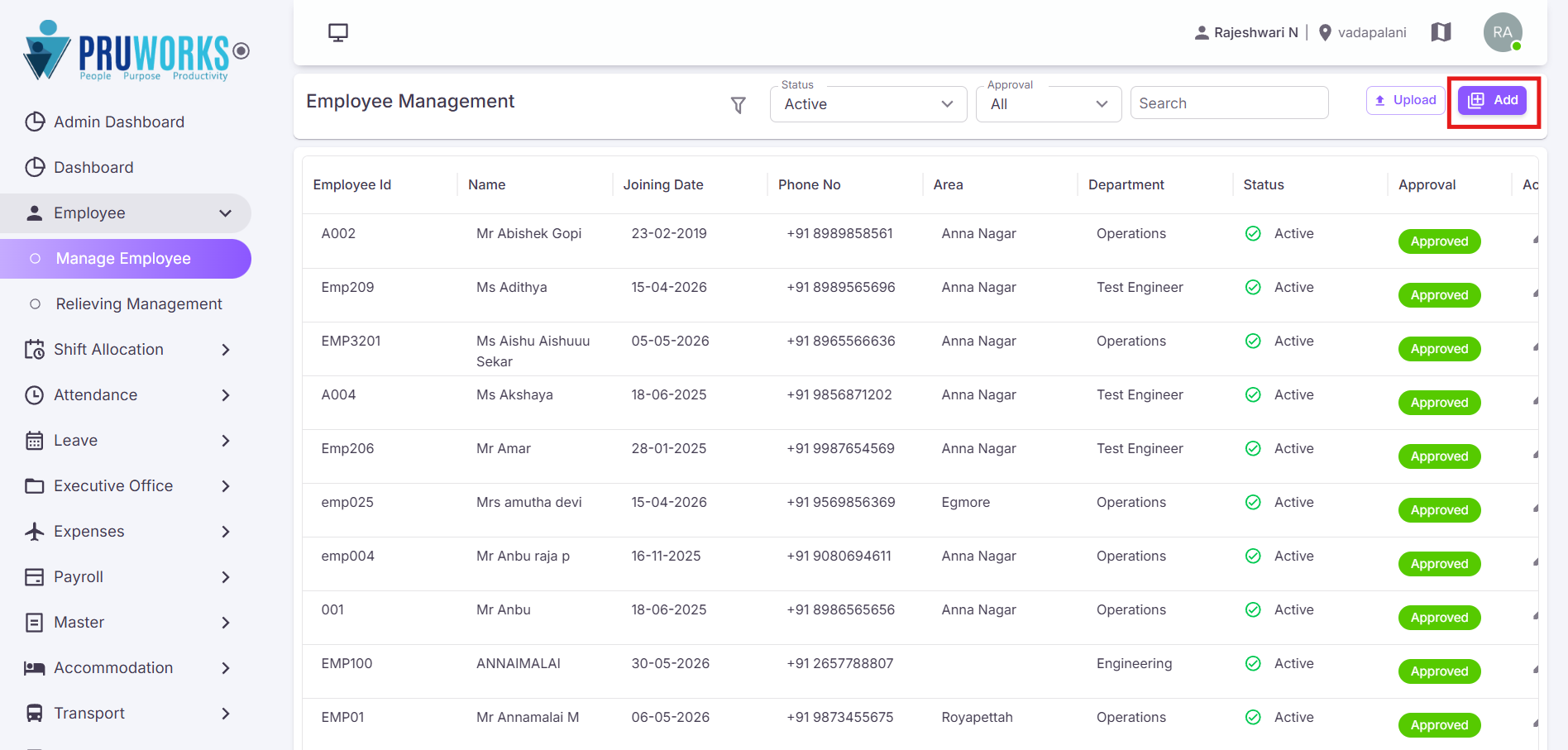
¶ Employee Creation Process
- Personal & Documents
- Address & Account
- Education & Experience
¶ Personal & Documents
This section is used to capture employee personal information, contact details, identification details, and employment-related information.
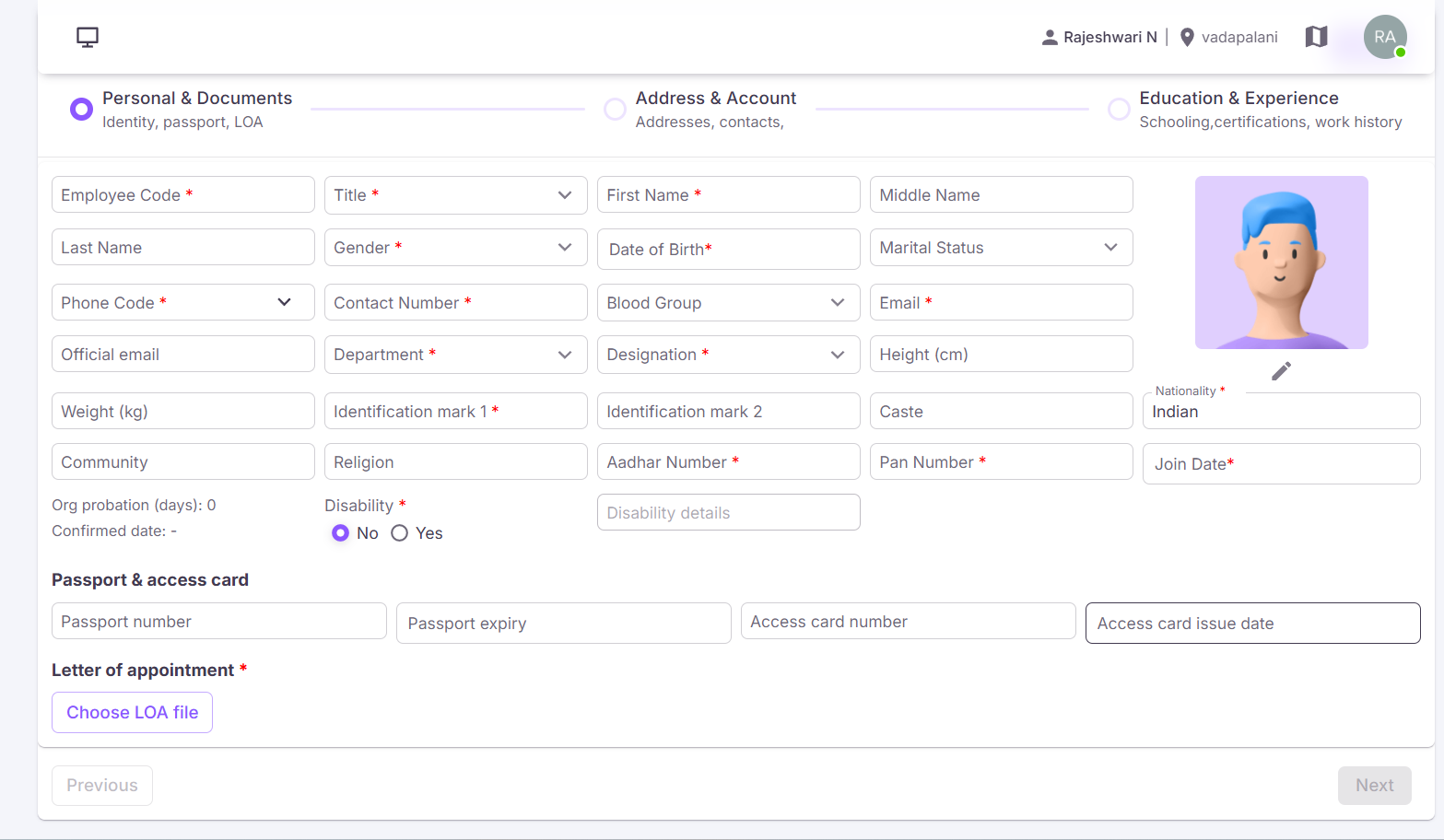
| Field Name | Description |
|---|---|
| Employee Code * | Unique employee identification code. |
| Title * | Select employee title (Mr. / Ms. / Mrs.). |
| First Name * | Enter employee first name. |
| Middle Name | Enter middle name (optional). |
| Last Name | Enter employee last name. |
| Gender * | Select gender (Male / Female / Transgender). |
| Date of Birth * | Select DOB in DD-MM-YYYY format. |
| Marital Status | Married / Unmarried / Divorced / Separated / Widowed. |
| Phone Code * | Select country phone code. |
| Contact Number * | Enter employee mobile number. |
| Blood Group | Select employee blood group. |
| Email * | Enter personal email address. |
| Official Email | Enter official company email. |
| Department * | Select employee department. |
| Designation * | Select employee designation. |
| Height (cm) | Enter employee height. |
| Weight (kg) | Enter employee weight. |
| Identification Mark 1 * | Enter identification mark. |
| Identification Mark 2 | Additional identification mark. |
| Aadhar Number * | Enter valid Aadhar number. |
| PAN Number * | Enter PAN details. |
| Nationality * | Select nationality. |
| Join Date * | Select joining date. |
| Letter of Appointment * | Upload appointment letter document. |
Click Next to proceed to Address & Account →
¶ Address & Account
This section is used to capture employee address details, emergency contact information, bank account details, and background verification information.
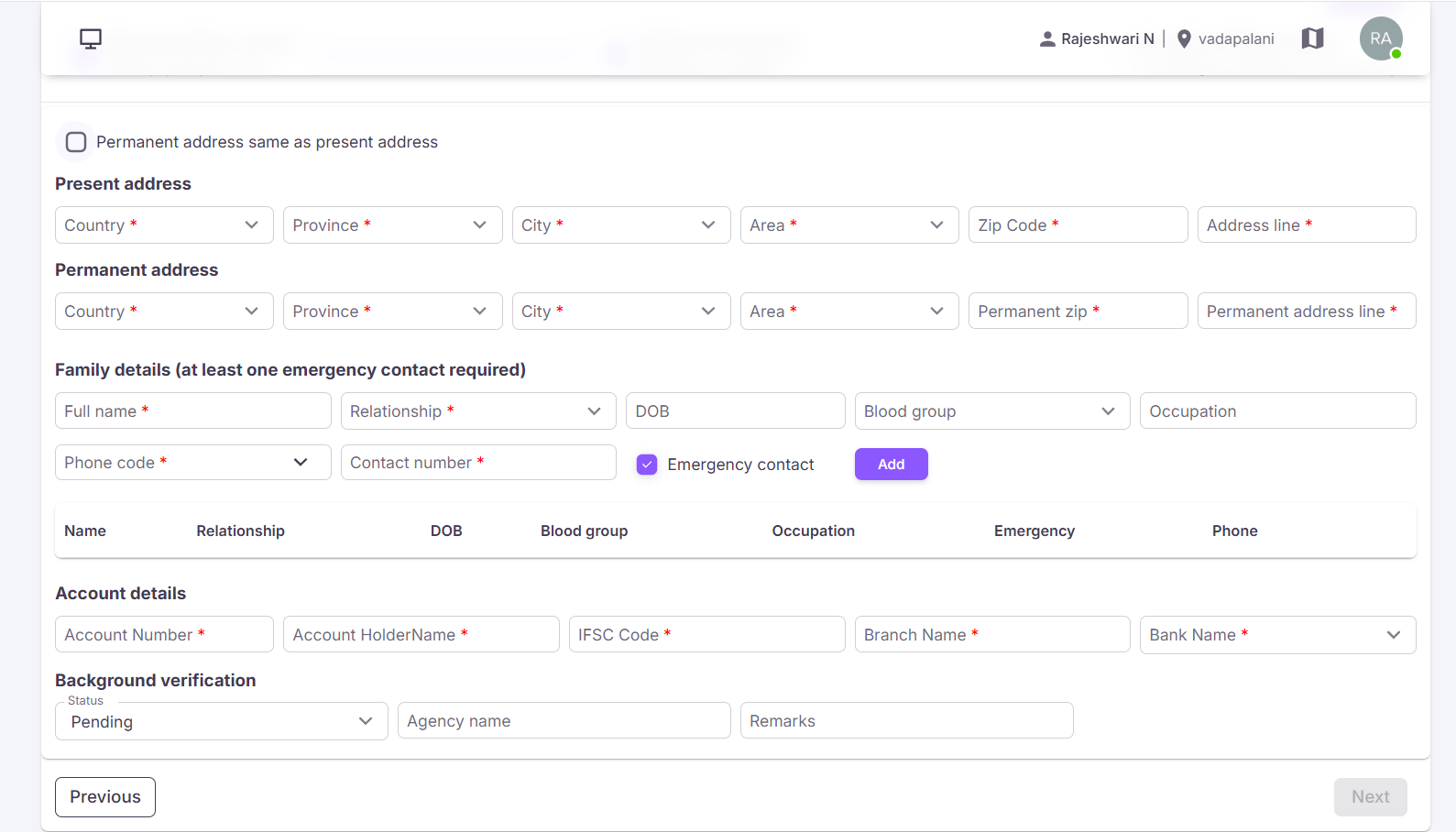
¶ Present Address
| Field Name | Description |
|---|---|
| Country * | Select country name (India, Malaysia, Sri Lanka, etc.). |
| Province * | Select province/state. |
| City * | Select city name. |
| Area * | Enter area/location. |
| Zip Code * | Enter zip/postal code. |
| Address Line * | Enter complete address. |
¶ Permanent Address
Users can enable the Permanent Address Same as Present Address option to automatically copy the present address details.
- Country * – Select country name.
- Province * – Select province/state.
- City * – Select city name.
- Area * – Enter area/location.
- Permanent Zip * – Enter zip/postal code.
- Permanent Address Line * – Enter complete address.
¶ Family / Emergency Contact Details
At least one emergency contact is required.
| Field | Description |
|---|---|
| Full Name * | Enter contact person name. |
| Relationship * | Select relationship. |
| DOB | Select date of birth. |
| Blood Group | Select blood group. |
| Occupation | Enter occupation details. |
| Phone Code * | Select country phone code. |
| Contact Number * | Enter contact number. |
| Emergency Contact | Mark as emergency contact if required. |
¶ Account Details
- Account Number * – Enter bank account number.
- Account Holder Name * – Enter account holder name.
- IFSC Code * – Enter IFSC code.
- Branch Name * – Enter bank branch name.
- Bank Name * – Select bank name.
¶ Background Verification
- Status – Completed / Pending / In Progress.
- Agency Name – Enter agency name.
- Remarks – Enter additional remarks.
Click Next to proceed to Education & Experience →
¶ Education & Experience
This section is used to capture employee education, certification, and previous work experience details.
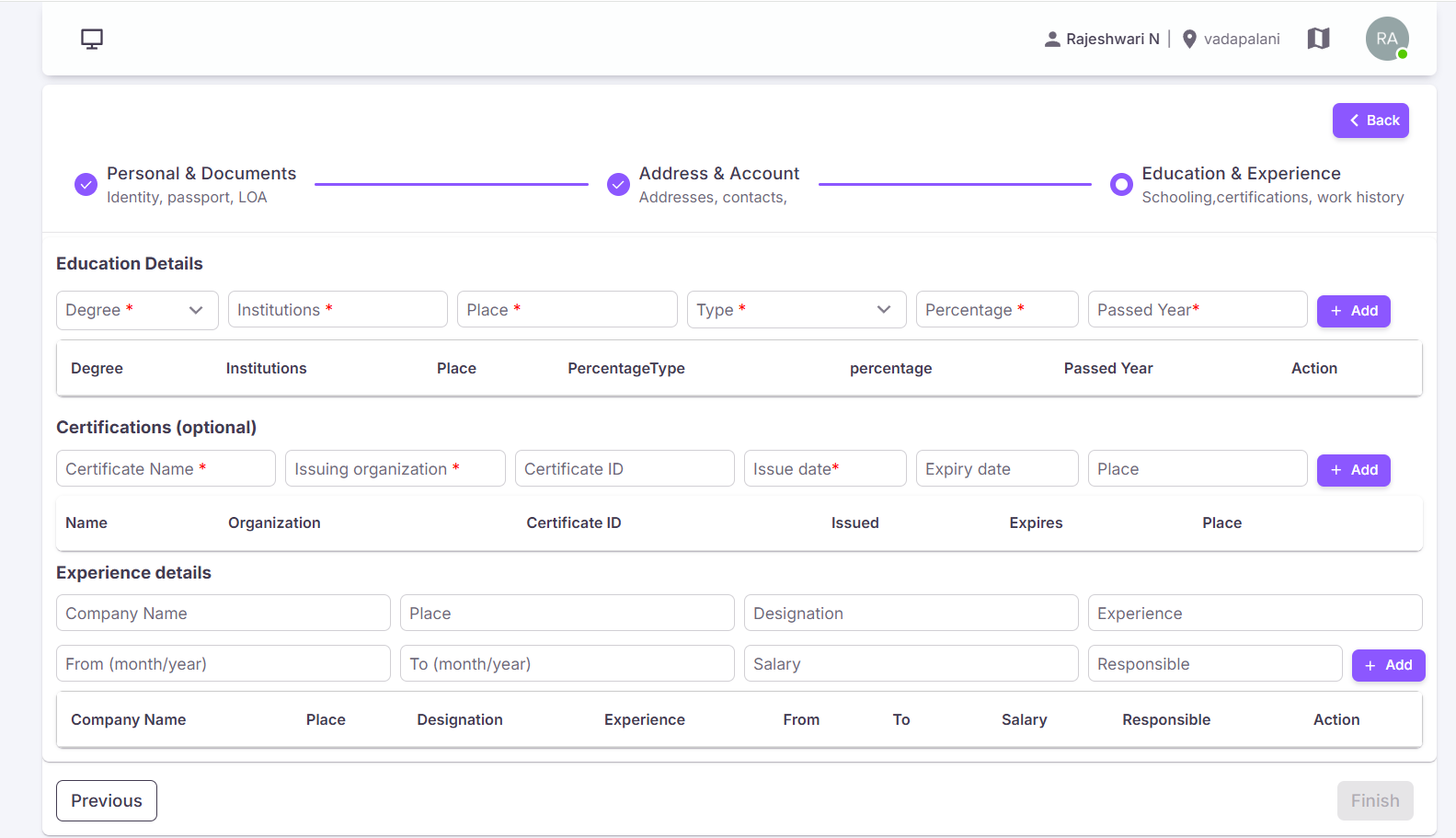
¶ Education Details
- Degree * – Enter degree name (10th, 12th, UG, PG, PHD).
- Institutions * – Enter institution name.
- Place * – Enter institution location.
- Type * – Select Percentage / CGPA.
- Percentage * – Enter percentage or CGPA.
- Passed Year * – Enter passed year.
¶ Certifications (Optional)
- Certificate Name * – Enter certification name.
- Issuing Organization * – Enter organization name.
- Certificate ID – Enter certificate ID.
- Issue Date * – Select issued date.
- Expiry Date – Select expiry date.
- Place – Enter issued location.
¶ Experience Details
- Company Name – Enter previous company name.
- Place – Enter company location.
- Designation – Enter employee designation.
- Experience – Enter total experience.
- From (Month/Year) – Select joining month and year.
- To (Month/Year) – Select relieving month and year.
- Salary – Enter salary details.
- Responsible – Enter roles and responsibilities.
¶ Finish Employee Creation
After entering all required details, click the Finish button to create the employee successfully.
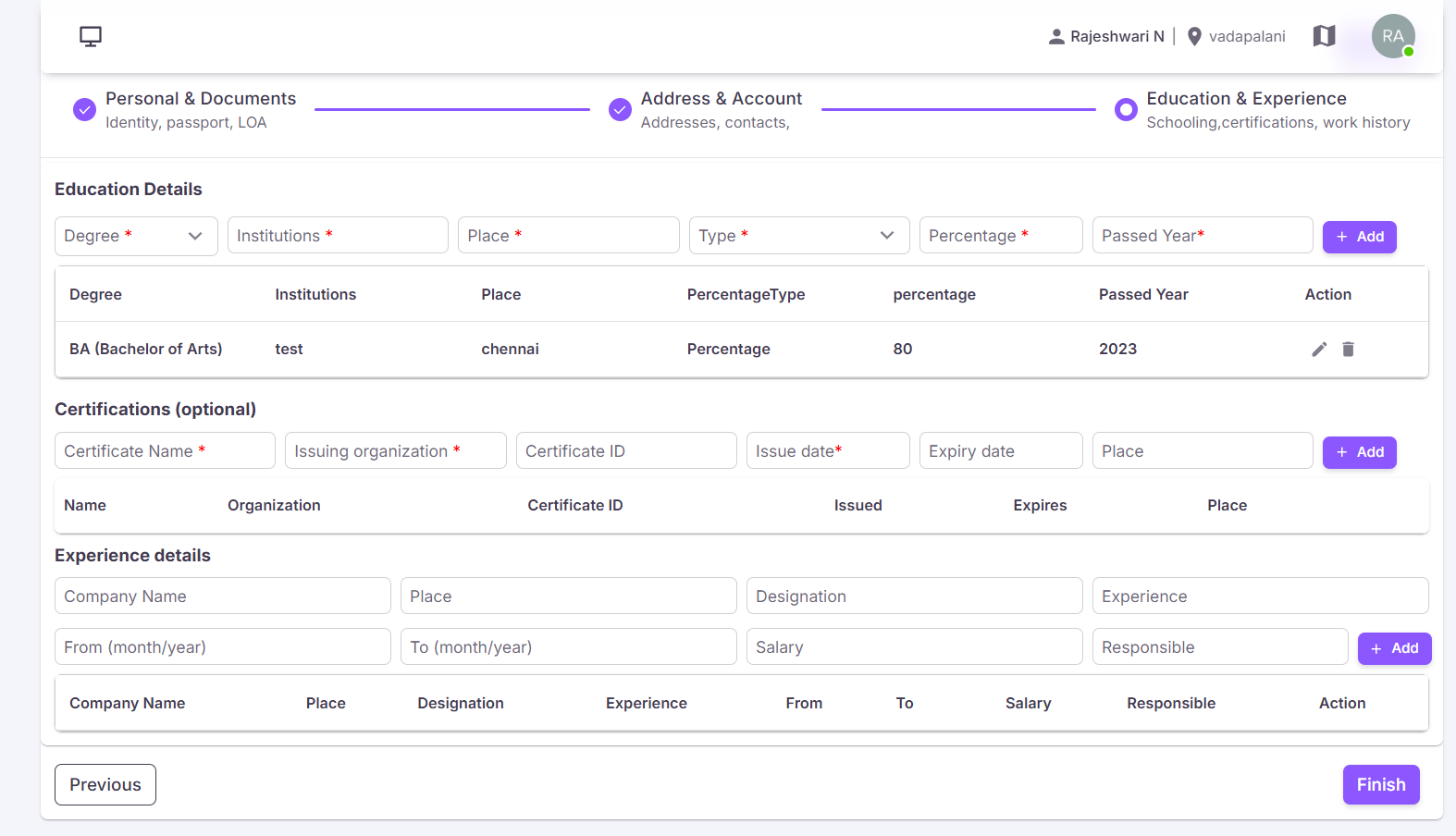
If required, click the Previous button to return to the previous section and modify the details.
Note: Fields marked with * are mandatory and must be filled before proceeding.
¶ Upload Employee
Instead of adding employees one by one using the Add Employee option, HR/Admin users can upload employee records in bulk using the Upload Employee feature.
¶ Upload Process
- Click the Upload Employee button.
- The Upload Employees popup will be displayed.
- Click Download Sample to download the sample Excel template.
- Enter employee details in the downloaded template.
- Click Choose File and select the file.
- Click Upload to upload employee records successfully.
- If you do not want to continue, click Close.
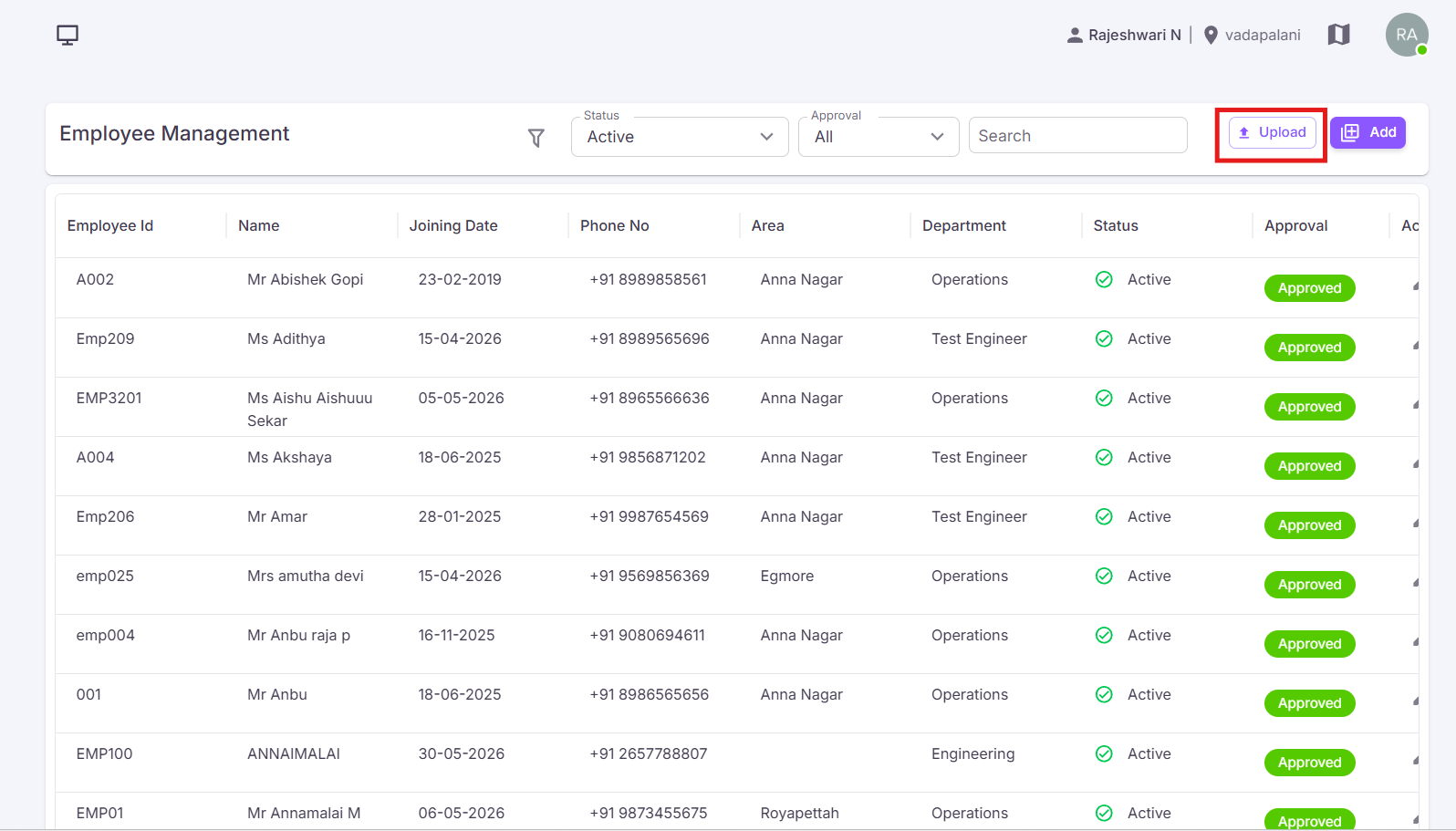
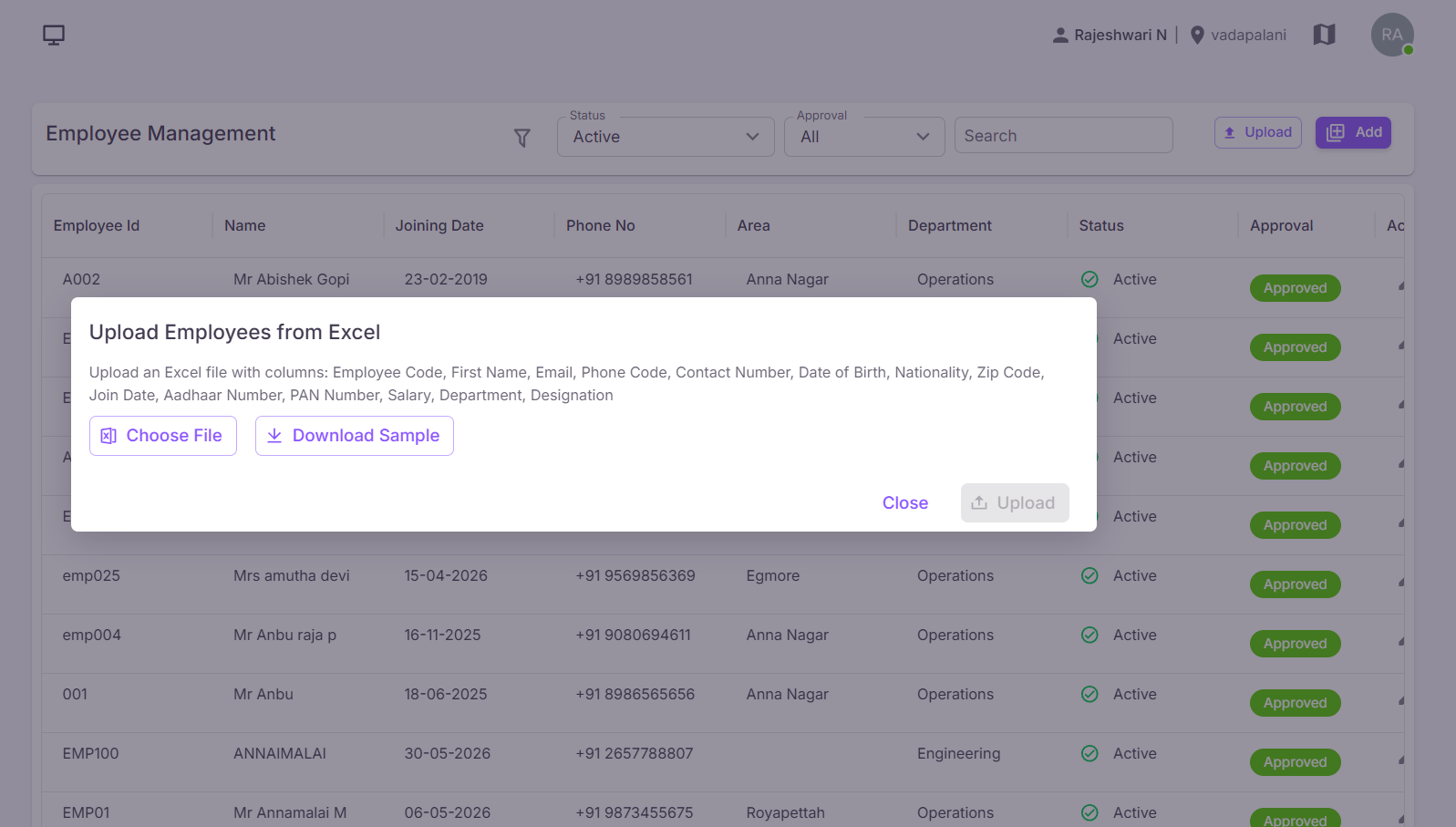
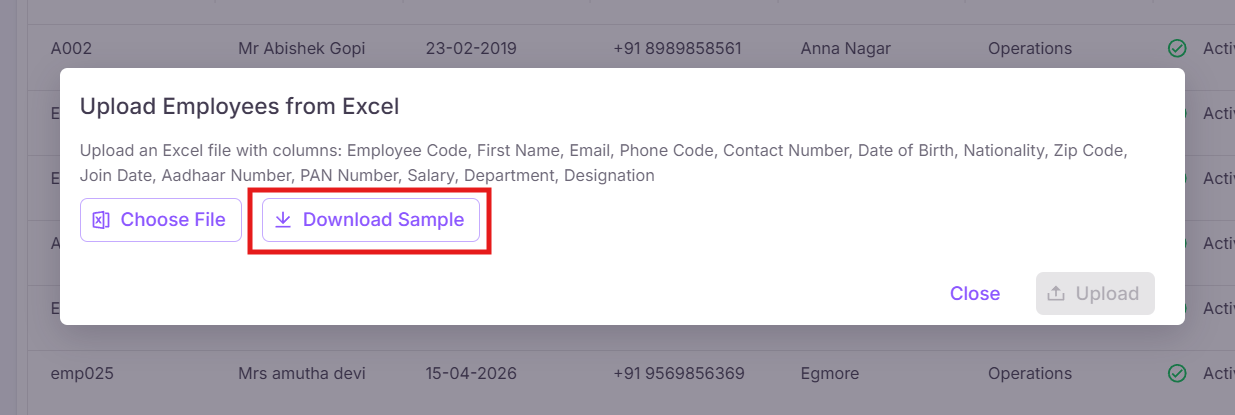

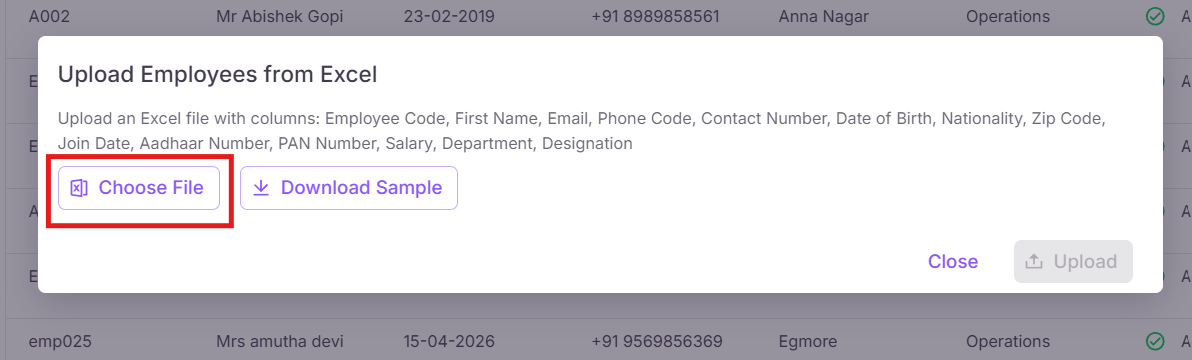
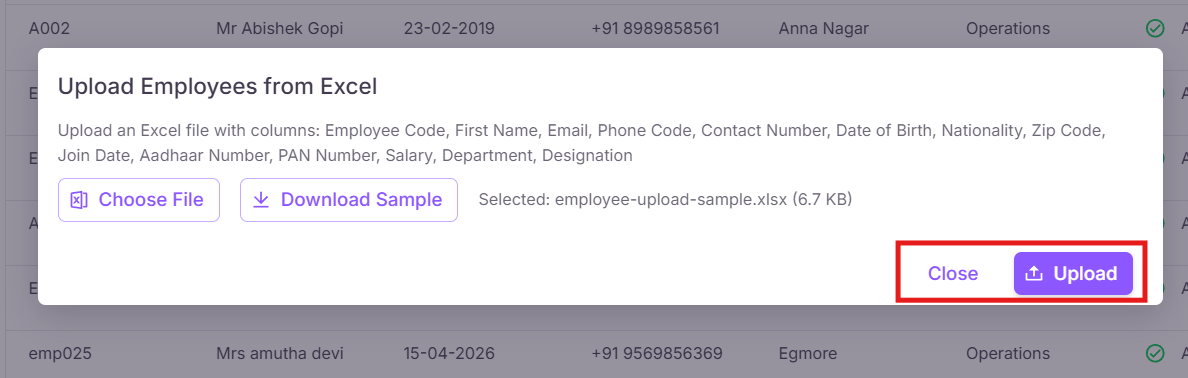
Uploaded employee records will automatically be displayed in the Manage Employee module.
¶ Manage Employee
The Manage Employee module is used to view, search, filter, update, approve, reject, and manage employee records within the organization.
¶ Approve Employee
The Approve option is used to approve employee records created in the system.
¶ Approval Process
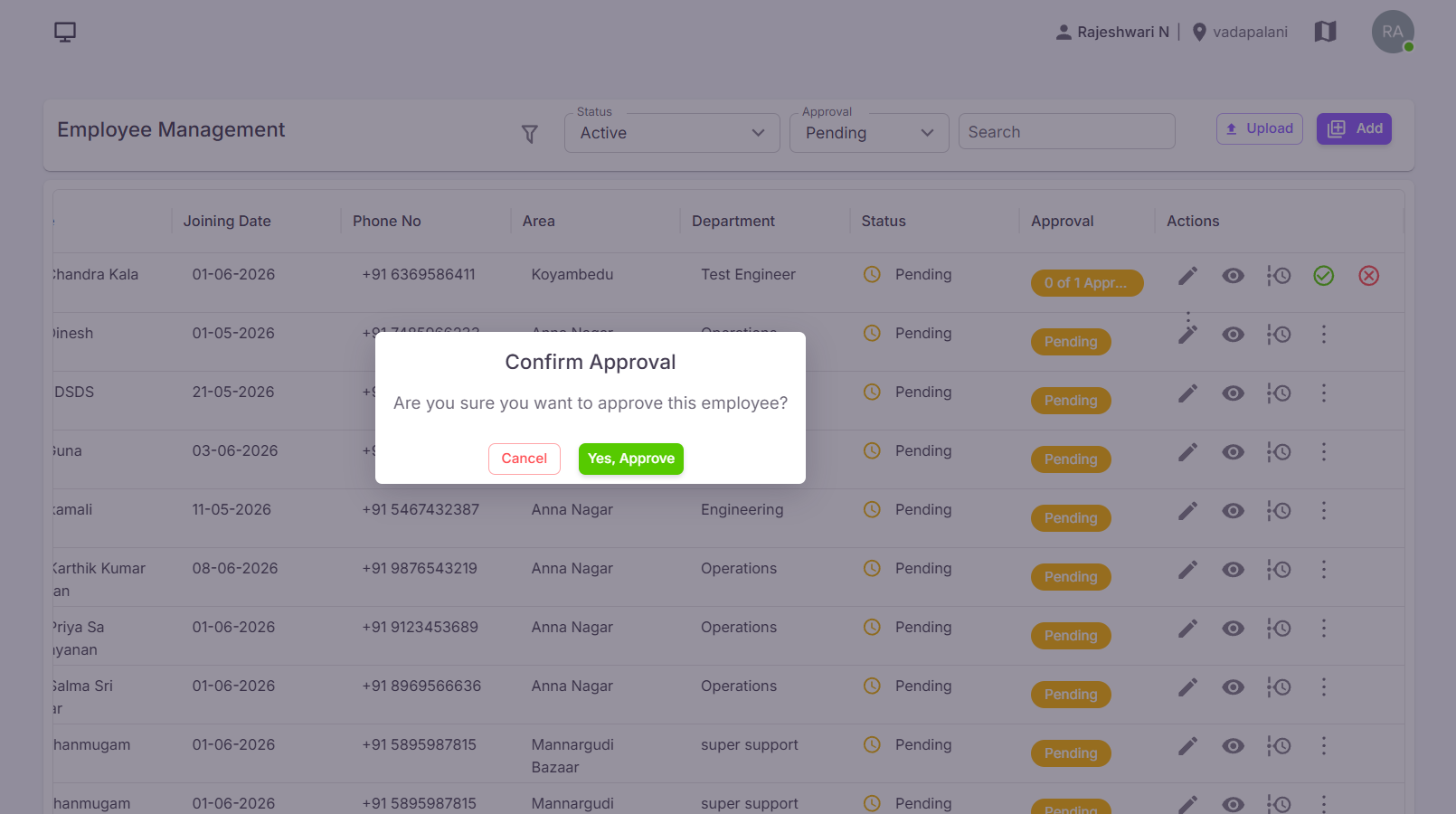
- Under the Actions column, click the Approve icon.
- Confirm the approval.
- The employee record will be approved successfully.

¶ Approval Behaviour
- Employee Status will be displayed as Active.
- Approval Status will be displayed as Approved.
¶ Reject Employee
The Reject option is used to reject employee records when approval is not required.
¶ Rejection Process
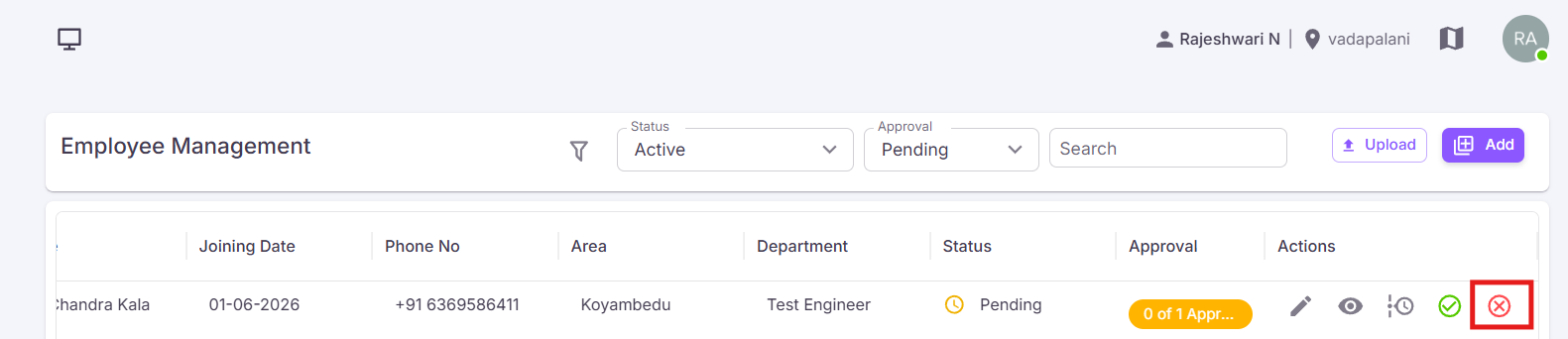
- Under the Actions column, click the Reject icon.
- Confirm the approval.
- The employee record will be rejected successfully.
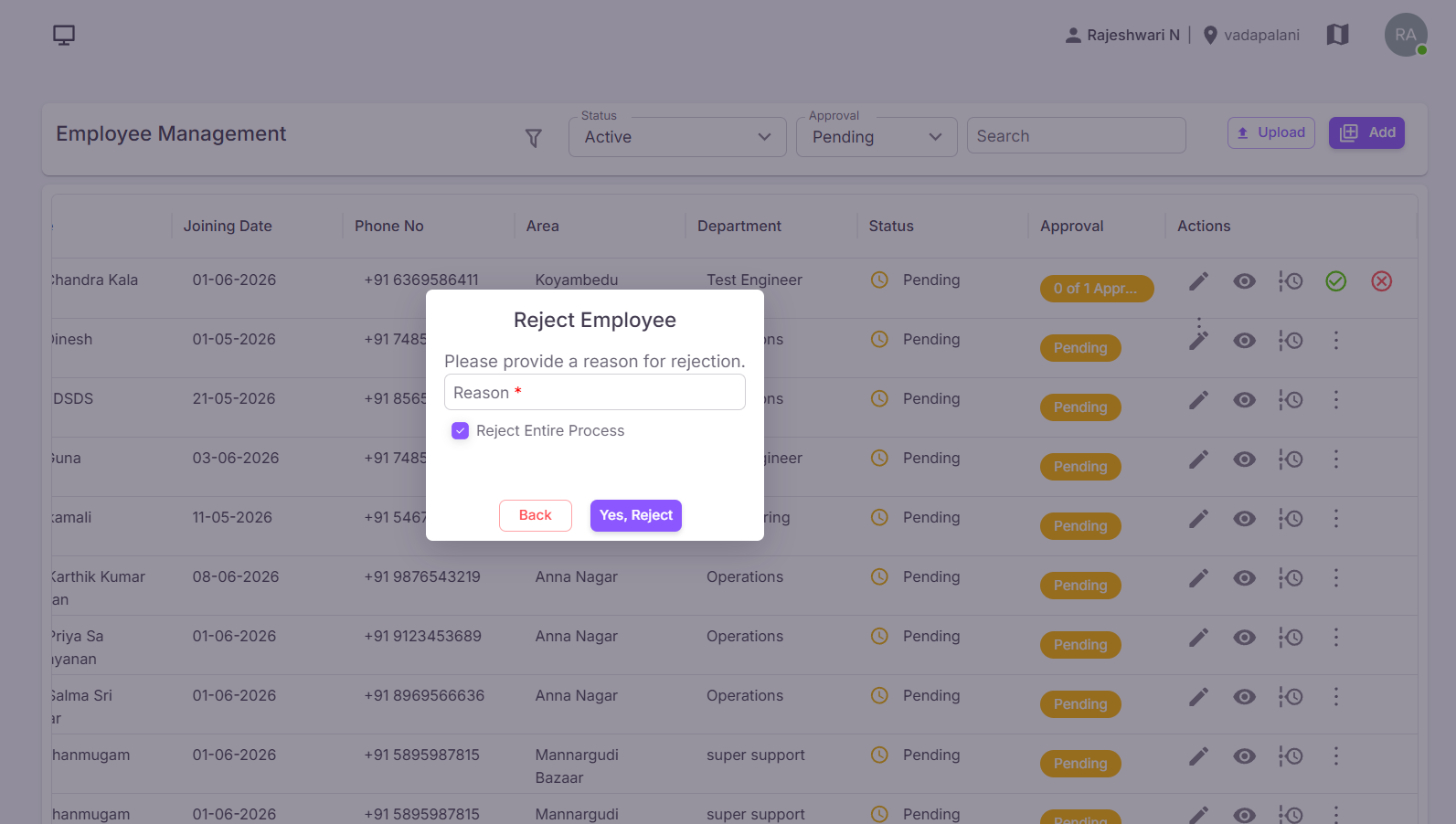
| Field | Description |
|---|---|
| Rejection Reason | Enter the reason for rejecting the employee record. |
- Click Yes Reject to reject the employee.
- Click Cancel to close the screen without changes.
¶ Rejection Behaviour
- Employee Status will be displayed as Rejected.
- Approval Status will be displayed as Rejected.
¶ Edit Employee
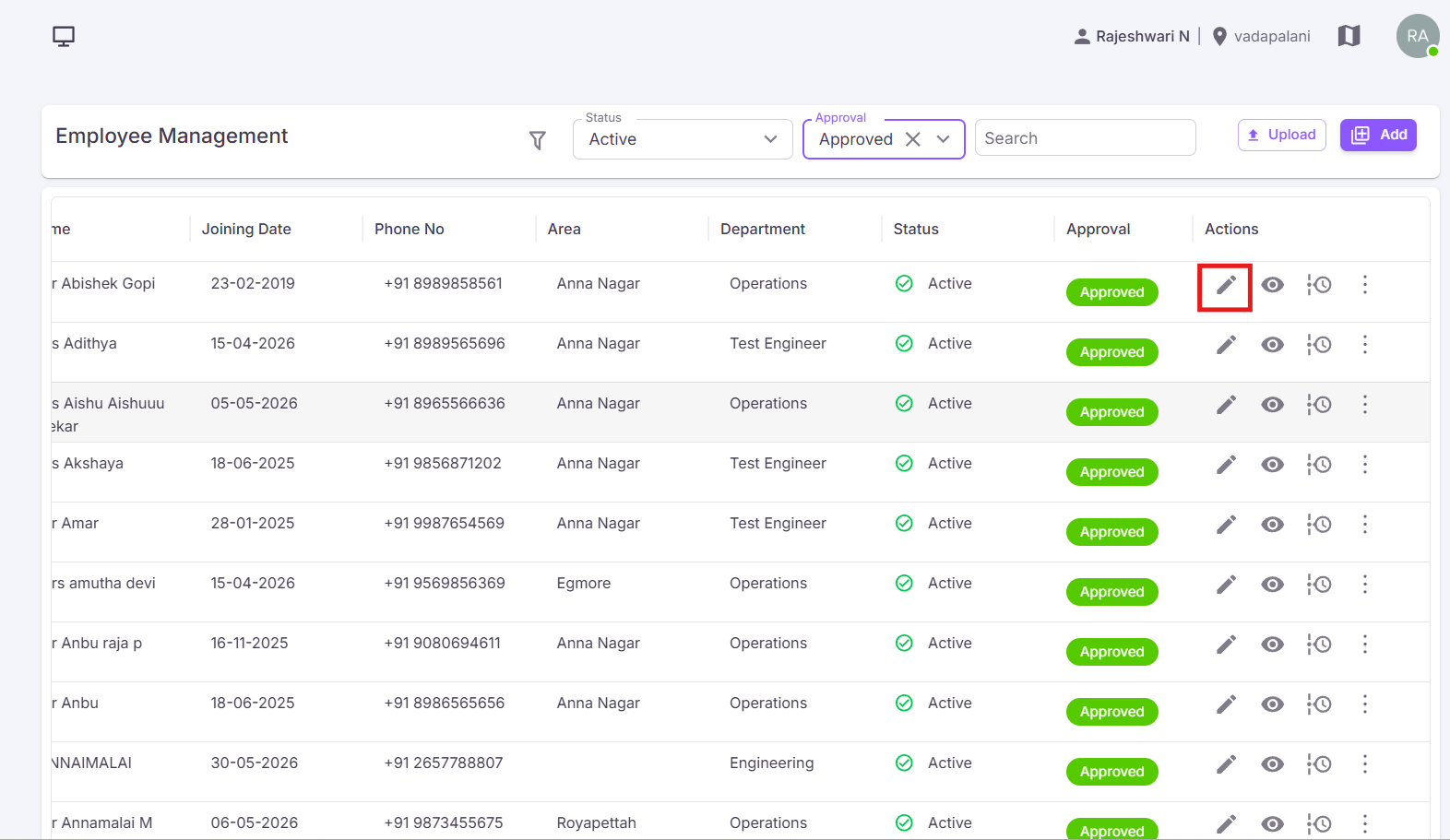
The Edit option is used to update previously entered employee information.
Click the Edit ✏️ Icon Under the Action Column.
¶ Editable Sections
- Personal & Documents
- Address & Account
- Education & Experience
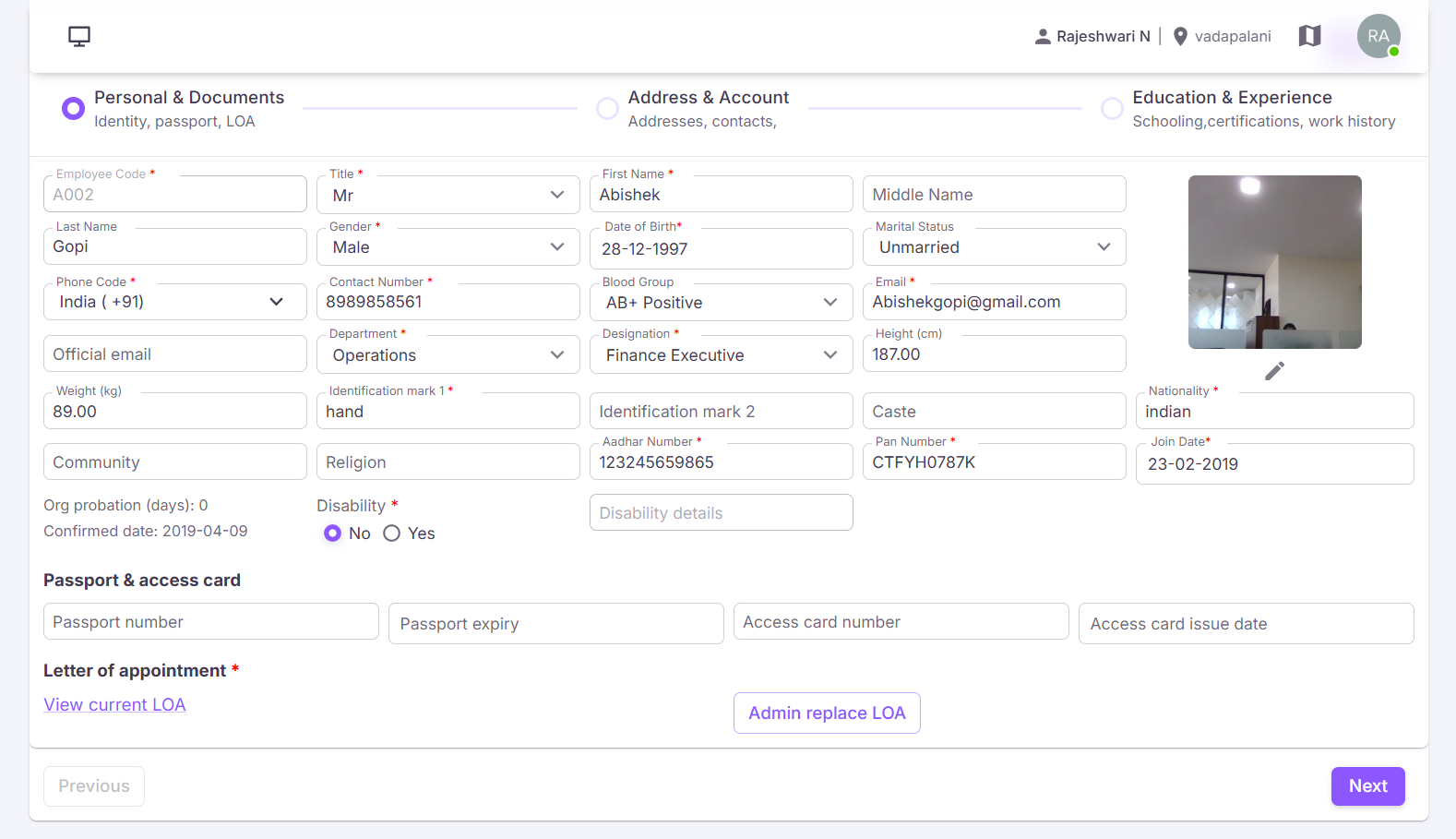
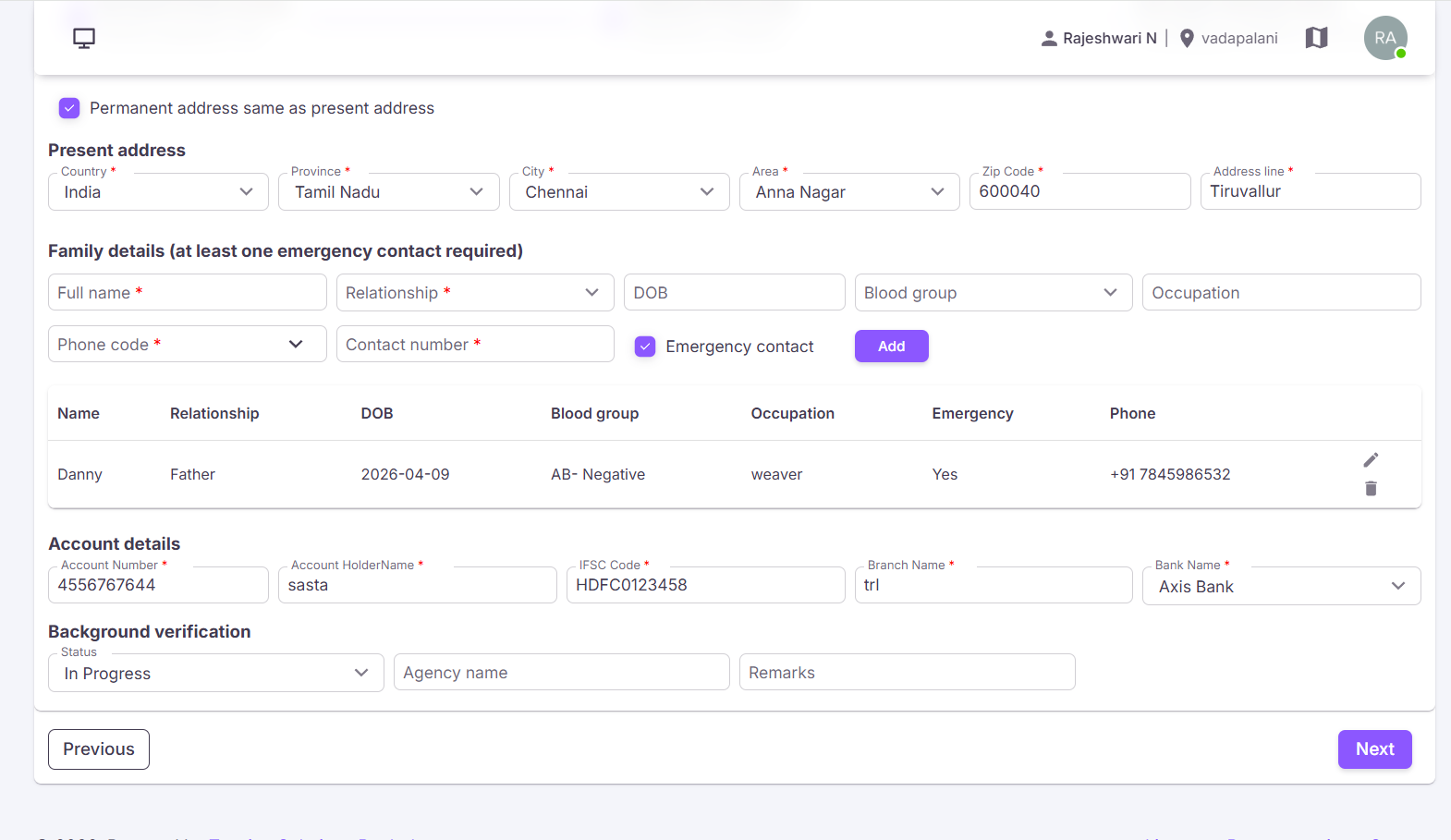
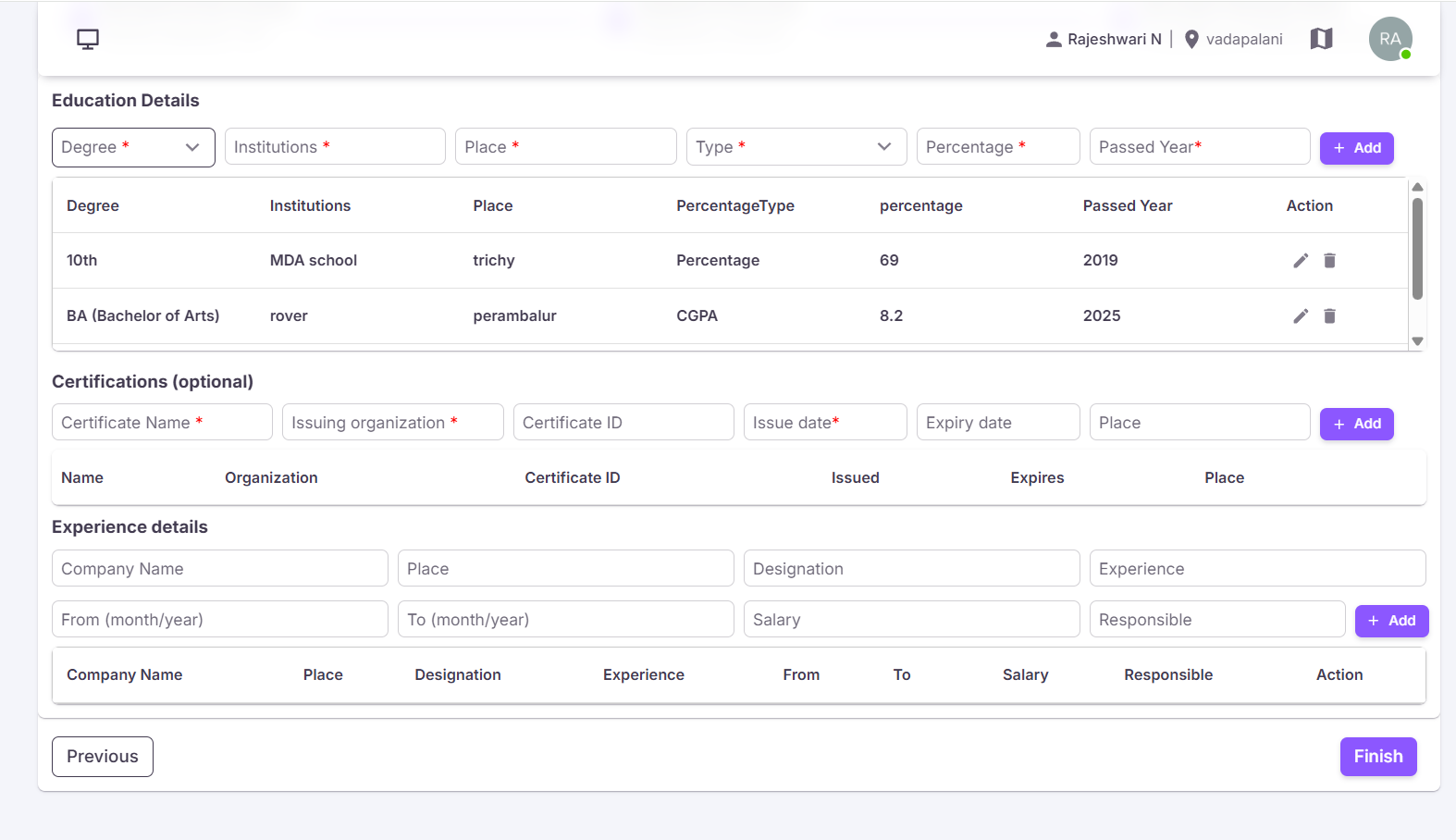
After making the required changes, click Finish to save the updated employee information successfully.
¶ Video Tutorial
Watch this step-by-step video guide to learn how to create a visit in the system.
¶ Export Options
Export options are used to download employee records for reporting and reference purposes.
¶ Export Excel
Download employee details in Excel format.
¶ Export PDF
Download employee details in PDF format.
¶ More Actions
In the Manage Employee module, an Additional Action icon is available. Clicking this icon displays several employee-related management options.
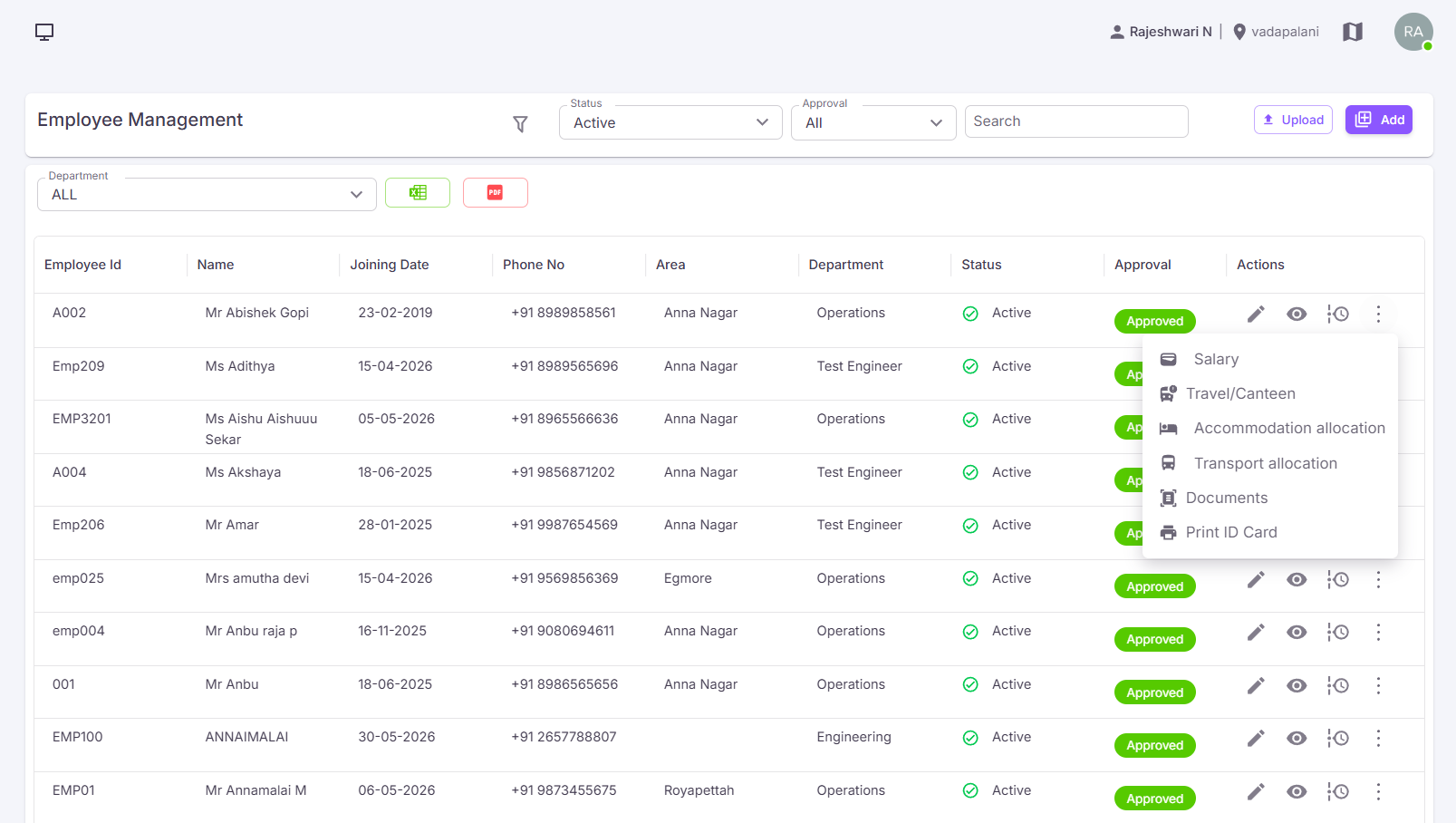
¶ Salary
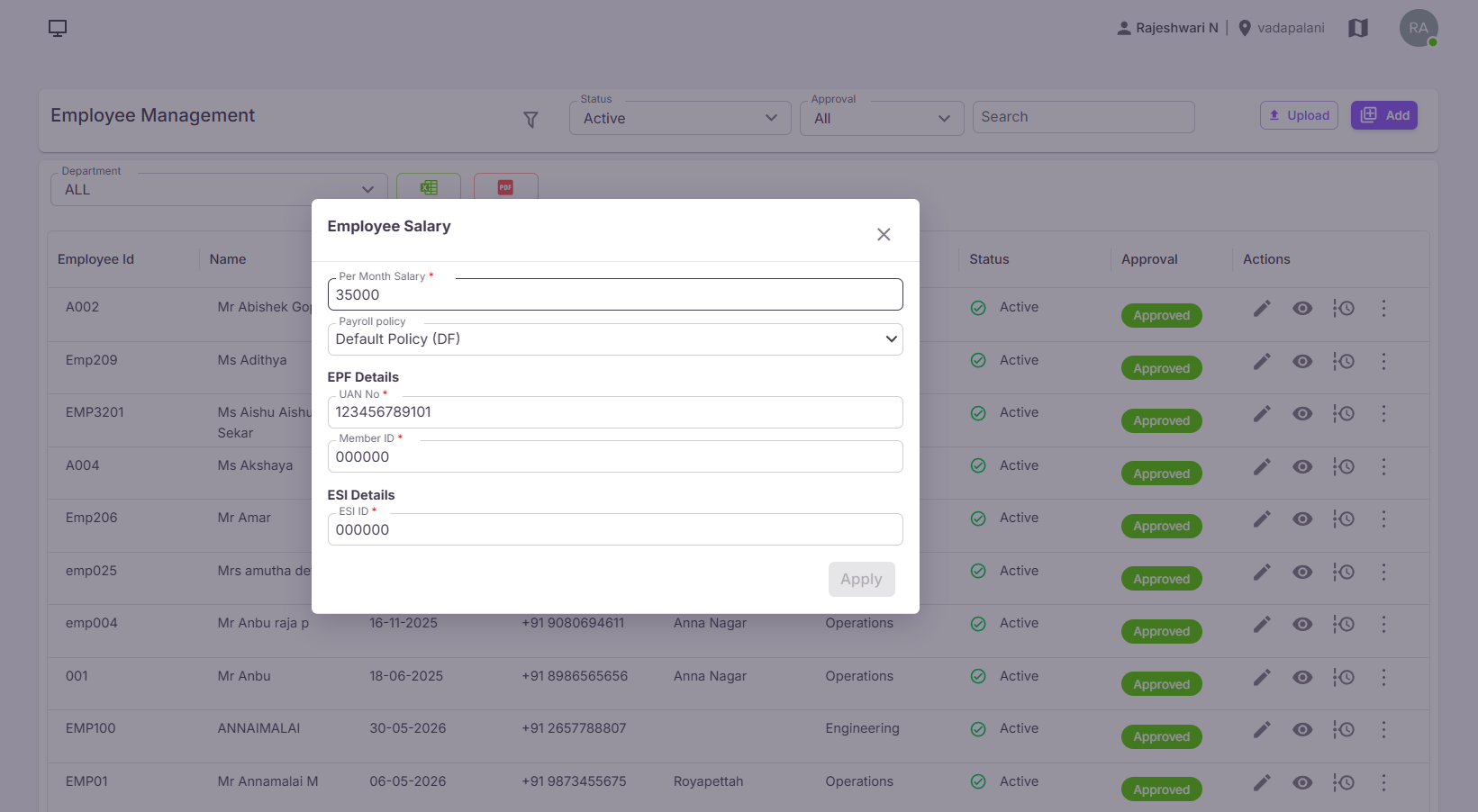
When users click the Salary option from the Action Menu, the popup of Salary Details will open.
¶ Salary Details
| Field | Description |
|---|---|
| Per Month Salary | Enter employee monthly salary. |
| Payroll Policy | Select applicable payroll policy. |
¶ EPF Details
- UAN No * – Enter employee UAN number.
- Member ID * – Enter employee member ID.
¶ ESI Details
- ESI ID * – Enter employee ESI details.
After entering all required details, click Apply to save the salary information.
¶ Video Tutorial
Watch this step-by-step video guide to learn how to create a visit in the system.
¶ Travel & Canteen
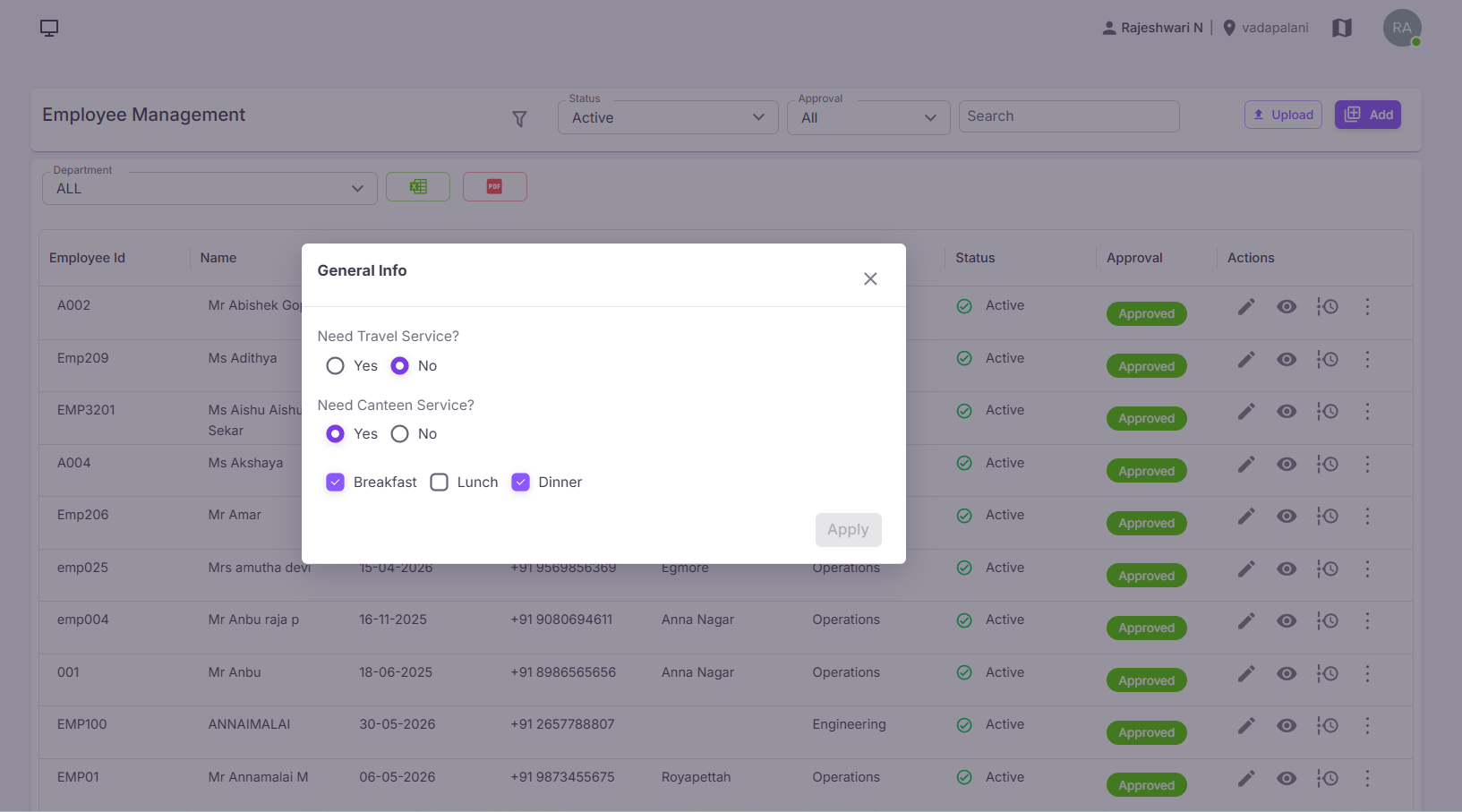
This module is used to manage employee travel and canteen service allocations.
¶ Travel Service
- Need Travel Service? – Select Yes or No.
¶ Canteen Service
- Need Canteen Service? – Select Yes or No.
- Breakfast – Enable breakfast service if required.
- Lunch – Enable lunch service if required.
- Dinner – Enable dinner service if required.
Click Apply to save Travel & Canteen information.
¶ Accommodation Allocation
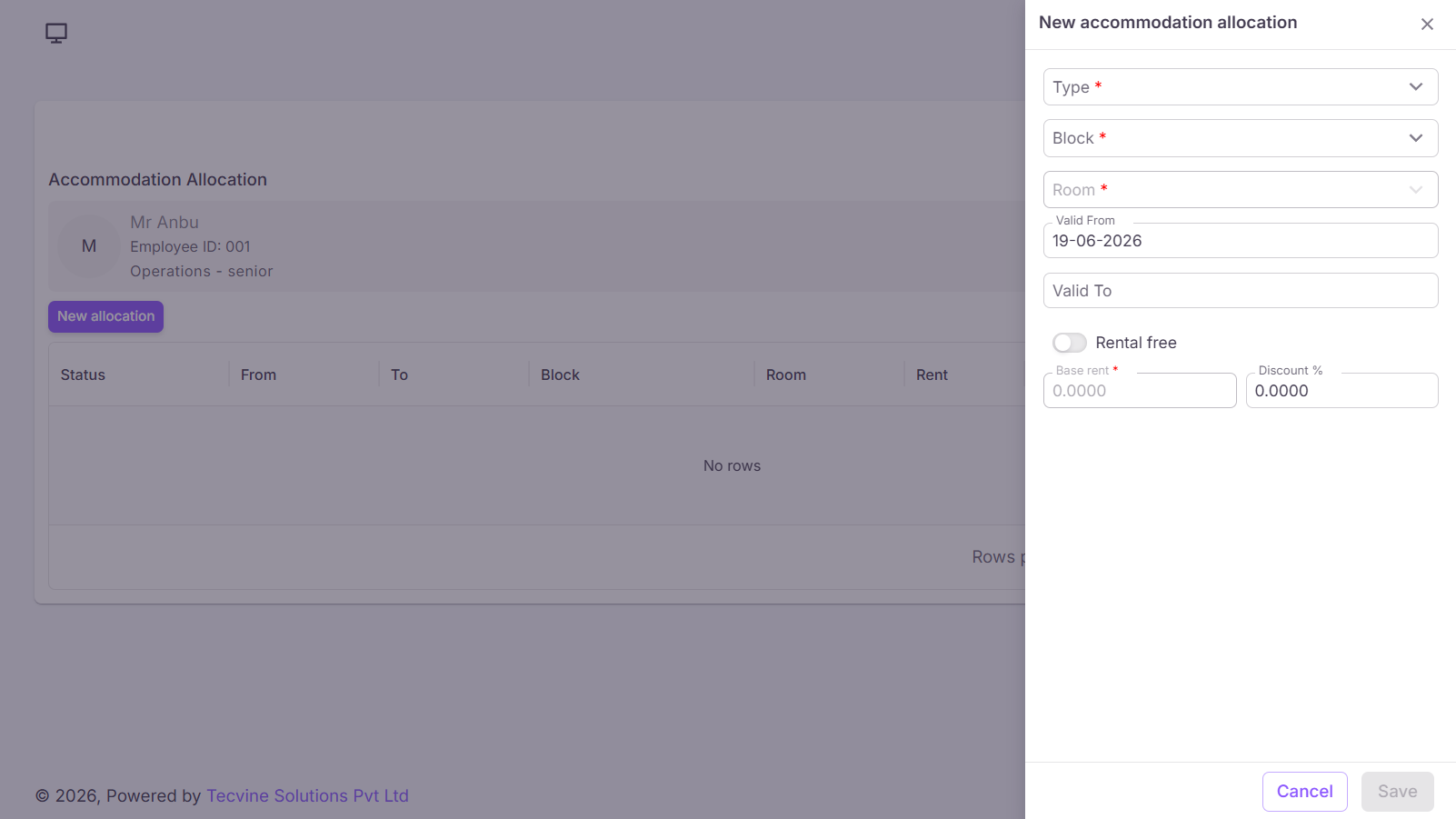
This module is used to allocate accommodation facilities to employees.
¶ Accommodation Allocation Details
- Type * – Select accommodation type.
- Block * – Select block details.
- Room * – Select room details.
- Valid From – Select start date.
- Valid To – Select end date.
- Free Rental / Rental – Enable or disable rental option.
- Base Rent * – Enter base rent amount.
- Discount – Enter applicable discount.
Click Save to save accommodation allocation details.
¶ Video Tutorial
Watch this step-by-step video guide to learn how to create a visit in the system.
¶ Transport Allocation
This module is used to allocate transport services to employees.
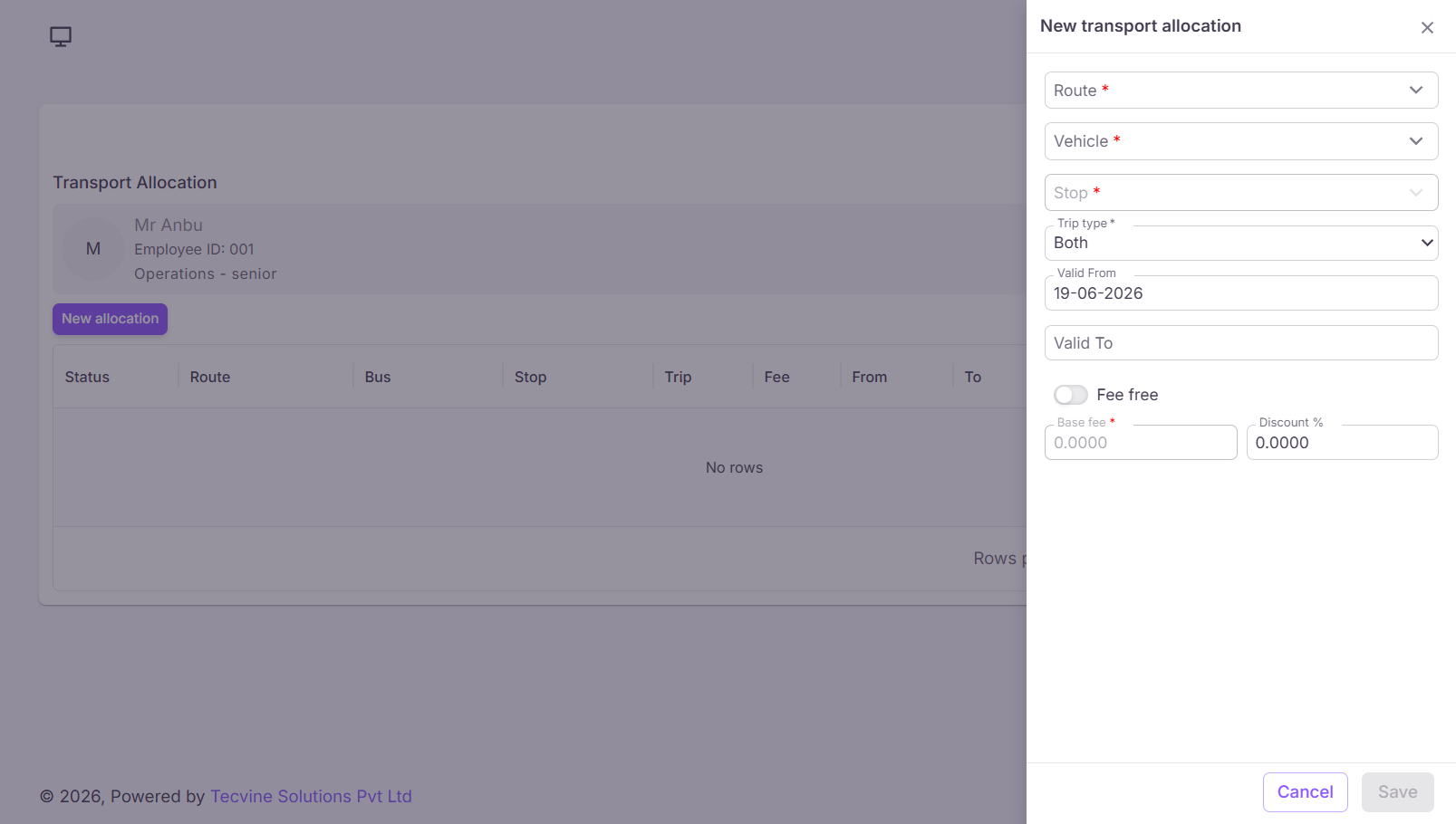
- Route * – Select transport route.
- Vehicle * – Select vehicle details.
- Stop * – Select pickup/drop point.
- Trip Type * – Pickup, Drop, or Both.
- Valid From * – Select start date.
- Valid To – Select end date.
- Fee Free – Enable or disable fee-free option.
- Base Fee * – Enter base fee.
- Discount % – Enter discount percentage.
Click Save to save transport allocation details.
¶ Video Tutorial
Watch this step-by-step video guide to learn how to create a visit in the system.
¶ Documents
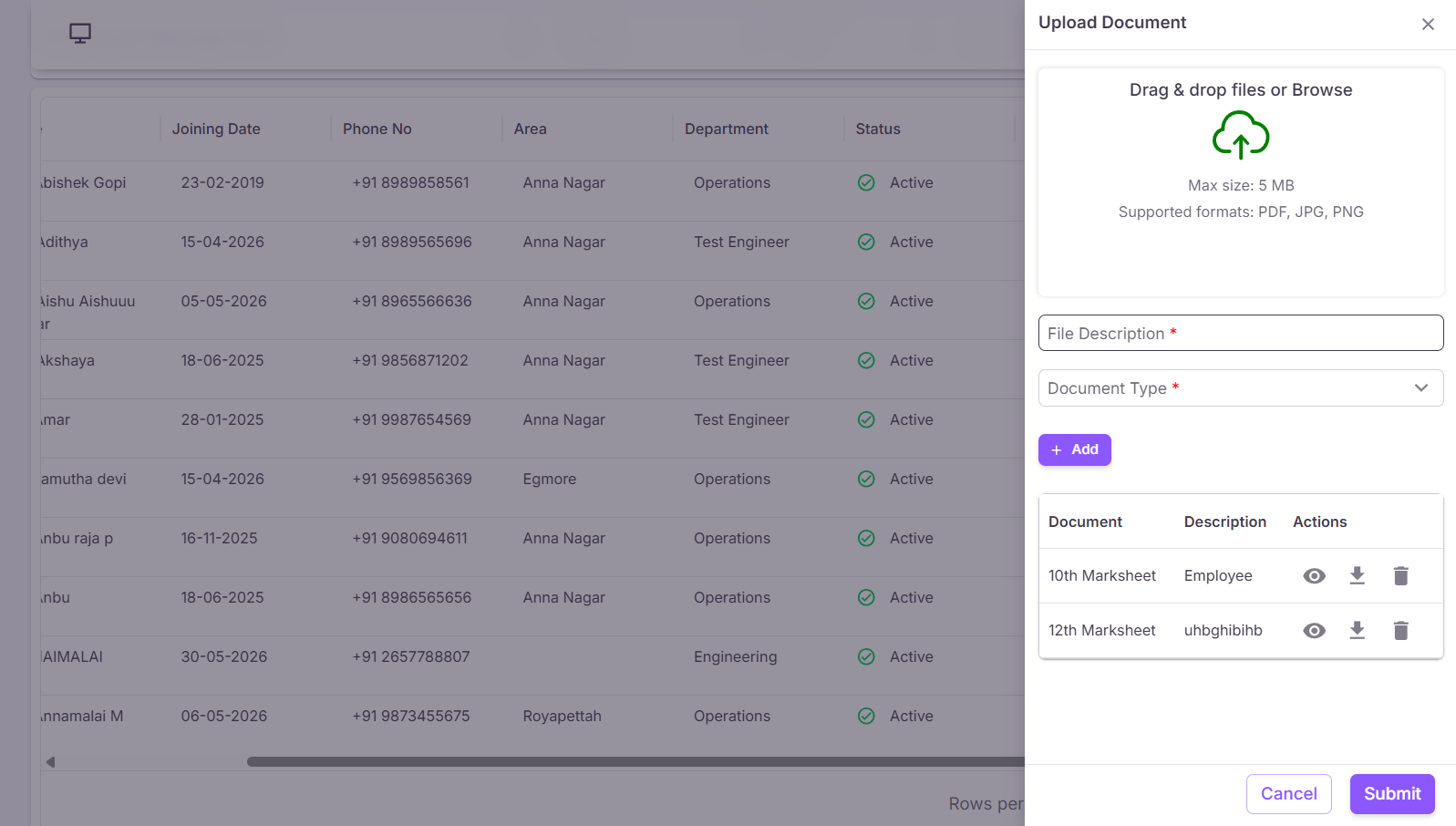
This module is used to upload and manage employee-related documents.
¶ Document Upload Details
- Drag & Drop Files or Browse – Upload documents.
- Maximum File Size – 5 MB.
- Supported Formats – PDF, JPG, PNG.
- File Description * – Enter document description.
- Document Type * – Select document type.
Click Add to save the uploaded document and Submit to complete the process.
¶ Video Tutorial
Watch this step-by-step video guide to learn how to create a visit in the system.
¶ Print ID Card
When the user clicks the Print ID Card option, the system automatically generates the Employee ID Card.
¶ ✓ Employee Management Completed
After completing all stages and submitting employee information, the employee record will be successfully displayed in the Manage Employee module. HR/Admin users can then approve, update, allocate services, upload documents, and manage employee-related activities from a centralized system.