¶ Executive Office - Call Log
¶ Call Log — Overview
The Call Log module is used to record details of phone calls, including who called, whom they contacted, and the purpose of the call. It helps maintain a history of communications by recording call summaries and notes. Users can also indicate whether a follow-up is required for future reference.
¶ Creating a Call Log Entry
Follow the steps below to record a new call log entry with caller details, summary, and follow-up status.
¶ How to Navigate to Call Log
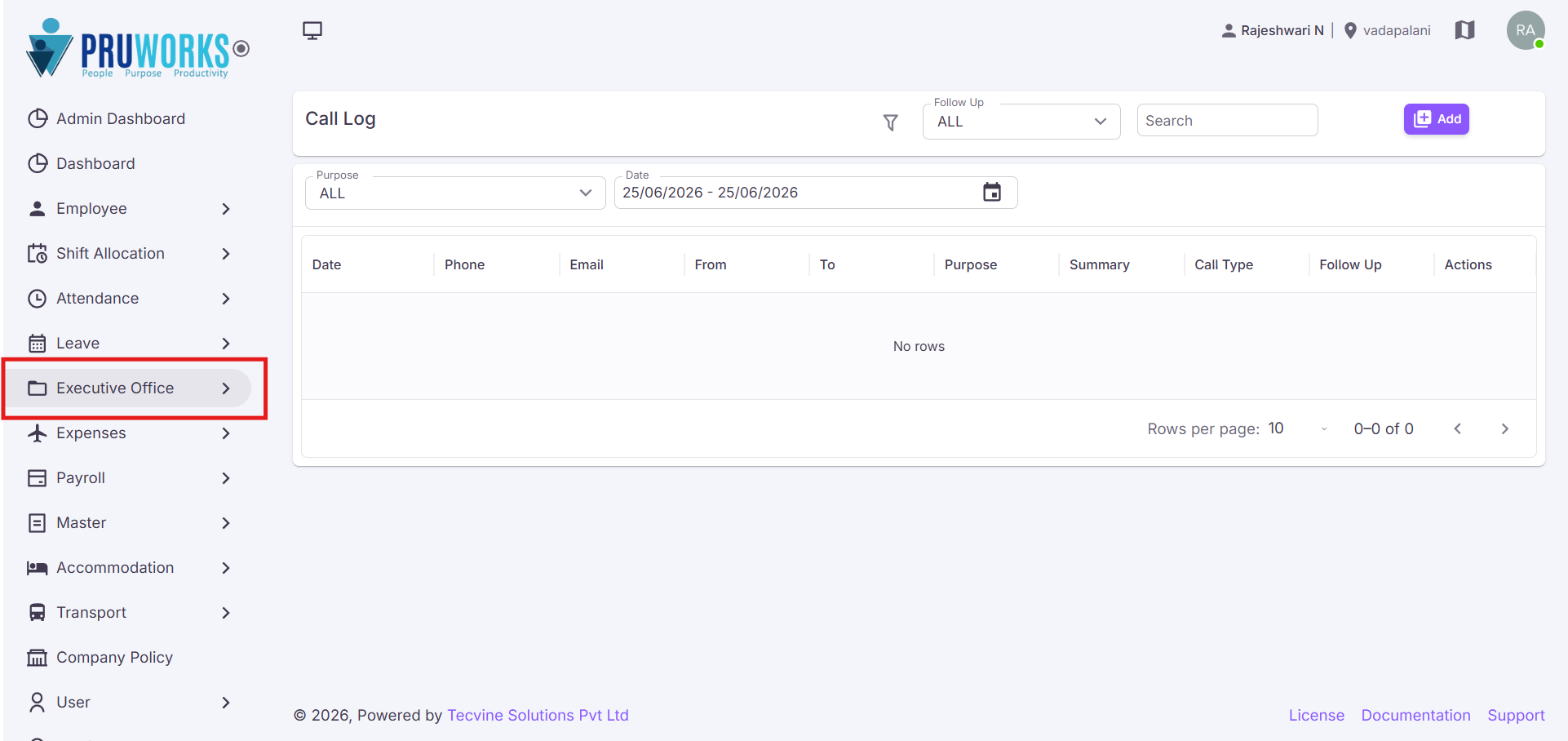
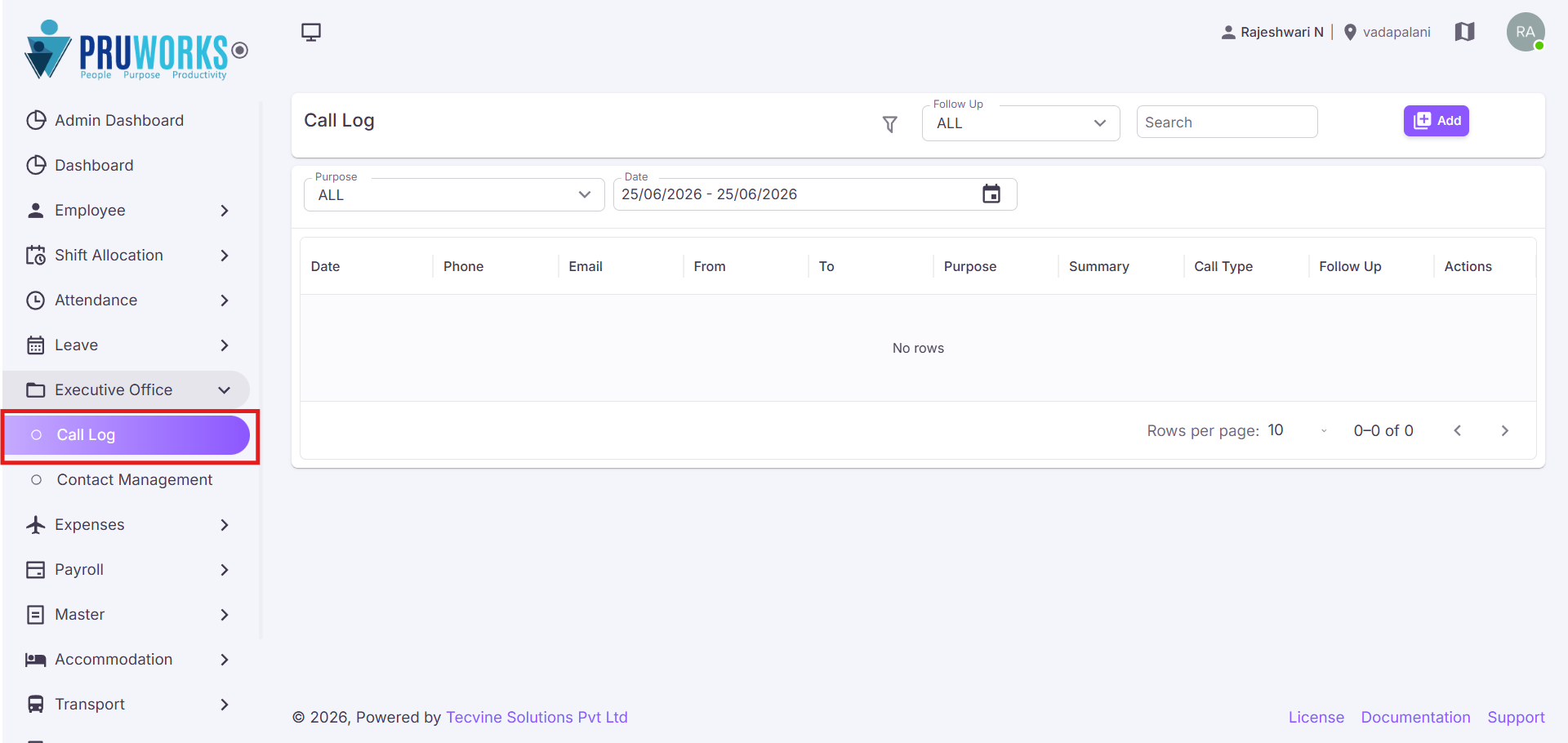
- Navigate to Executive Office in the side menu.
- Click Call Log sub menu.
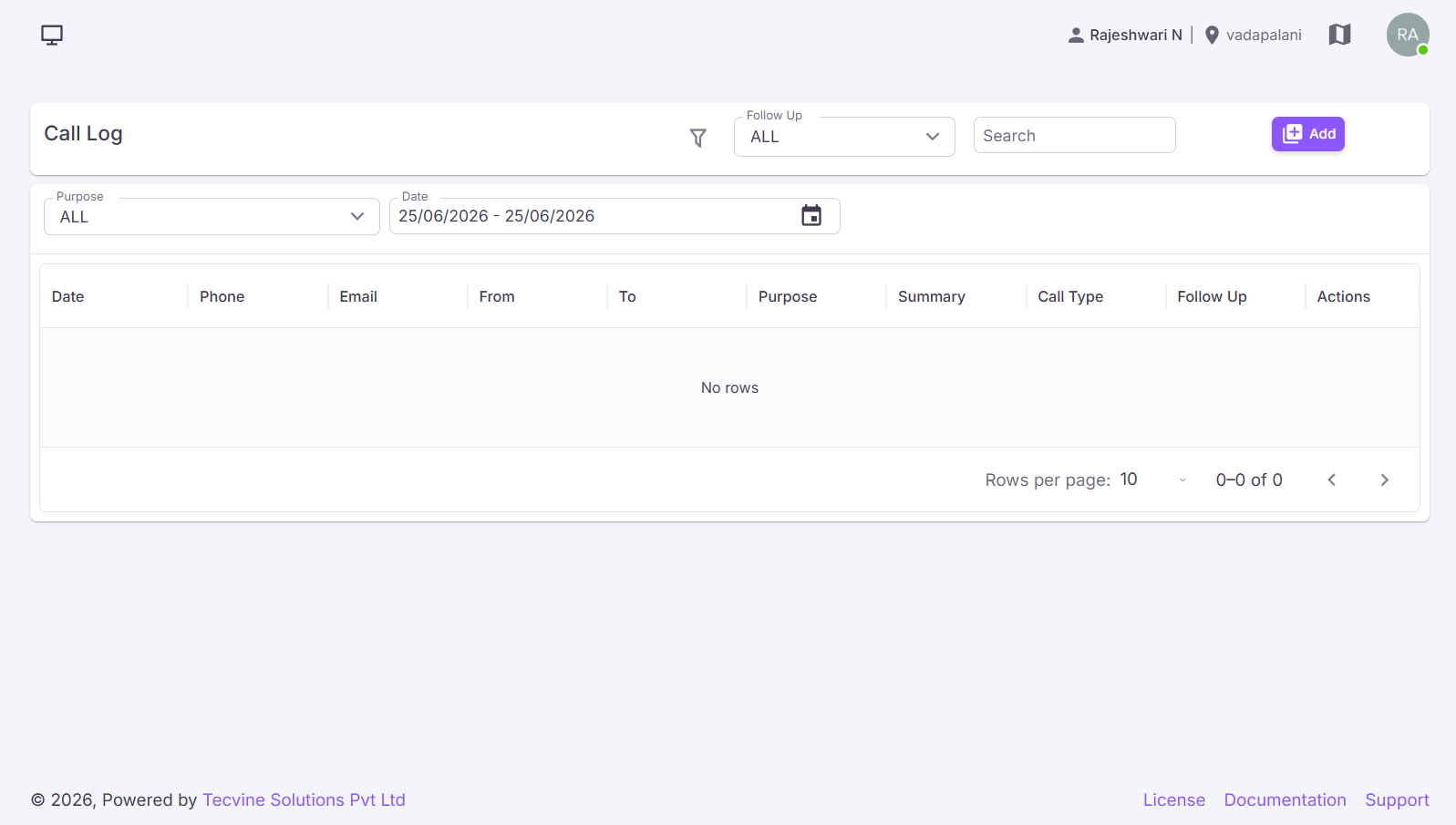
- The Call Log screen will be displayed.
Continue to Step 2: Click the Add Button →
¶ Click the Add Button
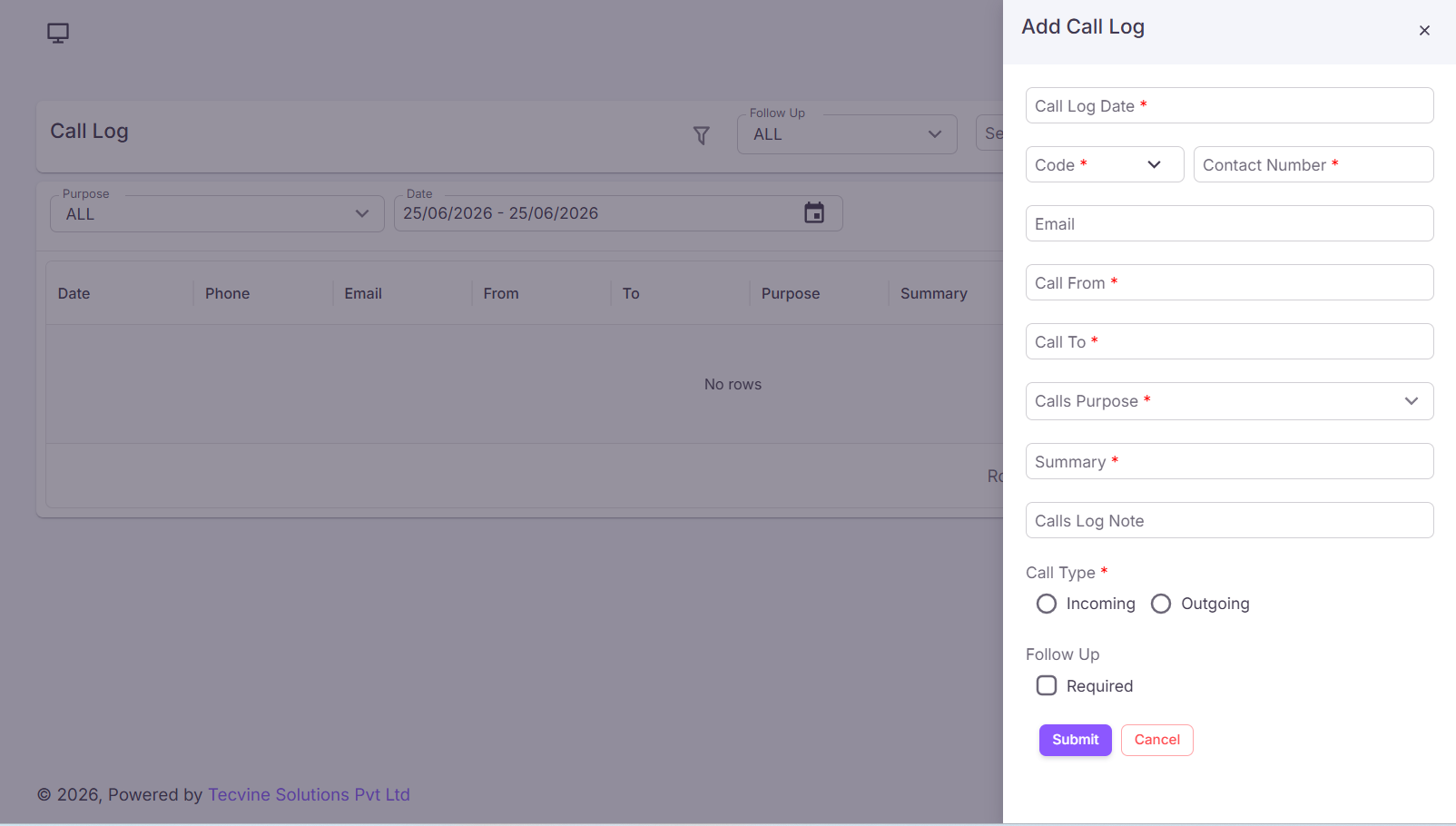
In the Call Log module, click the Add button.
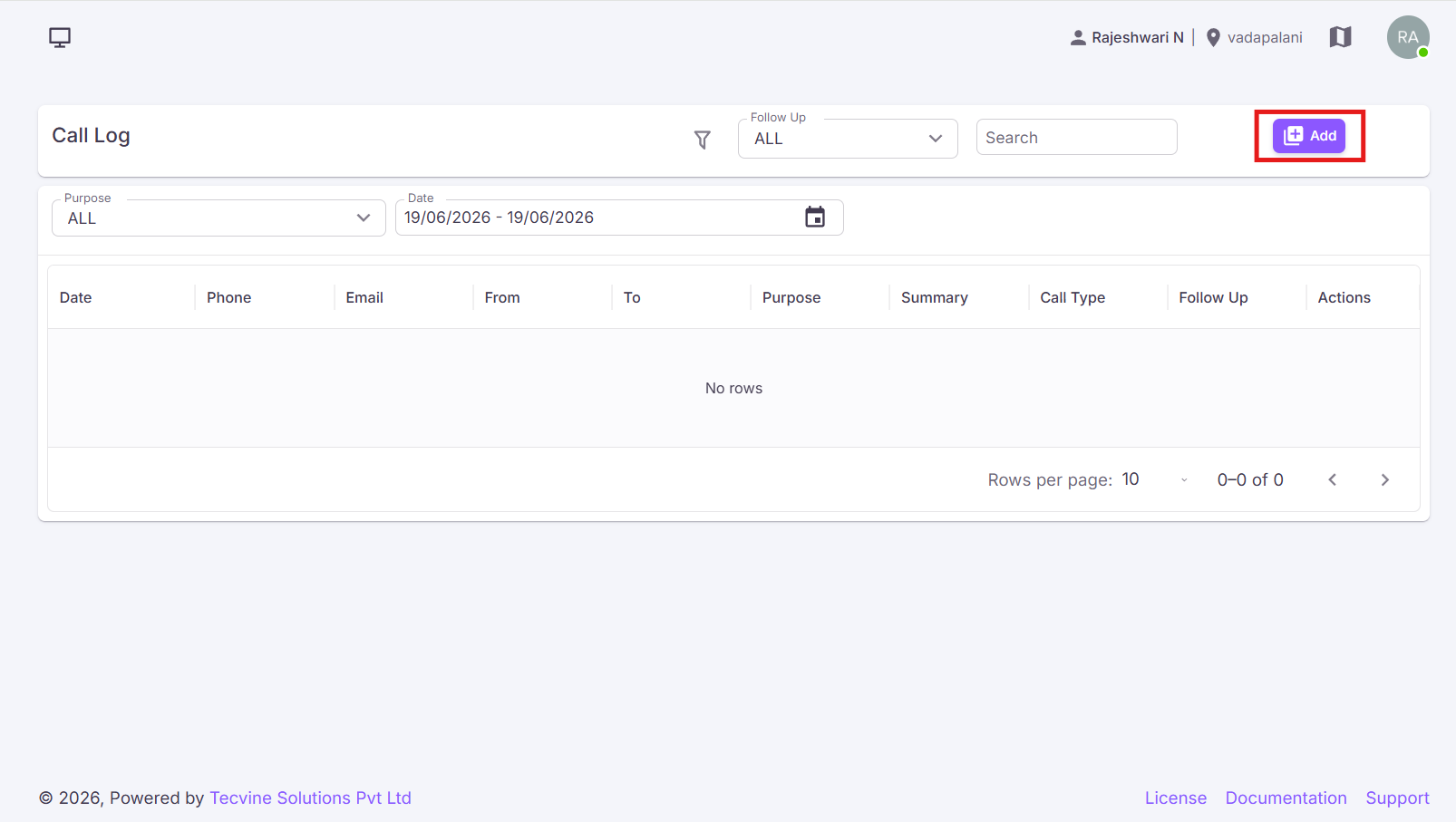
The Add Call Log form will be displayed.
Continue to Step 3: Enter Call Log Details →
¶ Enter Call Log Details
In this form, enter the details of the call.
| Field Name | Description |
|---|---|
| Call Log Date* | Select the date on which the call was made. |
| Name* | Enter the name of the person involved in the call. |
| Code* |
Select the country/phone code associated with the contact number:India (+91) / Afghanistan (+93) / Sri Lanka (+94)
|
| Contact Number* | Enter the contact number of the person. |
| Email* |
Enter the email address of the person. Example: abcd123@gmail.com |
| Call From* | Enter the source or origin of the call. |
| Call To* | Enter the recipient or destination of the call. |
| Calls Purpose* |
Select the reason for the call:Job Vacancy / Others
|
| Summary* | Enter a summary of the conversation. |
| Calls Log Note |
Enter additional notes or remarks related to the call. (Optional) |
| Call Type* | Select either Incoming or Outgoing using the radio button. |
| Follow Up | Select the checkbox if a follow-up action or call is required. If no follow-up is required, leave the checkbox unchecked. |
Note: Fields marked with * are mandatory and must be completed.
Continue to Step 4: Submit →
¶ Click Submit or Cancel Button
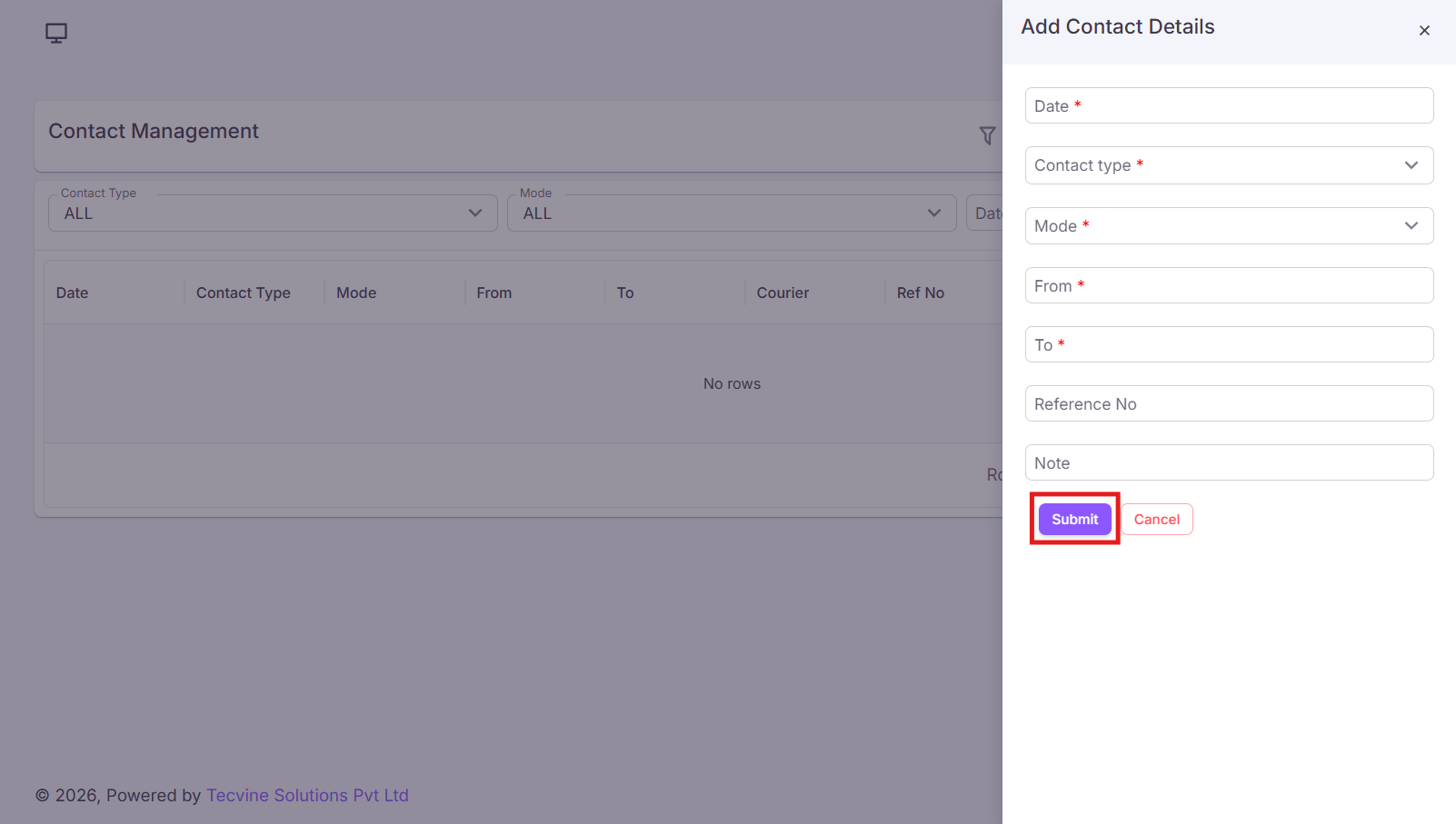
After entering all required details, review the entered information.
- Click the Submit button to save the call log entry.
- Click the Cancel button if you do not want to save the details.
¶ ✓ Call Log Saved
After clicking Submit, the call log entry will be saved and displayed in the Call Log module.
¶ Edit Call Log Details
Follow the steps below to update an existing call log record.
¶ Click the Edit Icon
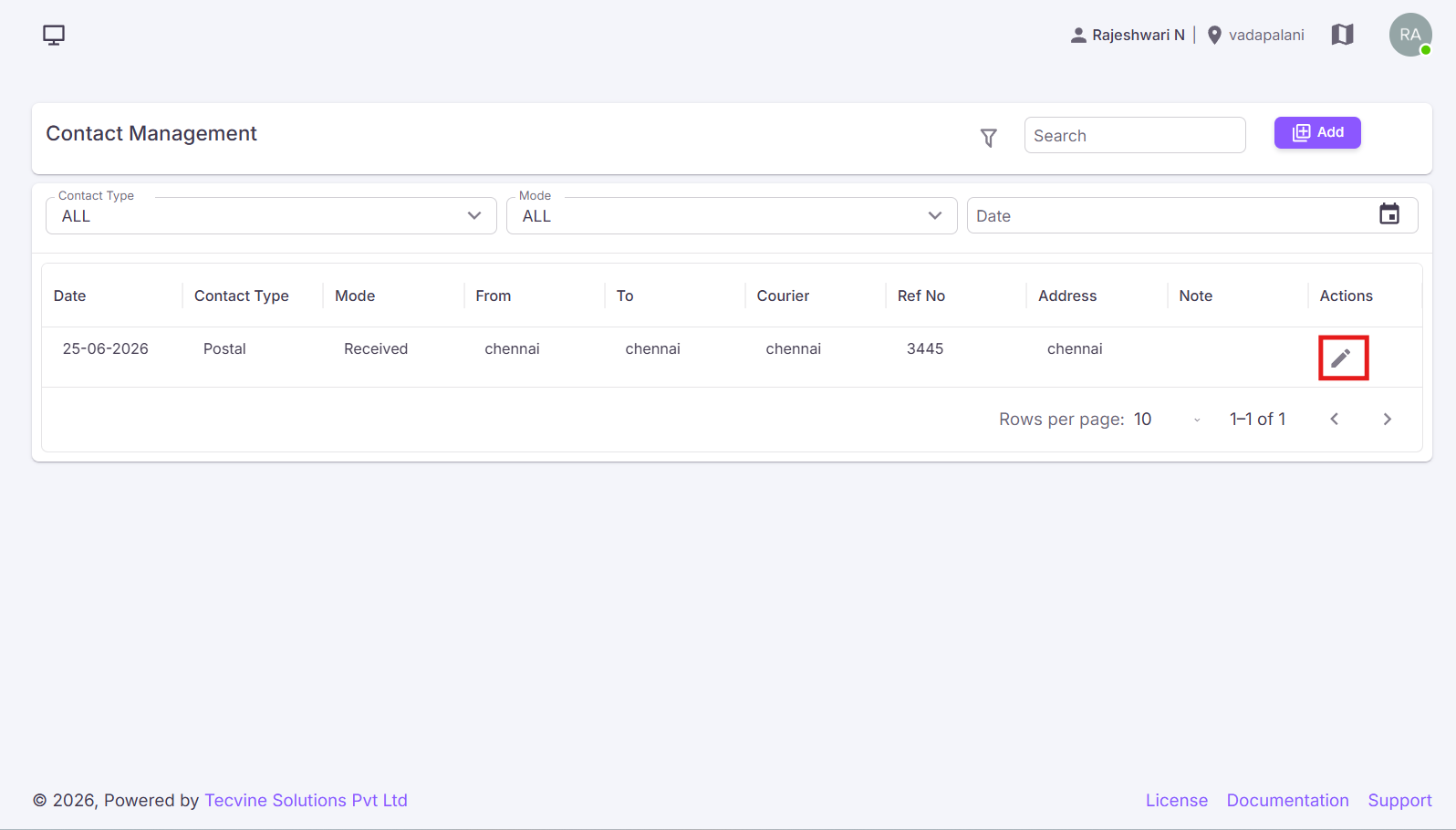
Click the Edit icon in the Actions column.
Continue to Step 2: Update Details →
¶ Update the Required Details
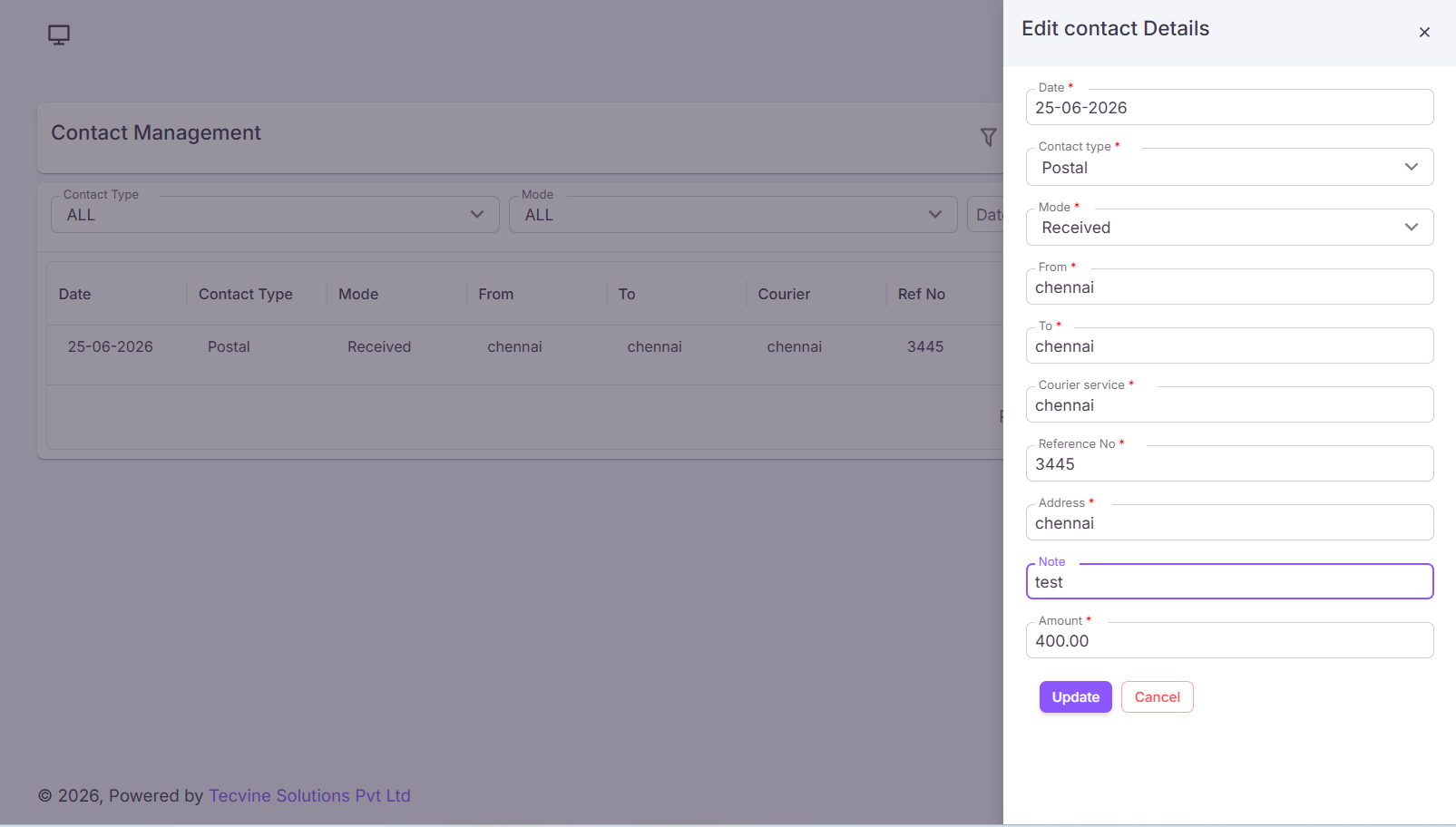
The Edit call log Details screen will be displayed with the previously entered information. Make the required changes and click the Update button to save the changes. If you do not want to update the details, click the Cancel button.
¶ ✓ Call Log Updated
After clicking Update, the changes will be saved and reflected in the Call Log.
¶ Video Tutorial
Watch this step-by-step video guide to learn how to create a visit in the system.
¶ Filters
Use the following filters to search and view call log records.
¶ Available Filters:
- All — Displays all call log records.
- Follow Up — Shows only records marked for follow-up (Yes, No).
- Search — Used to search call logs.
- Purpose — Filter records based on call purpose (Job Vacancy, Others).
- Date — View contact records for a specific date.