¶ Employee Attendance
¶ Overview
The Attendance Management module is used to record, update, and manage employee attendance. Users can mark attendance, update login and logout timings, upload attendance in bulk, and monitor attendance status for employees.
¶ Attendance Modules
¶ 1. Mark Attendance
Update attendance for current or past dates
¶ 2. Upload Attendance
Bulk upload attendance via Excel template
¶ 3. Month Wise Attendance
View and edit a full month's records
¶ 4. Regularization
Correct incorrect login/logout timings
¶ 5. Regularization Approval
View, approve, or reject regularization requests
¶ Mark Attendance
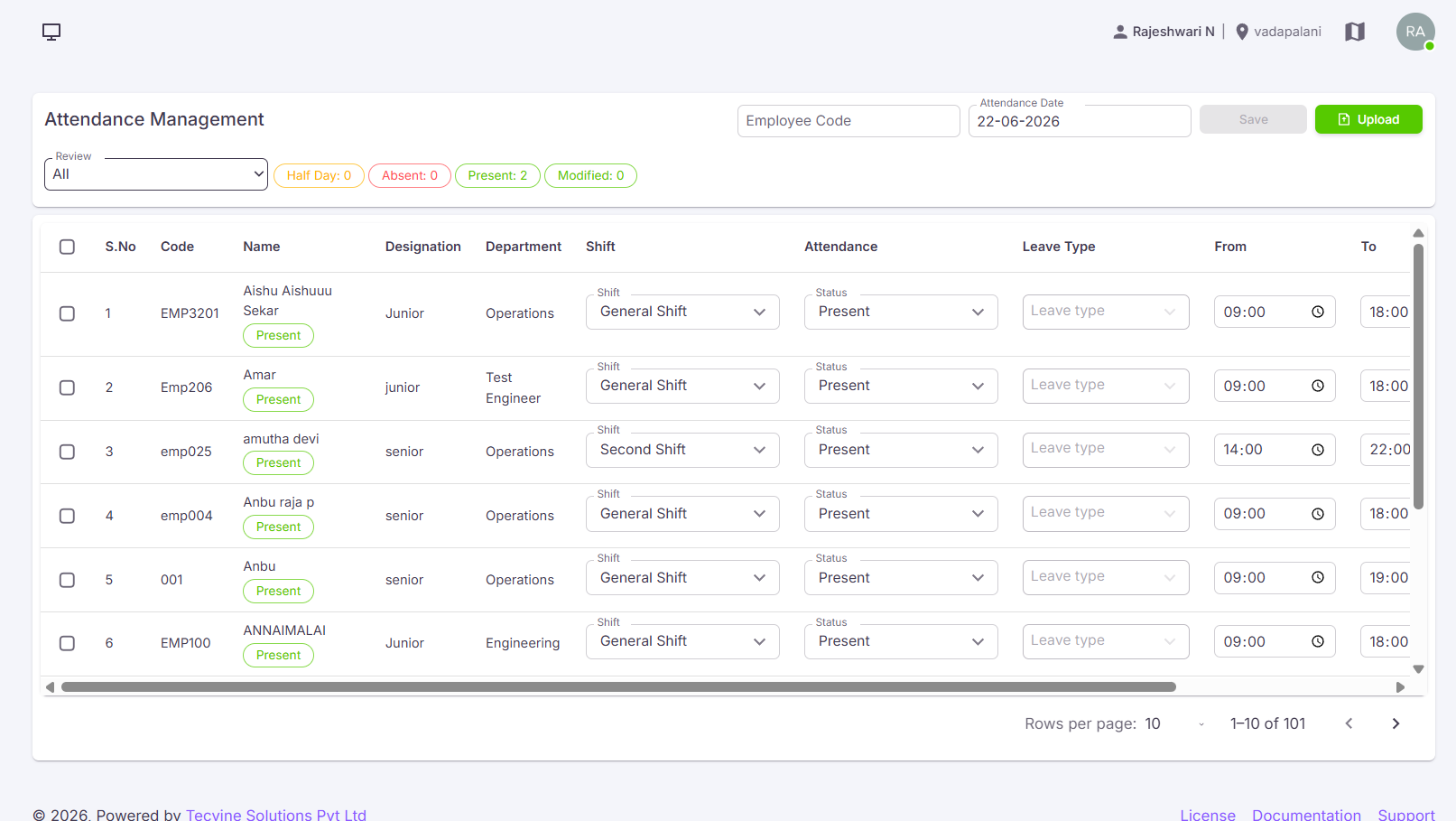
The Attendance Management screen is used to update employee attendance for the current or past dates.
¶ How to Navigate to Attendance Management
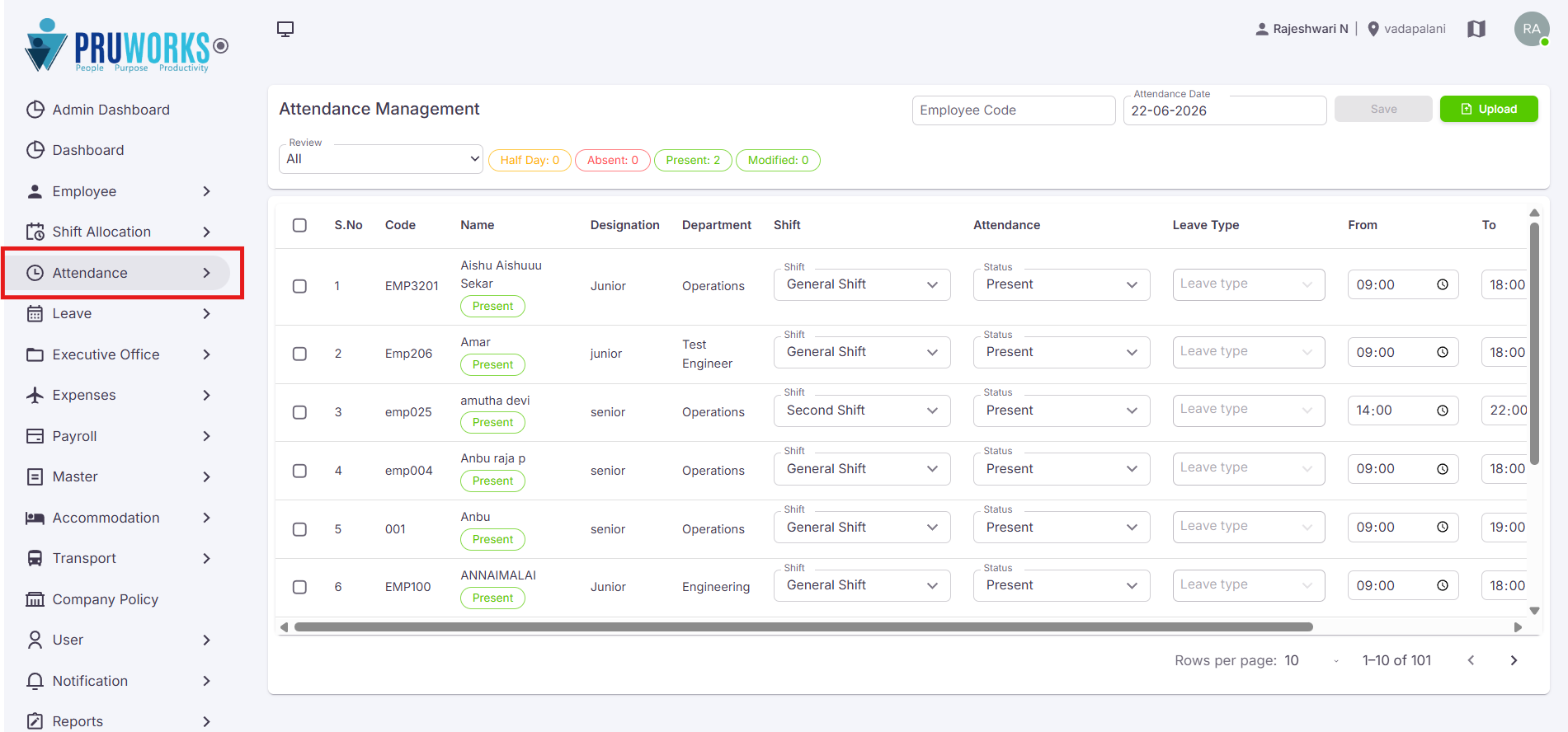
Click Attendance in the left menu.
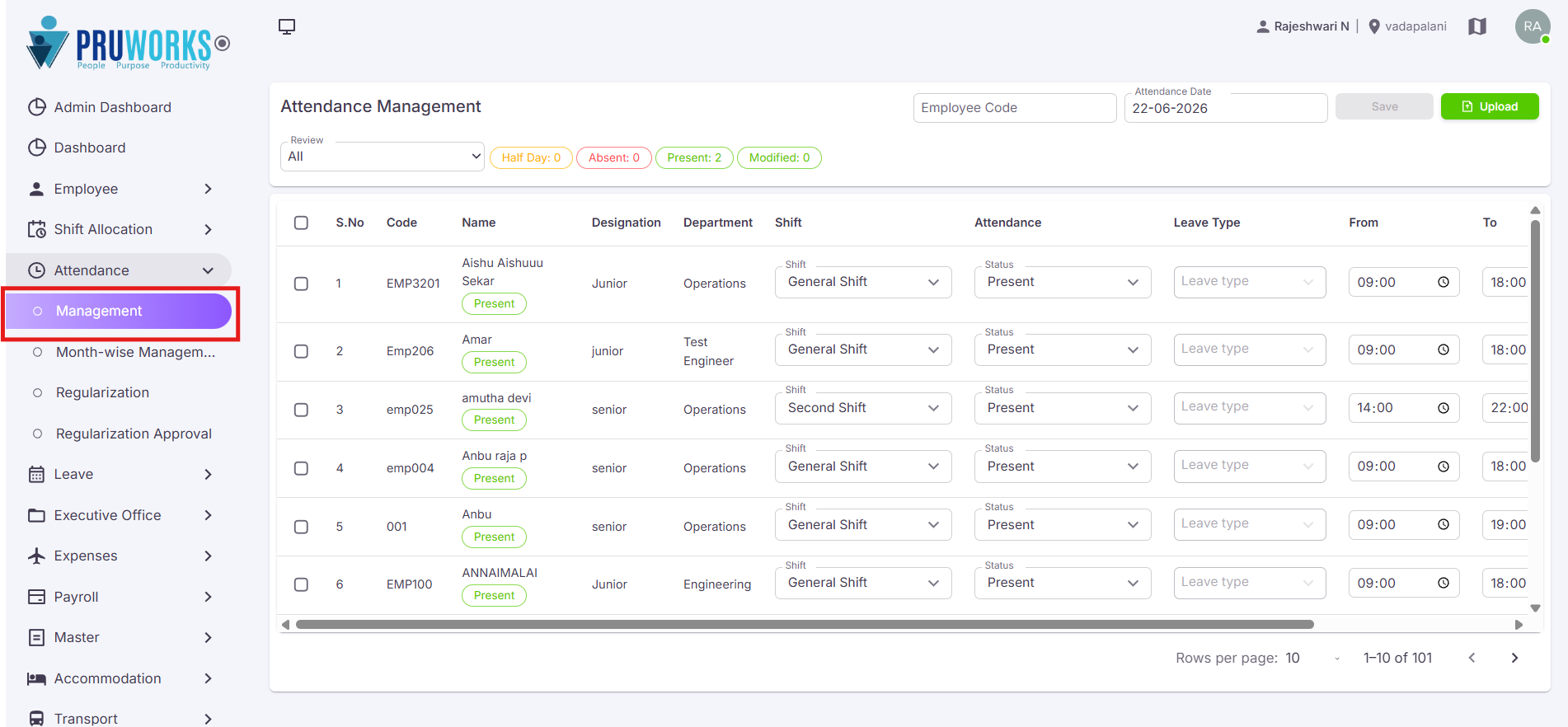
click the Management sub menu.
The Attendance Management screen will be displayed.
¶ Select Employee
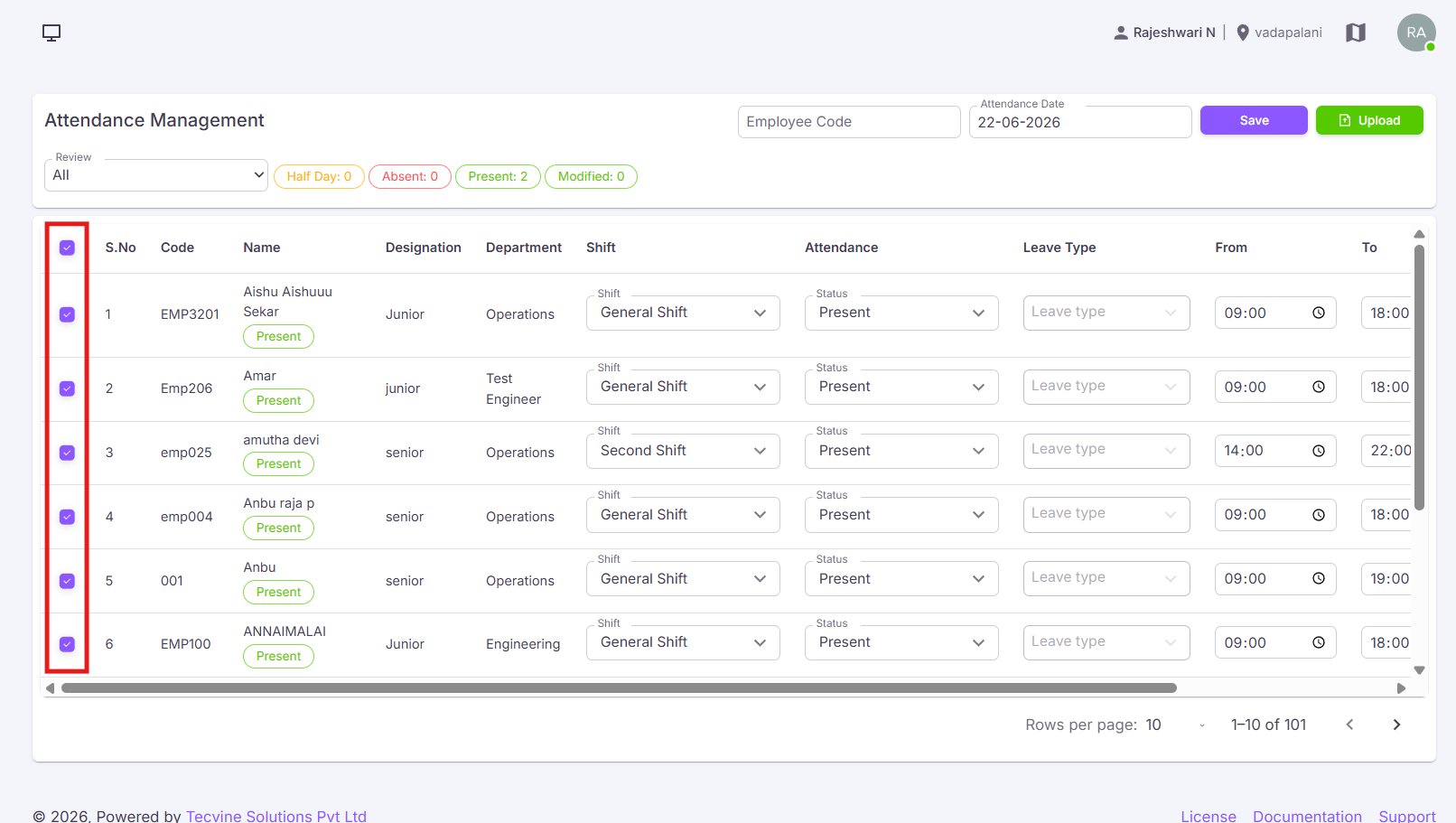
Locate the employee from the employee list and select the checkbox available before the employee code.
Proceed to enter attendance details →
¶ Enter Attendance Details
Enter the following information for the selected employee.
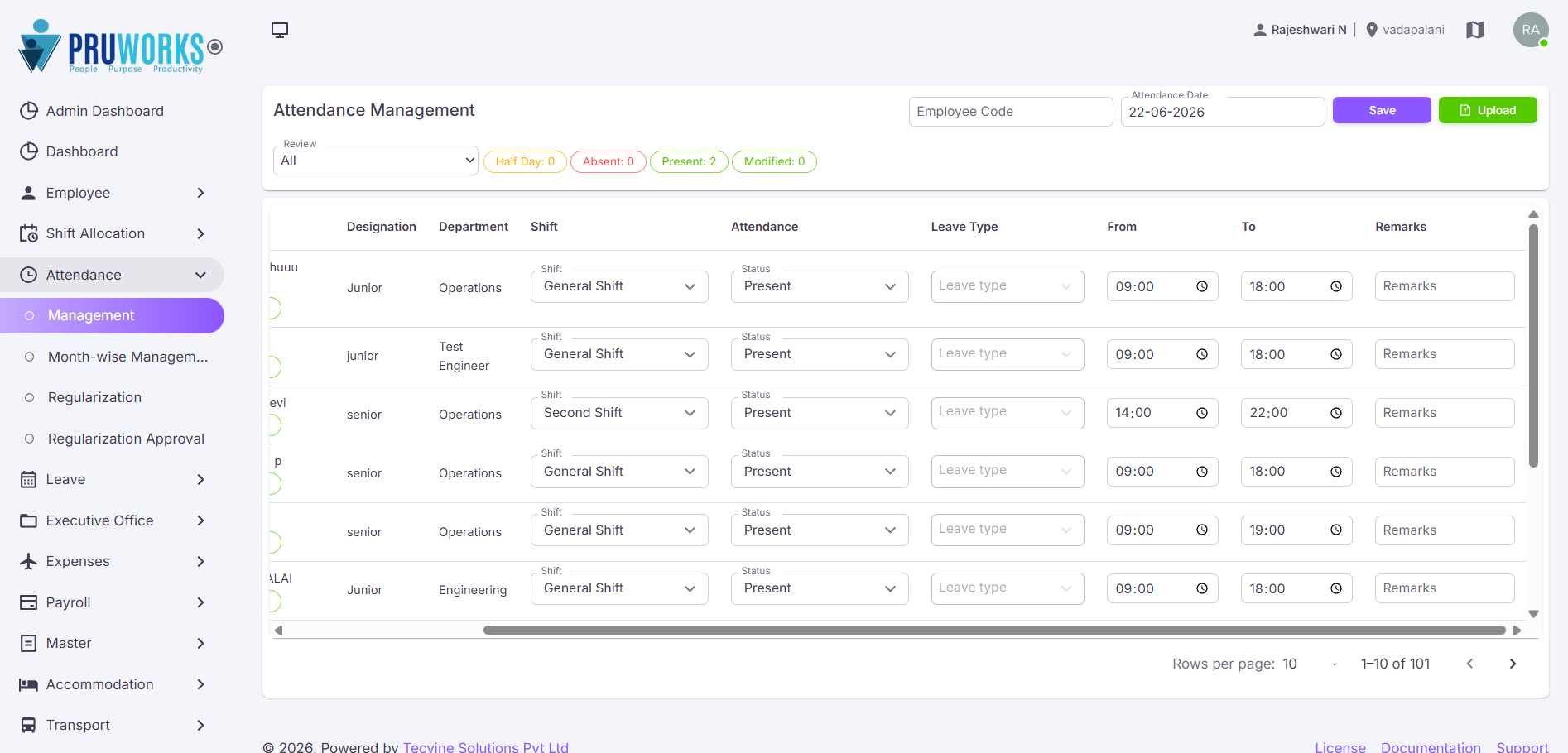
| Field Name | Description |
|---|---|
| Shift* |
Select the employee's assigned shift:First Shift / General Shift / Second Shift / Night Shift
|
| Attendance* |
Select the attendance status:Present / Absent / Half Day / OD / Sick Leave
|
| Leave Type |
Select the leave type if the employee is on leave:Casual Leave / Privilege Leave / Restricted Leave / Sick Leave
|
| From* | Specify the employee's login time (check-in time). |
| To* | Specify the employee's logout time (check-out time). |
| Remarks | Enter any additional comments or notes related to the attendance record. |
Note: Fields marked with * are mandatory and must be filled before saving.
¶ Save Attendance
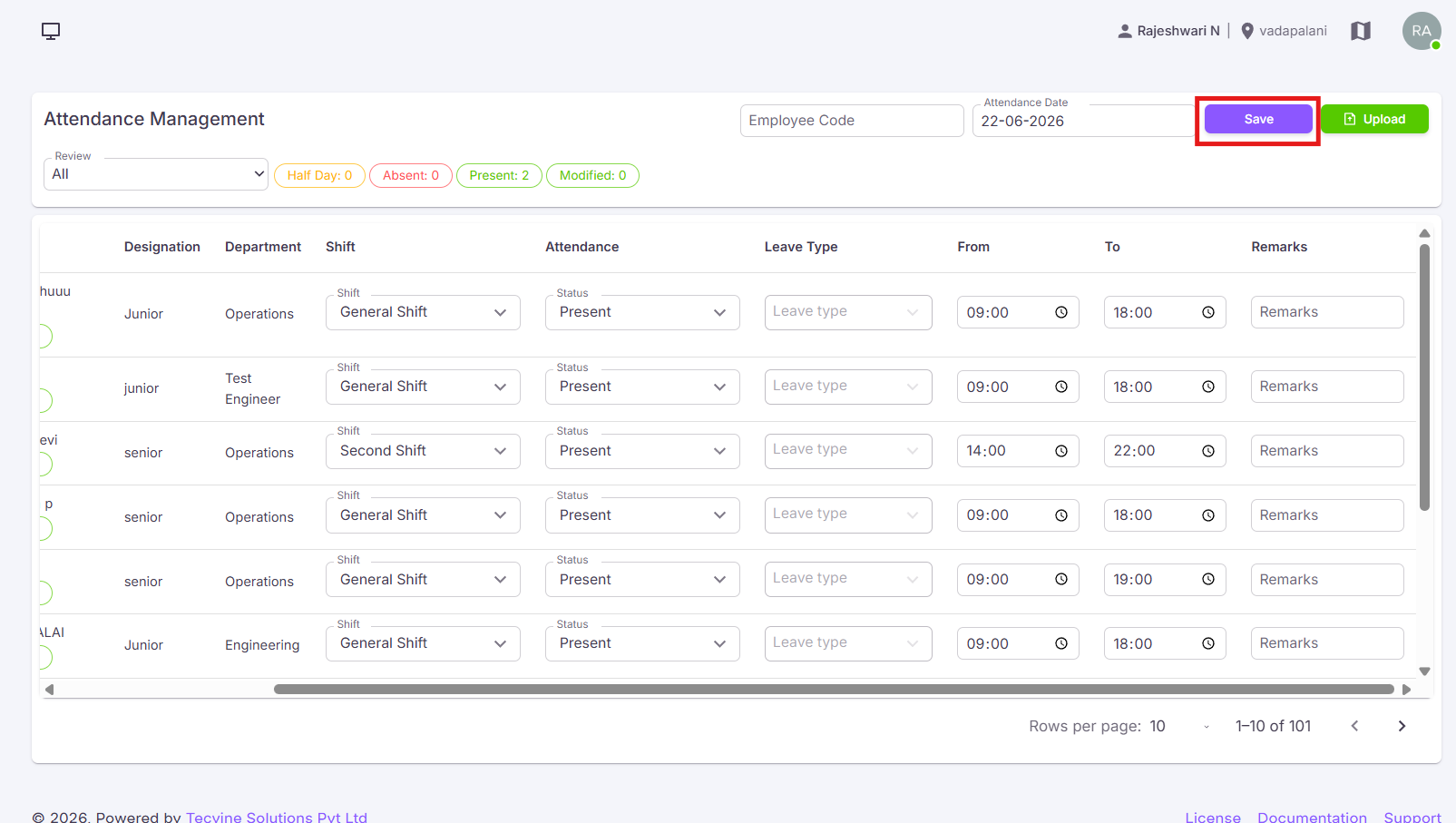
- Verify all entered details.
- Click the Save button to update the employee's attendance record.
¶ Upload Attendance
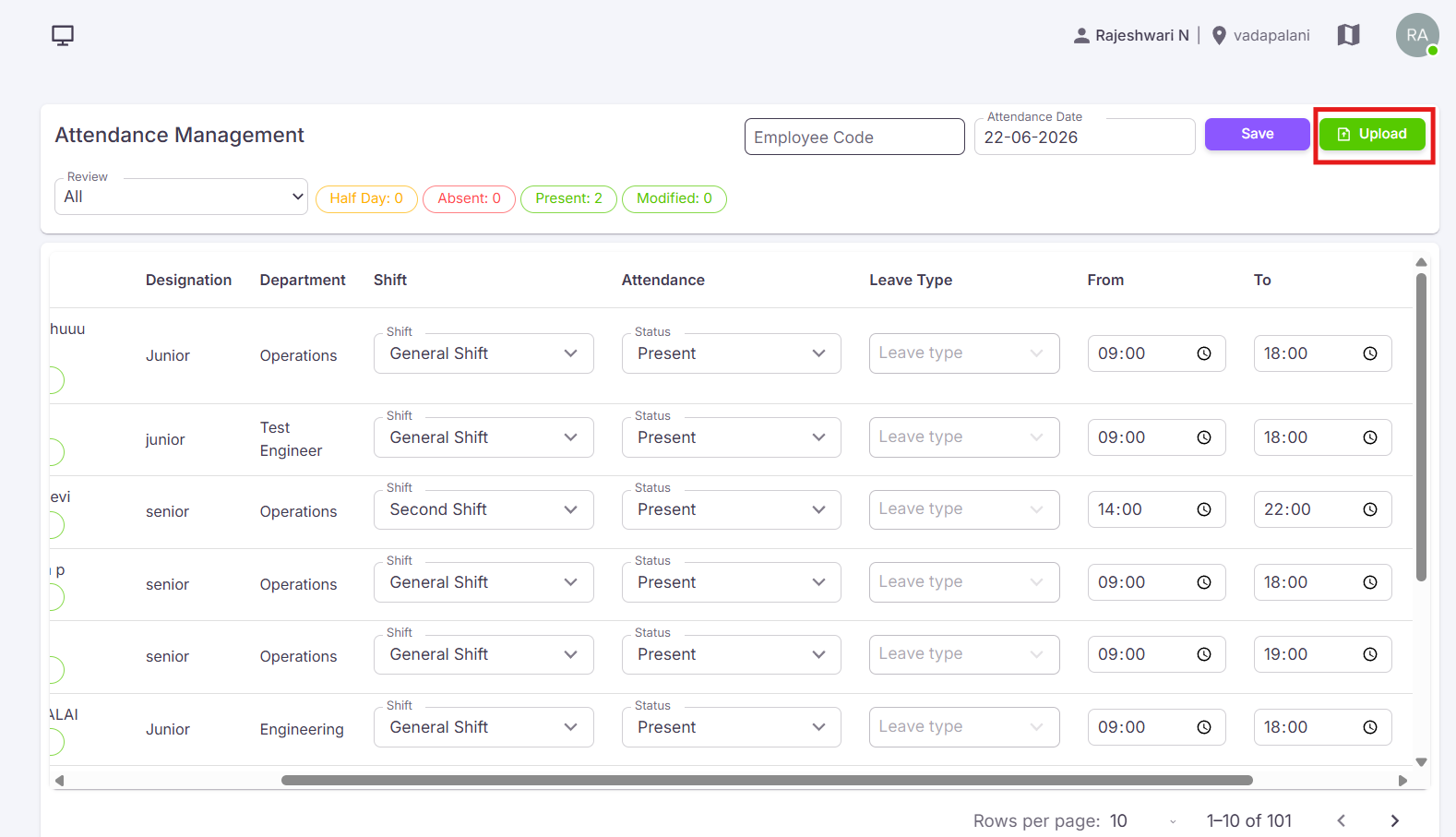
The Upload Attendance option is used to upload employee attendance records in bulk.
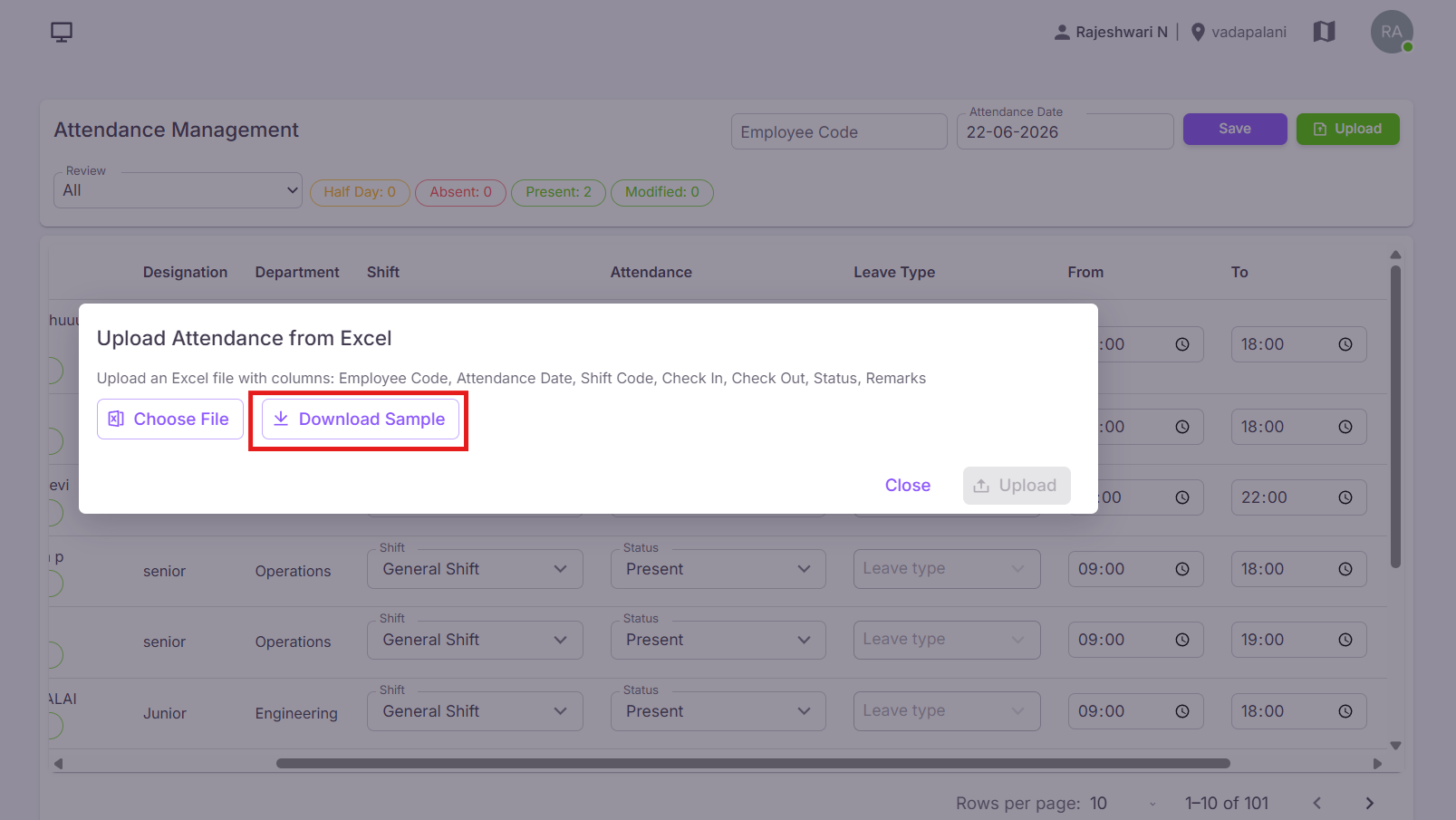
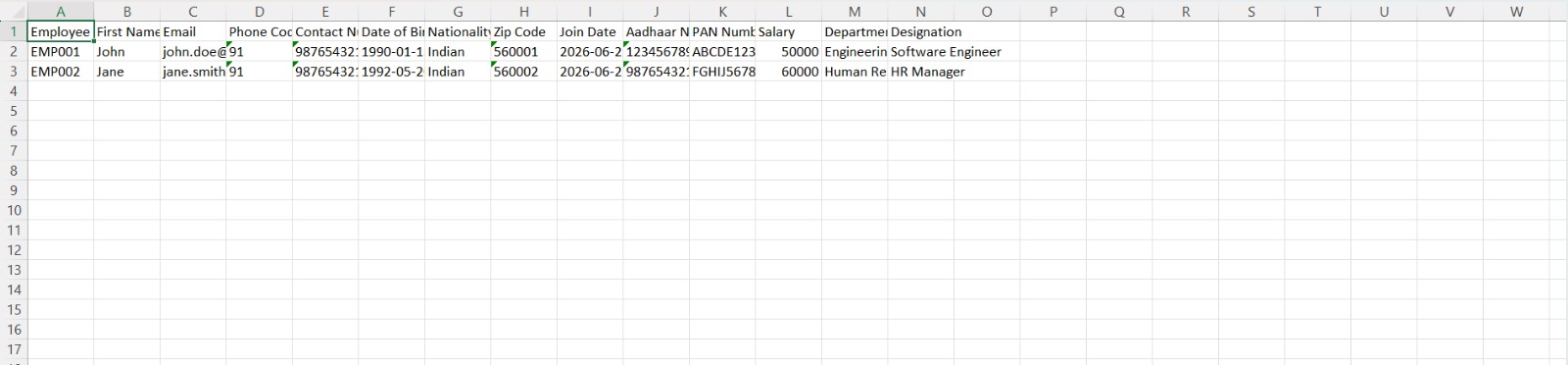
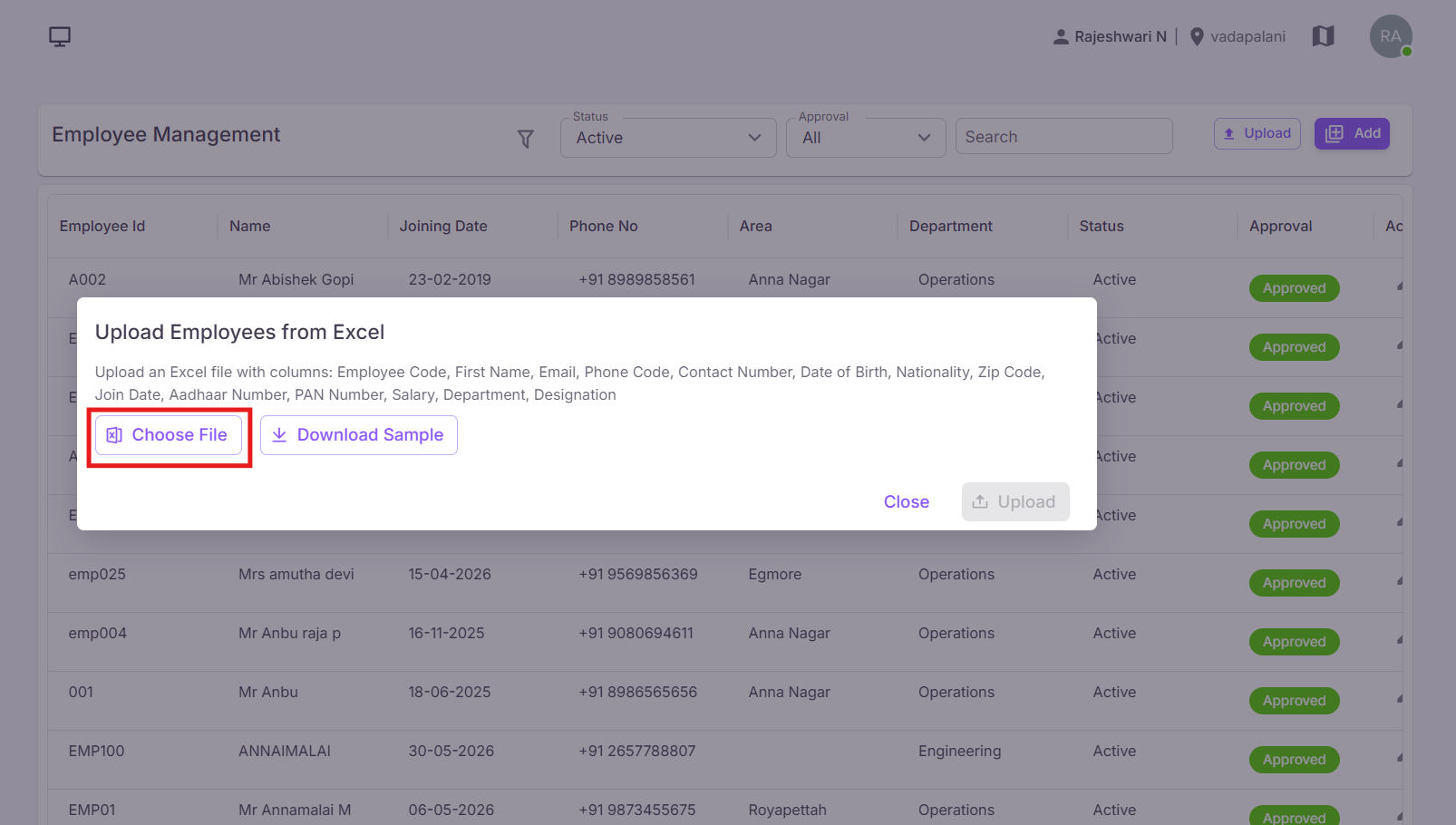
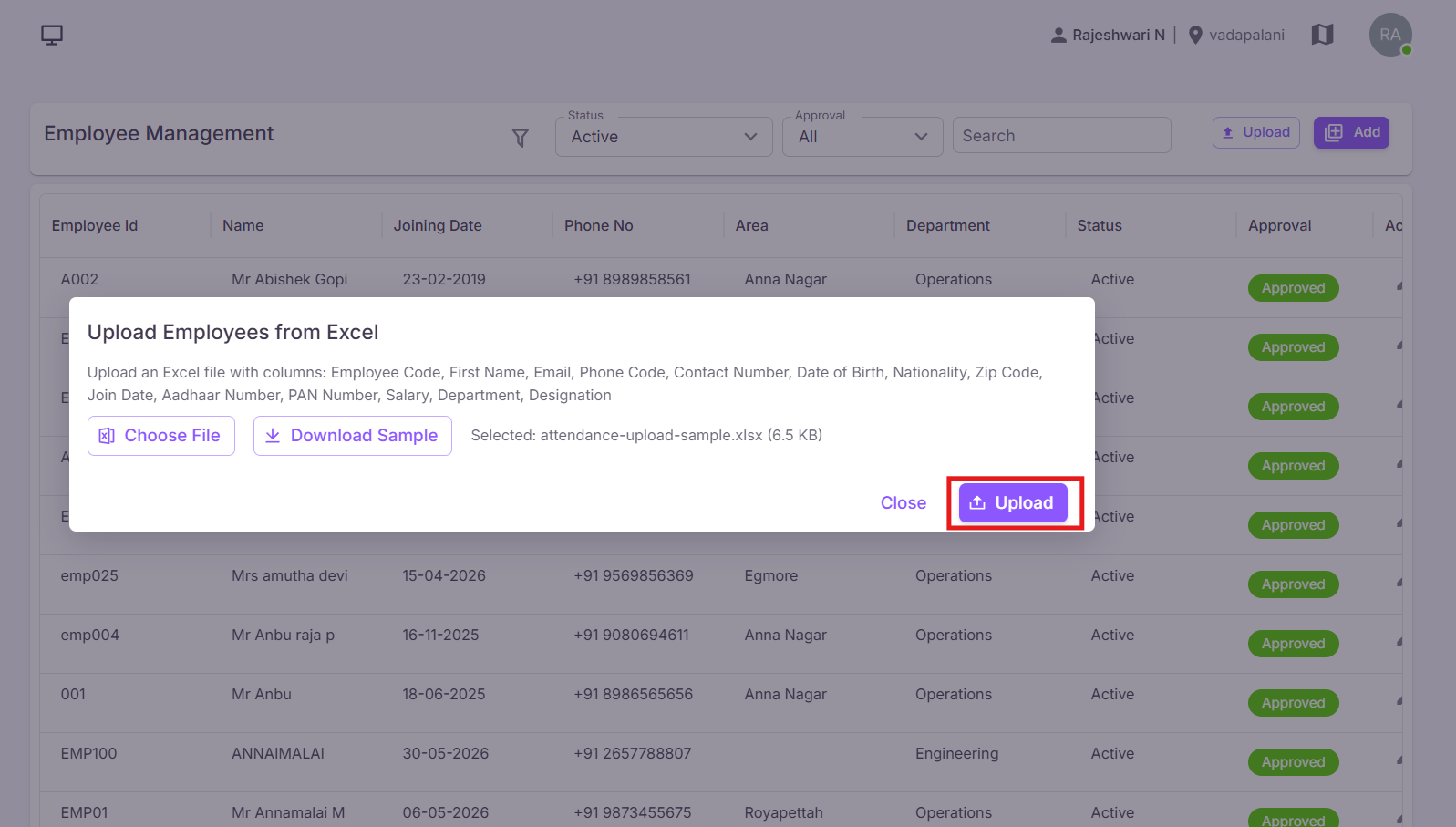
✓ The attendance records will be uploaded successfully. If you do not want to continue, click the Close button.
¶ Filter Options
The Filter options are used to quickly search and view attendance records.
- Review — Filter attendance records based on review status.
- Employee Code — Search attendance records using employee code.
¶ Attendance Status Indicators
Attendance indicators help users quickly identify employee attendance status. The attendance count for each status is displayed on the screen.
Note: Attendance cannot be marked or updated for future dates. Only the current date or past dates can be selected for attendance entry.
¶ Video Tutorial
Watch this step-by-step video guide to learn how to create a visit in the system.
¶ Regularization
Employees can raise a request to correct incorrect login/logout timings, and reviewers can approve or reject those requests. These are covered as dedicated pages:
- Regularization — Navigate to Attendance → Regularization Request to raise a correction request.
- Regularization Management — Navigate to Attendance → Regularization Management to view, approve, or reject requests.
¶ Important Notes
- Attendance cannot be marked or updated for future dates.
- Attendance can only be entered for the current date or past dates.
- Attendance records marked as Present or Half Day will automatically appear in the Regularization module.
- Approved regularization requests automatically update attendance records.
- Future date attendance records cannot be modified in Month Wise Attendance.